PeopleSoft Related Content Framework Flexibility
The PeopleSoft Related Content Framework provides flexibility in how related content is defined, assigned, and accessed. You can assign, configure, and maintain certain types of related content services without access to developer tools such as Application Designer. The related content service pages provide a variety of configuration options, which enable you to define related content services, associate them with pages or pivot grids and grant access to these services based on your business rules. This flexible framework allows you to:
-
Determine whether information is displayed as related content or related actions.
-
Specify the placement of the Related Content frame at the bottom or on the right of a classic page.
Note:
On fluid pages, the Related Information panel displays on the right only.
-
Configure the layout of related content and actions menus.
-
Assign explicitly defined services or anonymous (non-explicit) services.
-
Define local or remote resources as related content services.
Related Content Versus Related Actions
The PeopleSoft Related Content Framework allows related content services to be deployed in two ways—as related content and as related actions—based on where the content appears when the user accesses the service.
-
Related content appears in the Related Content frame only, which can be selected to be displayed at the bottom or to the right of the transaction content.
-
Related actions appear outside of the Related Content frame in a modal window, in a new browser window, in the existing browser window replacing the current transaction content, or in the existing browser window replacing the entire page.
Configure the related content service as related content by selecting the Configure Related Content page:
-
If you want the related content to appear in a separate frame beside or below the transaction content.
-
If you want the related content to be dynamically updated when the user moves to a different transaction instance, or changes a field value, and so on.
Configure the related content service as a related action by selecting the Configure Related Actions page:
-
If you want the related content to appear in a modal window, in a new browser window, or to replace the current page.
-
When you are configuring related content for pivot grids or keyword search results.
The Classic Related Content Frame
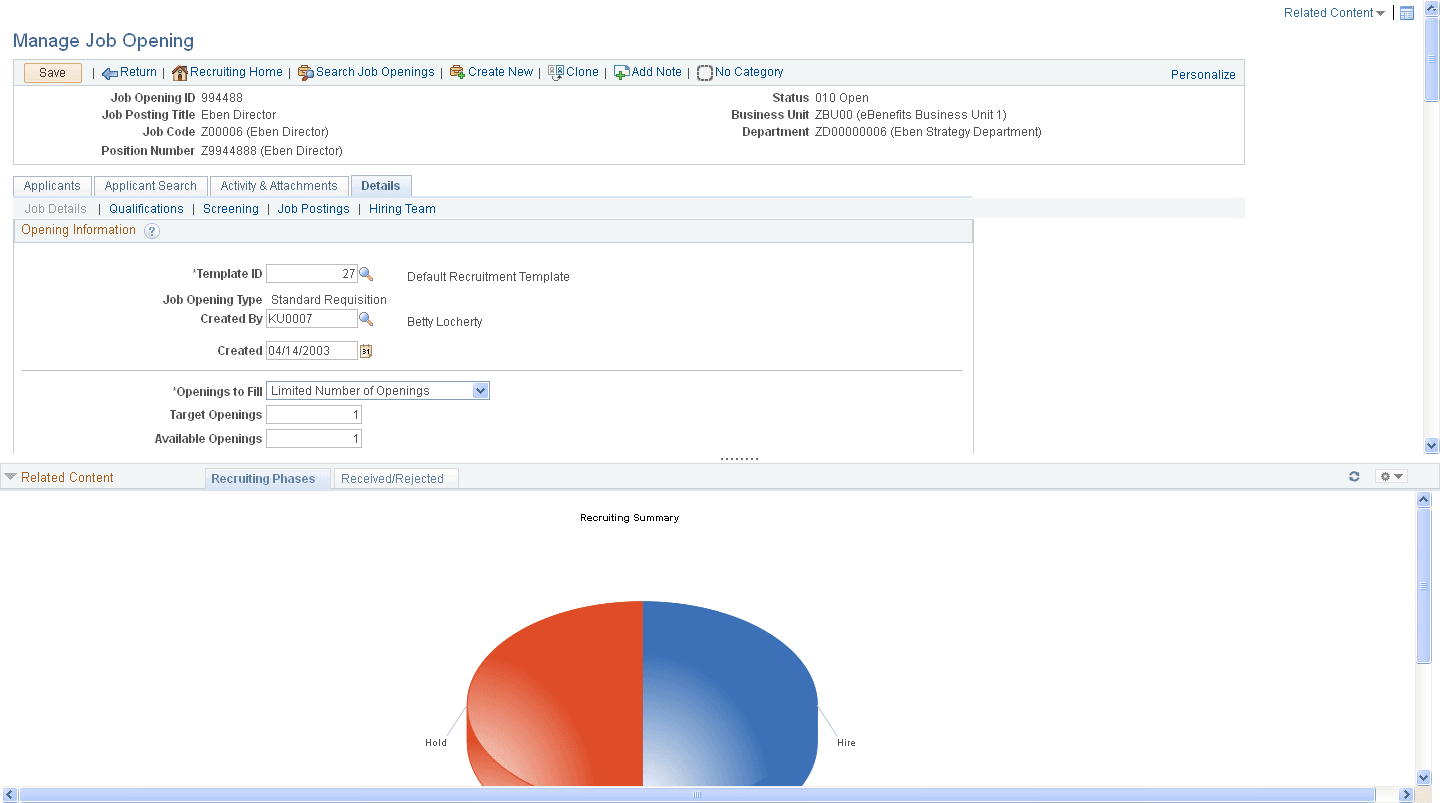
The Related Content frame can be configured to display at the bottom or to the right of the classic transaction content.
Note these points about the Related Content frame when it appears at the bottom of a classic page:
-
The frame extends across the width of the transaction page.
-
The visible area increases and decreases when you drag the handle on the upper edge of the frame in a vertical direction.
-
The frame appears and disappears when you click the Expand/Collapse button on the left side of the frame header.
-
The frame reloads when you click the Refresh button in the frame header .
-
The frame loads the current active service in a new window when you click the Zoom icon.
-
The frame closes when you click the Close button.
Note these points about the services that appear in the bottom frame:
-
Only one service can be active and have focus at a time.
-
Multiple services appear as tabs across the top of the frame.
-
Users click the tab to bring the service into focus.
The following example shows a classic page with related content in the Related Content frame at the bottom of the page:
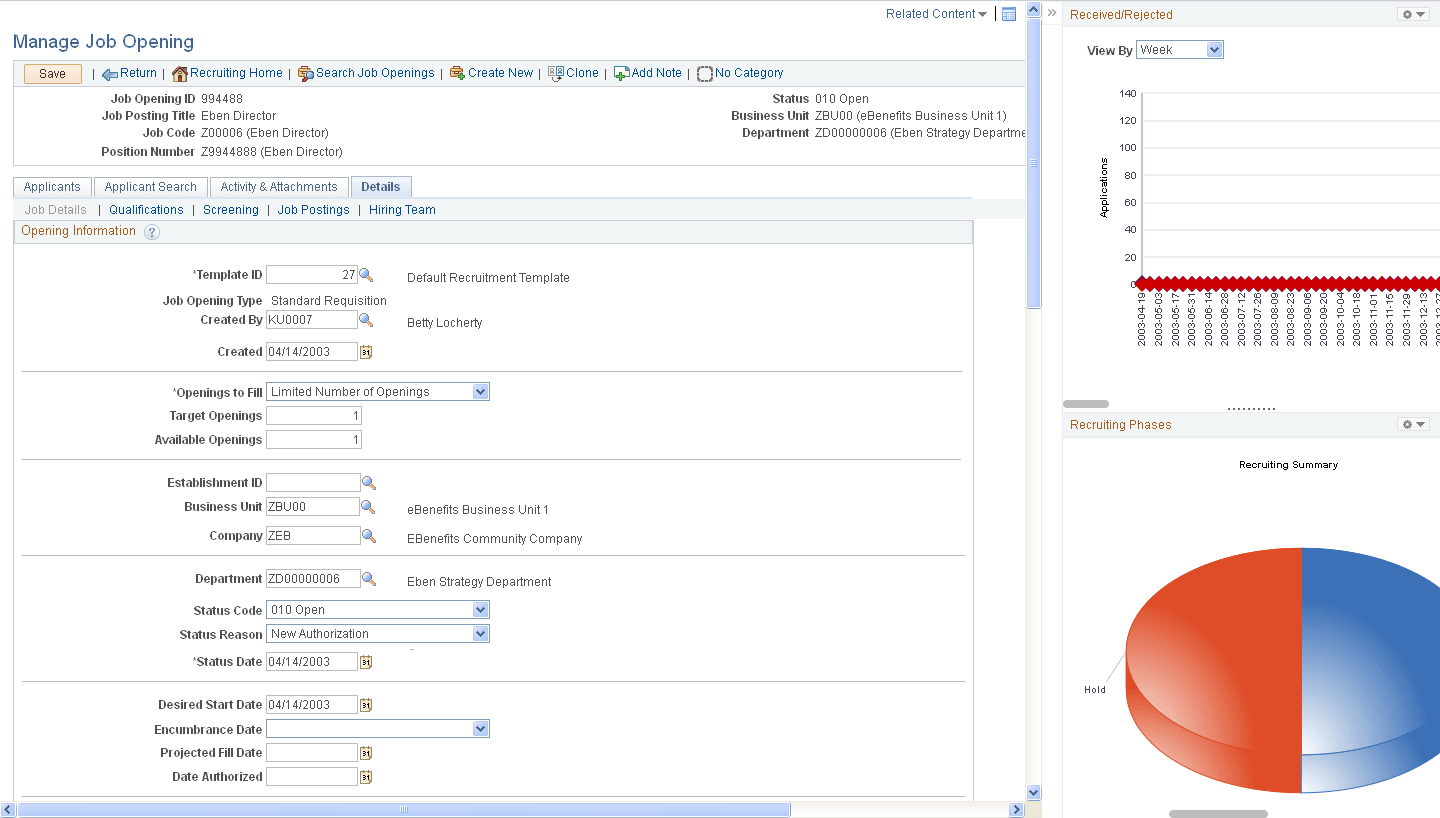
Note these points about the Related Content frame when it appears at the right of a classic page:
-
The frame extends down the length of the transaction page.
-
The visible area increases and decreases when you drag the left edge of the frame in a horizontal direction.
-
The frame appears and disappears when you click the Maximize and Minimize buttons on the left border of the frame.
-
The frame divides the visible area equally among all open pagelets.
-
The bottom of the frame displays a More menu, which you use to access minimized pagelets.
Note these points about the services that appear in the right frame:
-
Each service exists as a self-contained pagelet inside the Related Content frame.
-
Any number of services can open be active and in the expanded state simultaneously.
-
All maximized service pagelets divide the available space equally and always share the same vertical and horizontal dimensions. As users maximize and minimize other service pagelets in the frame, any service pagelets that remain open resize automatically so that the space appears equally divided.
Note:
Users cannot resize individual service pagelets.
-
Each pagelet header can contain:
-
A Zoom button that users click to display the service in a new window.
-
A Refresh button that users click to reload the service.
-
A Maximize/Minimize button that users click to toggle the service between the expanded and collapsed states.
Note:
The expanded or collapsed state of each pagelet persists between sessions.
-
-
Scroll bars appear on the right and bottom of a service pagelet if it is too small to fully display the content.
The following example shows a classic page with related content in the Related Content frame at the right of the page:
The Fluid Related Information Panel
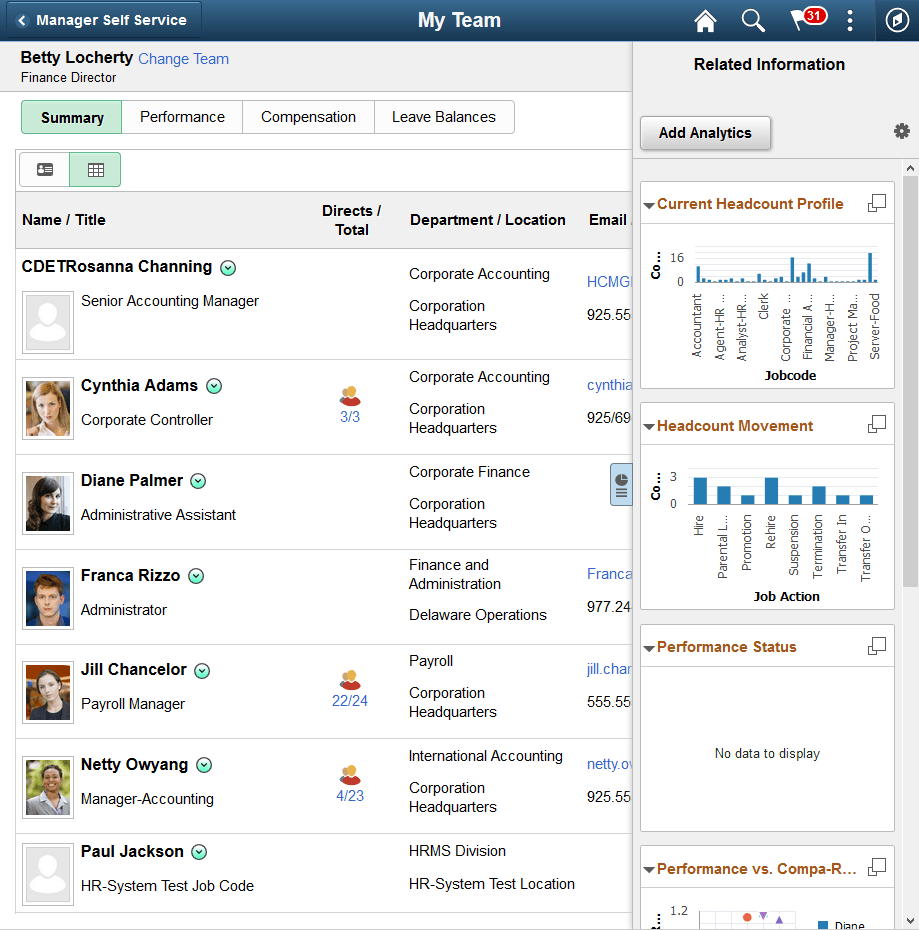
Note these points about the Related Information panel on a fluid page:
-
The frame, labeled Related Information, always displays on right.
-
Each service exists as a self-contained grouplet inside the Related Information panel.
-
Grouplets are always initially expanded. However, users can collapse or expand grouplets.
-
Each grouplet header includes a zoom button to display the content in a modal window
-
The frame can also include simplified analytics.
The following example shows a fluid page with related content in the Related Information panel at the right of the page:
Related Content Menus
Three types of menus provide access to related content services:
-
The Related Content menu, which appears in the page bar at the top of a classic page. The Related Content menu displays services configured as related content only.
-
The related actions menus, which can appear on any page that includes the action widget, on pivot grids, in keyword search results, in SmartNavigation folders, and on chart nodes in a SmartNavigation chart. The related actions menus displays services configured as related actions only.
-
Page field contextual menus on classic pages or fluid pages, and which appear when you click the page-field glyph. On a classic page, a page field contextual menu can combine both related content and related actions.
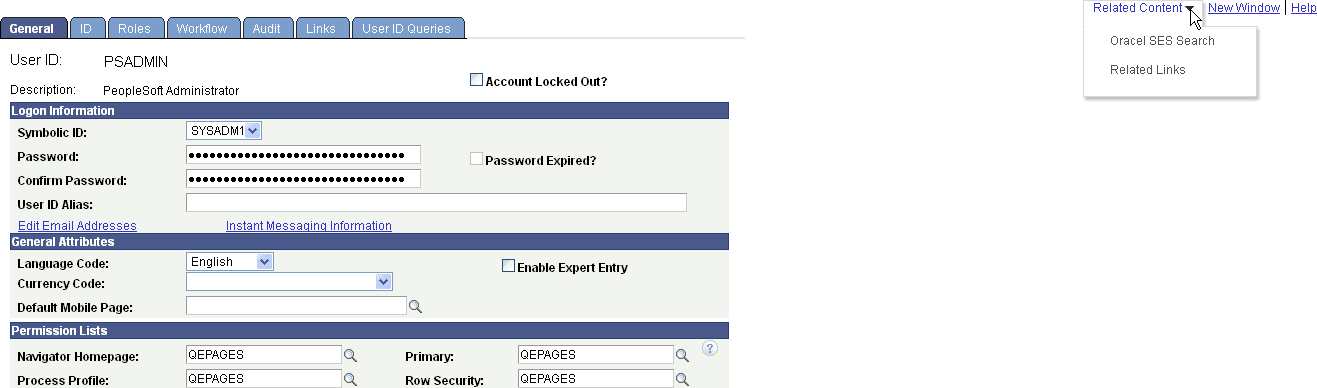
The Related Content menu, which appears in the page bar at the top of a classic page, displays services configured as related content only.
The following example shows two services in the Related Content menu:
The related actions menus, which can appear on any page that includes the action widget, on pivot grids, in keyword search results, in SmartNavigation folders, and on chart nodes in a SmartNavigation chart. The related actions menus displays services configured as related actions only. A related action menu can appear as:
-
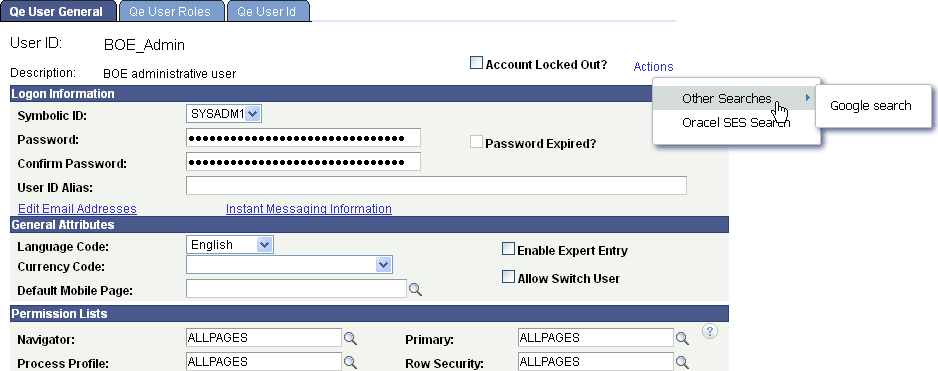
The action widget on any page.
Note:
The label on the action widget (Actions) is configurable within Application Designer.
This example shows the action widget (the Actions link) that has been added to the page to display a list of related actions:
-
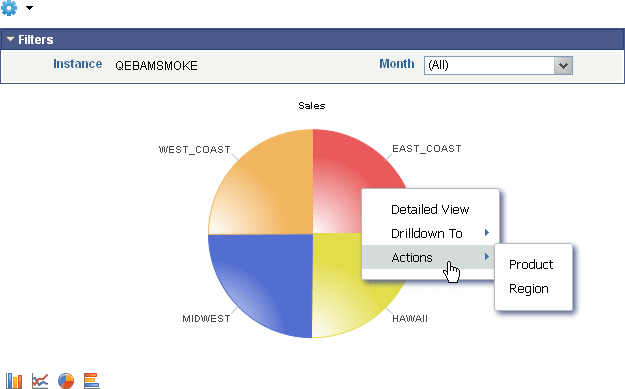
An Actions menu on a pivot grid chart.
This example shows an Actions menu on a pivot grid chart:
-
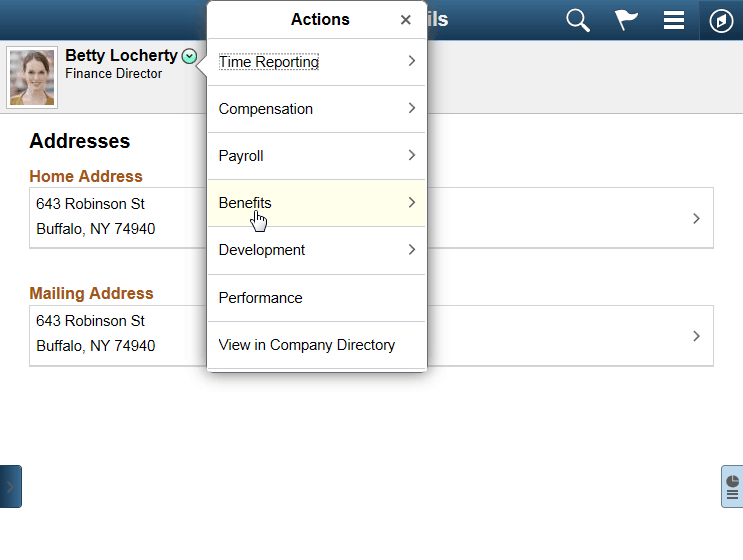
A page field contextual menu that appears when you click the page field glyph. Page field contextual menus can appear on classic pages or fluid pages.
The following example shows a page field contextual menu on a fluid page:
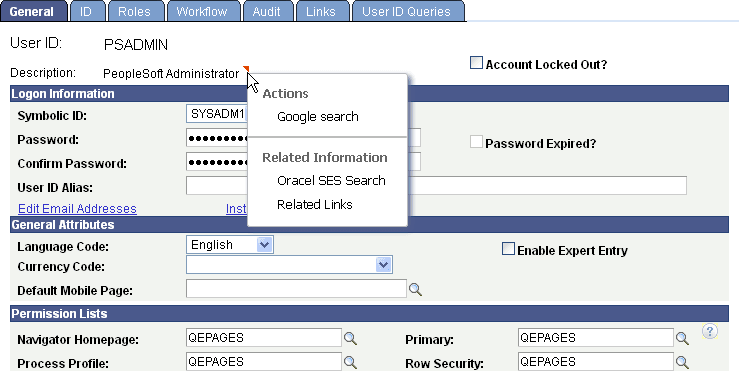
On classic pages, page field contextual menus appear when you click the red page-field glyph. On classic pages only, a page field contextual menu can combine both related content and related actions.
The following example shows a page field contextual menu with a related action (under the Actions folder) plus related content (under the Related Information folder):
-
As pop-up related actions in the search results of a keyword search.
The following example shows pop-up related actions links in the search results of a keyword search:

-
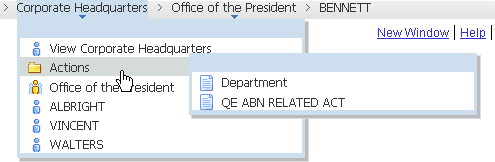
An Actions folder in drop-down SmartNavigation menus.
Note:
While existing SmartNavigation configurations may be available in your PeopleSoft system, the SmartNavigation feature has been desupported.
This example shows the Actions folder in a drop-down SmartNavigation menu:
-
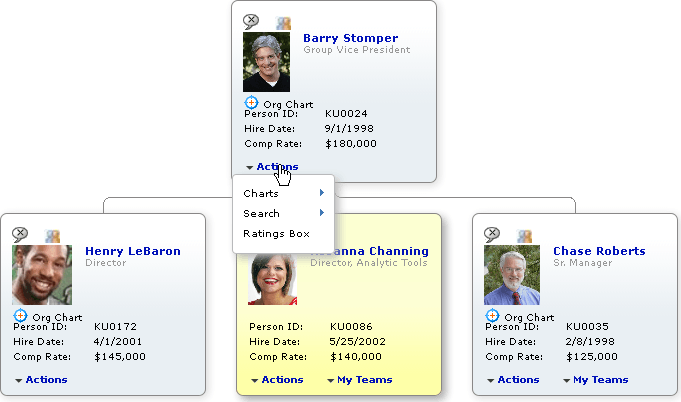
A drop-down Actions menu on chart nodes of SmartNavigation charts.
Note:
While existing SmartNavigation configurations may be available in your PeopleSoft system, the SmartNavigation feature has been desupported.
This example shows a drop-down Actions menu on a chart node of a SmartNavigation chart:
Related Content from Remote Systems
When you configure single signon between PeopleSoft systems, you can use these remote resources as related content services:
-
Embeddable pagelets
-
OBIEE pagelets
-
PeopleSoft components
-
PeopleSoft iScripts
-
PeopleSoft queries
-
PeopleSoft tiles