Publishing a Navigation Collection
Access the Publish Collection page. (Select .)
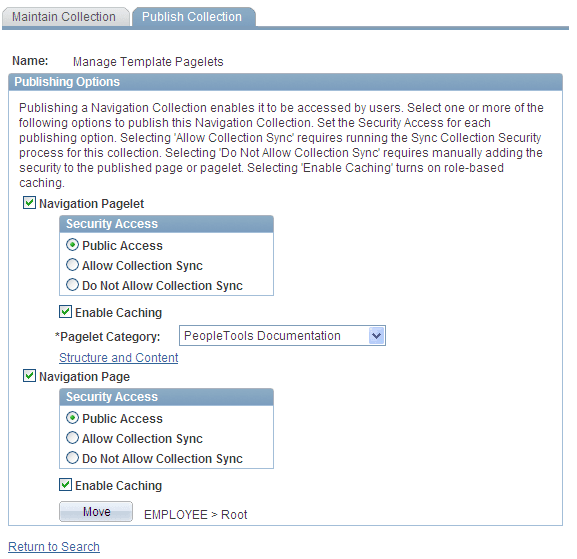
This example illustrates the fields and controls on the Publish Collection page. You can find definitions for the fields and controls later on this page.
| Field or Control | Description |
|---|---|
|
Name |
Displays the name of the navigation collection defined on the navigation collection page. |
Publishing Options
| Field or Control | Description |
|---|---|
|
Navigation Pagelet |
Select to publish the navigation collection as a navigation pagelet, which can be added to a user's homepage tab. |
|
Security Access |
Select one of these values: Public Access: Select to give all users access to the pagelet. This option is selected by default. Allow Collection Sync (allow collection synchronization): Select to make the pagelet eligible for processing by the Sync Collection Security process. Do Not Allow Collection Sync (do not allow collection synchronization): Select if you do not want the pagelet security to be updated by the Sync Collection Security process. Select this option to ensure that security that you manually define for the pagelet cannot be overridden by the process. |
|
Enable Caching |
Select to have role-based caching enabled for this published pagelet. Selecting this option adds portal caching attributes to the published navigation pagelet. |
|
Pagelet Category |
Select the category in which you want the navigation pagelet to appear for selection on the Personalize Content page. Available pagelet categories are defined in the Structure and Content component. Select the Portal Objects folder link, then select the Pagelets folder link. Select the Add Folder link to add a pagelet category folder. |
|
Structure and Content |
Select to access the Content Ref Administration page, where you can access details about the content reference created for the navigation pagelet publication. For example, you can check the results of the Sync Collection Security (synchronize collection security) Application Engine process (PTPP_SCSYNC) and change content reference label text or manually update the security. See Understanding Portal Utility Processes, Administering Content References. |
|
Navigation Page |
Select to publish the navigation collection as a navigation page, which can be accessed from the menu. |
|
Security Access |
Select one of these values: Public Access: Select to give all users access to the page. This option is selected by default. Allow Collection Sync (allow collection synchronization:. Select to make the page eligible for processing by the Sync Collection Security process. Do Not Allow Collection Sync (do not allow collection synchronization): Select if you do not want the page security updated by the Sync Collection Security process. Select this option to ensure that any security that you manually define for the page is not overridden by the process. |
|
Enable Caching |
Select to have role-based caching enabled for this published page. Selecting this option adds portal caching attributes to the published navigation page. |
|
Move |
Click to access the Select Source Folder page, where you can select the parent folder in which you want the navigation page to appear in the left navigation menu. |
|
Structure and Content |
Select to access the Content Ref Administration page, where you can access details about the content reference created for the navigation page publication. For example, you can check the results of the Sync Collection Security process and change navigation page label text. See Understanding Portal Utility Processes, Administering Content References. |