Selecting Navigation Collection Images
Access the Browse Image Catalog page. (Click the Browse Image Catalog button on the Add Folder, Edit Folder, Add Link, or Edit Link pages.)
This example illustrates the fields and controls on the Browse Image Catalog page. You can find definitions for the fields and controls later on this page.
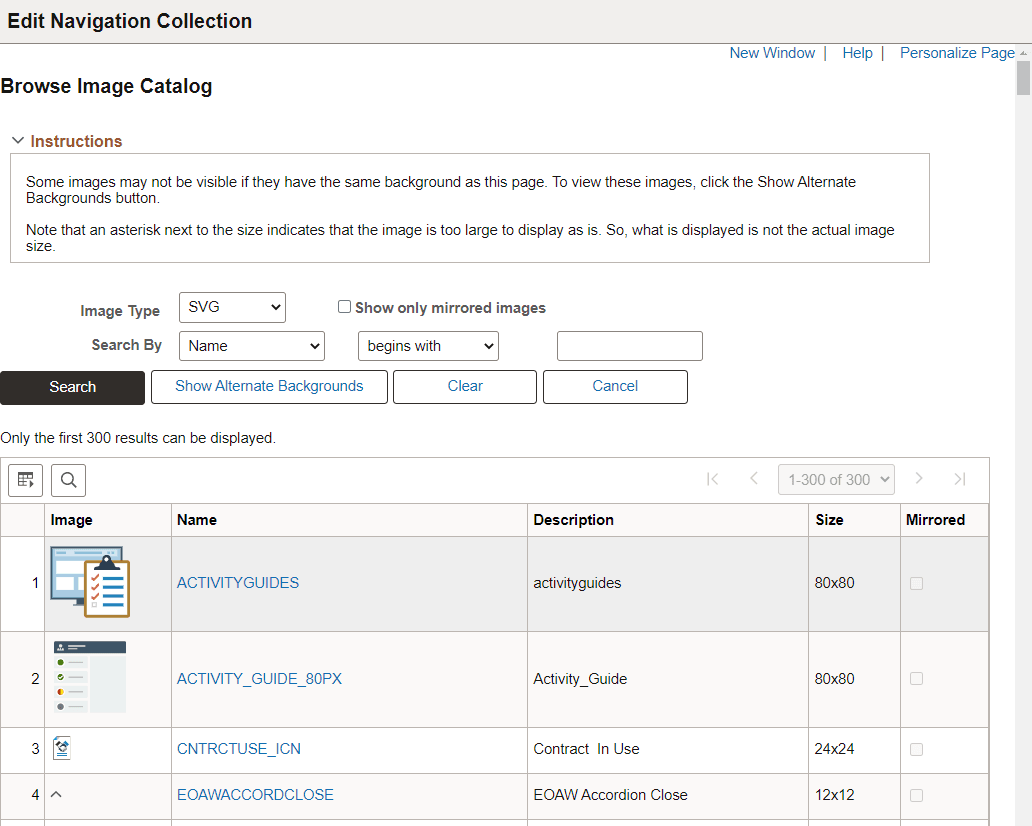
| Field or Control | Description |
|---|---|
|
Image Type |
Select from these image types:
|
|
Show only mirrored images |
Select Yes to only retrieve images that are mirrored. Otherwise, both mirrored and unmirrored images are retrieved. |
|
Search By |
Select Name or Description and additional search criteria to limit the search results. |
|
Search |
Click the Search button to retrieve the images meeting the search criteria from the database. |
|
Show Alternate Backgrounds |
Click the Show Alternate Backgrounds button to redisplay each image in the current grid on three background colors: white, gray, and black. This option allows you to view white images, which are not visible on the default white background. In this example, the white check mark is visible on the gray and black backgrounds:
|
|
Clear |
Click the Clear button to clear both the search criteria and the grid. |
|
Cancel |
Click the Cancel button to close the secondary window. |
|
Name |
Select an image by name to use it as the custom static image. |
