WorkCenter Page Layout Templates
WorkCenter pages use an iframe-based portal template that supports four sections:
-
The portal header and drop-down style menu.
-
The pagelet area.
-
The target content area.
-
The related content frames (optional).
The portal header and drop-down style menu, when enabled, appear at the top of the page above the pagelet and target content areas. The adjustable pagelet and target content areas occupy the middle of the page. The related content frames appear either below or beside the target content area when the current transaction page has related content configured.
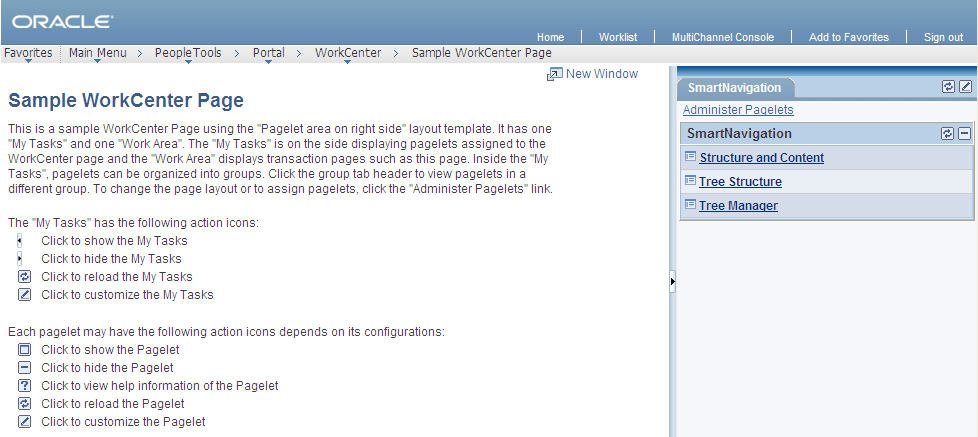
You can change the layout of WorkCenter pages by using page layout templates. Page layout templates use Application class PeopleCode to determine the location of the pagelet area and target content area. WorkCenter pages deliver application class PeopleCode that renders the pagelet area on either the left side or the right side of the page.
WorkCenter Page Layout Template Examples
In this example, which uses the default WorkCenter page layout template, you see the drop-down menu, the pagelet area on the left, and the Related Content frame to the right of the target content area:

In this example, you see the pagelet area on the right side of the WorkCenter page as specified by a custom page layout template: