Creating Scheduled JobSet Definitions
To access the Schedule JobSet Definition page, select
This example illustrates the fields and controls on the Schedule JobSet Definition page. You can find definitions for the fields and controls later on this page.
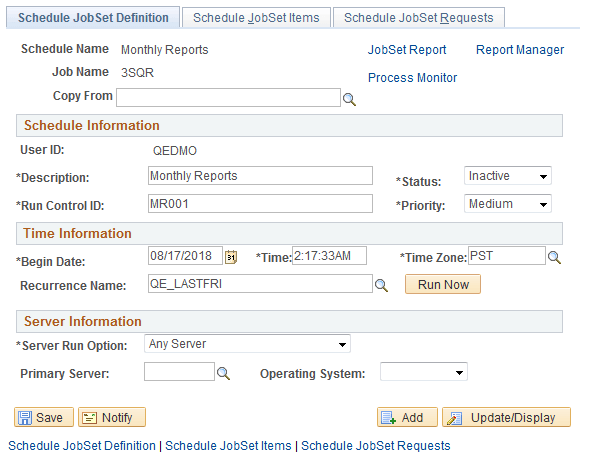
Use the Schedule JobSet Definitions page to set JobSet scheduling options. You should use this page rather than the Process Scheduler Request page.
| Field or Control | Description |
|---|---|
|
Copy From |
Copy data from an existing JobSet definition. |
|
User ID |
Displays the user ID of the person entering the information. |
|
Description |
Enter a description for the JobSet schedule. The default is the schedule name. |
|
Status |
Select Active, Completed, or Inactive (default). To schedule the JobSet, you must enter and save changes, change the status to Active, and then save. Once scheduled, the status is Completed. |
|
Run Control ID |
Enter the run control ID. |
|
Priority |
Select High, Medium (default), or Low. |
|
Begin Date |
Enter the date on which the JobSet should begin to run. The default is today’s date. |
|
Time |
Enter the time at which the JobSet should run. The default is the current time. |
|
Time Zone |
Select the time zone in which the job will run. For instance, you might be in Eastern Standard Time (EST) and schedule the job to run in Pacific Standard Time (PST). The default is the server time zone. |
|
Recurrence Name |
Select a recurrence name for running at previously defined intervals. Note: This name does not display on the Process Monitor - Process Detail page. Use the Schedule JobSet Requests page to view the next scheduled start date and time based on the recurrence definition. Important: To eliminate the possibility of duplicating JobSets, you must configure the system with a master scheduler. The task of scheduling JobSets has been removed from a standalone PSPRCSRV and is strictly the responsibility of the master scheduler. If a master scheduler is not configured, the recurrence setting will be ignored. |
|
Run Now |
Select this button to run the process immediately. Important: The Begin Date and Time fields are populated by default with the current date and time. To run the JobSet immediately, leave the default values in these fields, activate the JobSet, and select Save. Do not click the Run Now button, as this will also trigger a process request. The Run Now button should only be used if the Begin Date and Time values are changed to a future date and time and you want the process to run immediately then. |
|
Server Run Option |
Select the server on which this job should run. Select Any Server (default), Primary Server, Specific OS, or Specific Server. |
|
Primary Server |
Select the required server if the Server Run Option value is Primary Server or Specific Server. |
|
Operating System |
Select the required operating system if the Server Run Option value is Any Server or Specific OS. The default is Any Server. |
Note:
Once a jobset has been scheduled, if a user changes the Begin Date, Begin Time or Time Zone fields, the next start date time will be overwritten with the new date and time. If a Recurrence exists for this schedule, the Recurrence will be blanked out because changing the initial values will break the Recurrence. The user will need to re-enter the recurrence.
Copying Data From an Existing JobSet Definition
To copy data from an existing JobSet Definition:
-
Access the Schedule JobSet Definition page by selecting
-
Click the Copy from look up button.
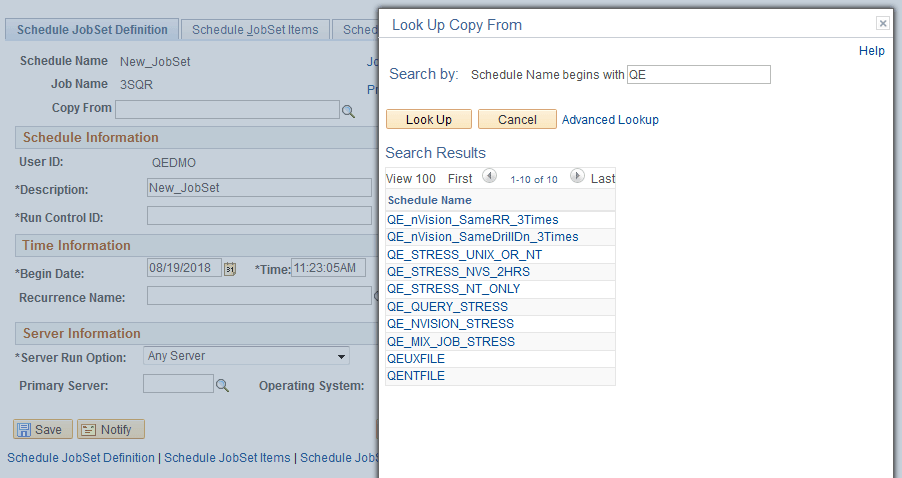
The Look Up Copy From page appears.
-
Find an existing JobSet definition by typing all or part of the existing JobSet definition name in the Search by field.
-
Click the JobSet Definition that you want to copy from.
-
Click Yes.
The data from the existing JobSet definition is copied to the corresponding fields in the Schedule JobSet Definition page.
-
Update the fields that you want to edit with the correct data.
-
Click Save.
The following example illustrates the Look Up Copy From page displaying search results with the prefix of QE.