Deleting Reports and Adding Users to the Distribution List
To access the Report Manager - Administration page, select Reporting Tools, Report Manager, Administration.
This example illustrates the fields and controls on the Report Manager - Administration page. You can find definitions for the fields and controls later on this page.
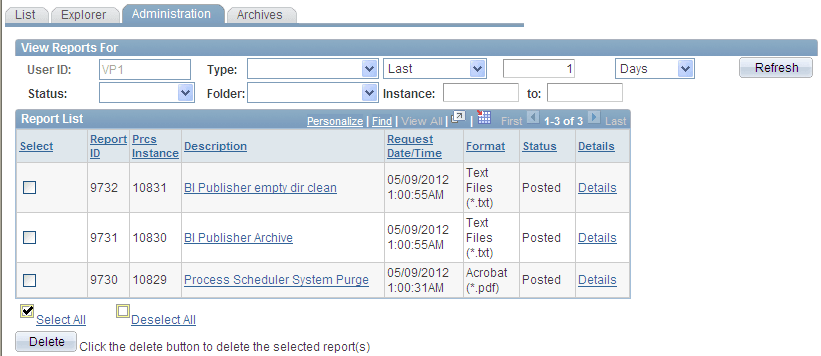
To view the report results in another browser window, click the description of the required report. To view the report results or any associated log or message file, click the Details link. Click the name of the required report or message to display the output in another browser window.
Note:
The reports that are listed on the Report Manager - Administration page are from only the database to which you are signed in.
This section discusses how to:
-
Delete reports.
-
Add users to the distribution list.
Deleting Reports
| Field or Control | Description |
|---|---|
|
Select |
Use the check box to the left of each report to select individual reports |
|
Select All and Deselect All |
Click Select All to select all the reports that you are authorized to delete. When they are selected, click the Delete button to delete all the selected reports. Click Deselect All to deselect all reports. |
Adding Users to the Distribution List
To add users to the distribution list:
-
Click the Details link for the required report.
The Report Detail page appears. If you do not have authorization to add users, the page is display-only.
-
Click the Add button to add user or role IDs to the distribution list.
Note:
You can save a report to your local workstation by right-clicking the appropriate Detail link and selecting Save Target As.