Granting Report Manager Administrative Roles
To access the User Profiles - Roles page, select
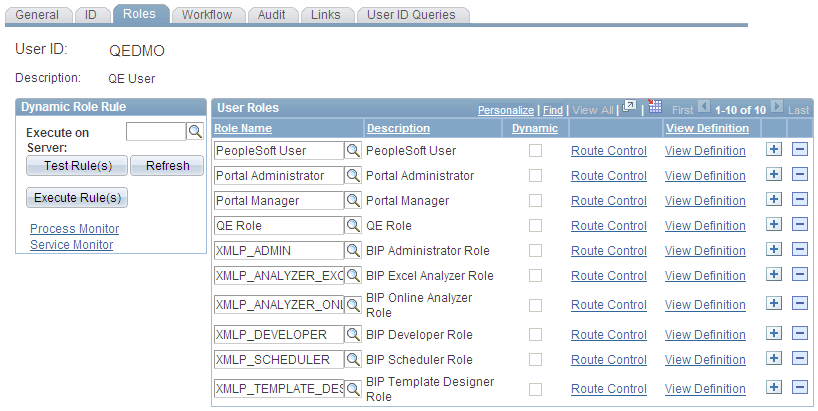
This example illustrates the fields and controls on the User Profiles - Roles page.
Any user who maintains the content of Report Manager must be assigned a Report Manager administrator role in PeopleSoft Security. With this administrator role, the user can:
-
Change the distribution list by adding or deleting a user or role ID.
-
Delete a report from Report Manager.
-
Alter the report’s expiration date.
A super user role is also available that allows you to delete and update all report output in Report Manager. Super users are allowed to delete the report entry and update the distribution list or expiration date of report entries.
The difference between the administrator (ReportDistAdmin) and super user (ReportSuperUser) roles is that the administrator role can access and update any report in the Report Manager. The super user role can update only reports that they are authorized to view.
To grant a Report Manager administrator role to a user ID:
-
In the role list, insert a new row, if necessary.
-
Click the search button next to the Role Name field.
-
Select ReportDistAdmin or ReportSuperUser.
-
Save your changes.