Managing Partitions
Partition Manager page allows end-users to schedule a partitioned process and monitor its progress. It also provides the following functionalities via context menus:
-
Execute partition.
-
View partitions.
-
Archive Partition.
-
Re-run process.
-
Update process.
-
Delete process.
To access the Partition Manager page, select .
From the Partition Manager page, search for a partition scheduled process. See, Searching for a Partition Schedule.
This example illustrates the fields and controls on the Partition Manager page. You can find definitions for the fields and controls later on this page.
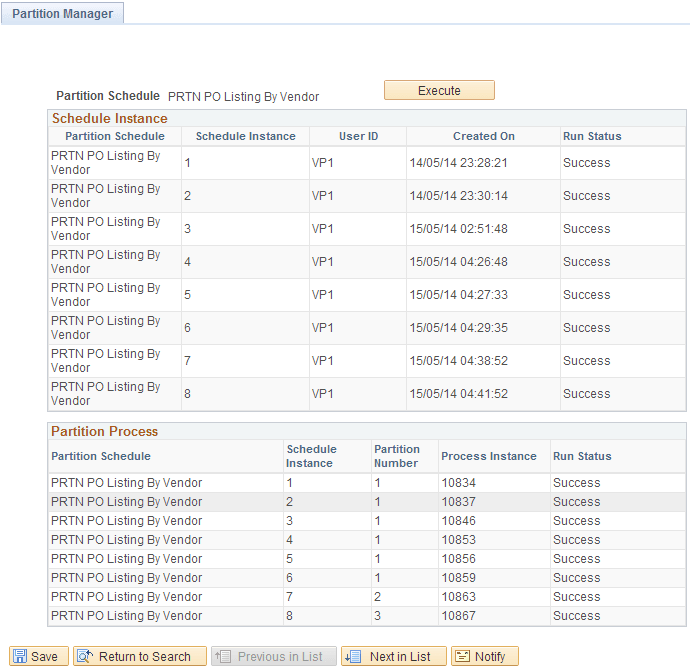
| Field or Control | Description |
|---|---|
|
Execute |
Click this to run the partition schedule. |
Schedule Instance
| Field or Control | Description |
|---|---|
|
Partition Schedule |
Specify the name of the partition schedule. |
|
Schedule Instance |
Specify the instance number of the partition schedule. |
|
User ID |
Specify the user who executed the schedule. |
|
Created ON |
Displays the date and time at which the process request was created. |
|
Run Status |
Displays the current state of a process. Knowing the status of a job helps you determine where it is in the queue or identify a problem if the process has an error. |
Partition Process
| Field or Control | Description |
|---|---|
|
Partition Schedule |
Specify the name of the partition schedule. |
|
Schedule Instance |
Specify the instance number of the partition schedule. |
|
Partition Number |
Specify the number of the partition schedule. |
|
Process Instance |
Displays the process instance number that was automatically assigned when the report was run. |
|
Run Status |
Displays the current state of a process. Knowing the status of a job helps you determine where it is in the queue or identify a problem if the process has an error. |