Setting Report Distribution
To access the Distribution Detail page, select a distribution link on the Process Scheduler Request page.
Note:
You must specify an output type of Web, Window, or Email for the distribution list to be accepted when the process instance is created.
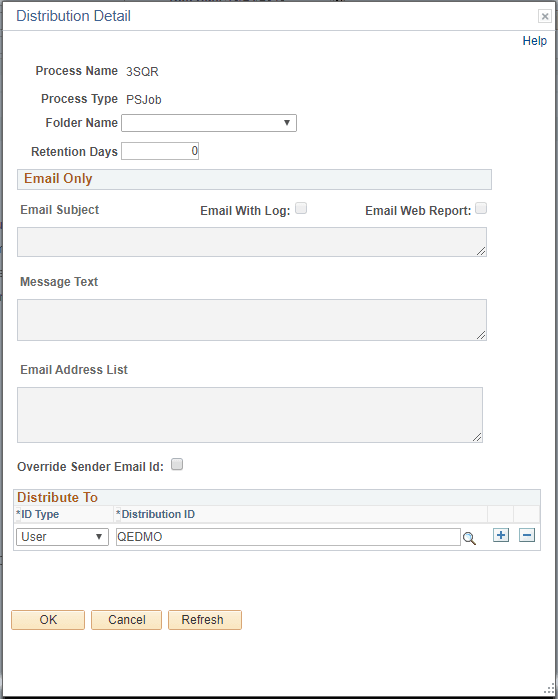
This example illustrates the fields and controls on the Distribution Detail page. You can find definitions for the fields and controls later on this page.
| Field or Control | Description |
|---|---|
|
Folder Name |
Select the folder in which the report results are posted. Folders organize report results into meaningful groups and can be viewed from Report Manager. Note: This option is available only when the output type on the Process Scheduler Request page for this process is Web or Window. |
|
Retention Days |
Set the retention days that are used to determine the expiration date. The expiration date is determined by adding the retention days from the date on which the report was generated. |
|
Email Subject |
Enter the text that appears in the subject line of the email. If this field is empty, the following default text message is used: Output from <Program Name>(<Process Instance>). |
|
Email With Log |
Select to include log files resulting from the SQR program as attachments to the email file (SQR only). Note: You can attach only .out log files to an email. You cannot attach a SQR log files to emails. |
|
Email Web Report |
Select to send an email with a link to the completed report output. This option is available only when the output type for the request is Web. |
|
Message Text |
Enter text to appear in the body of the email. If this field is empty, the following default text message is used: Message from Process Scheduler running on system <Process Scheduler Server Agent> using database <Database Name>. |
|
Email Address List |
Enter a list of email addresses, separated by semicolons, to which the email should be sent. |
|
Override Sender Email Id |
Select this option to override the From Email ID value of Processes or Jobs and consider the primary email ID of the user from their user profile as Sender ID for report distribution in case of destination output type set to Email and for Process Status Notifications. |
|
Distribute To |
Select the recipients of the process output. Select an ID type of User or Role and the corresponding distribution ID. Email recipients must be authorized to view the content of the email and their email addresses must be entered in their security user profiles. |
Related Topics