Using the Report List Pagelet
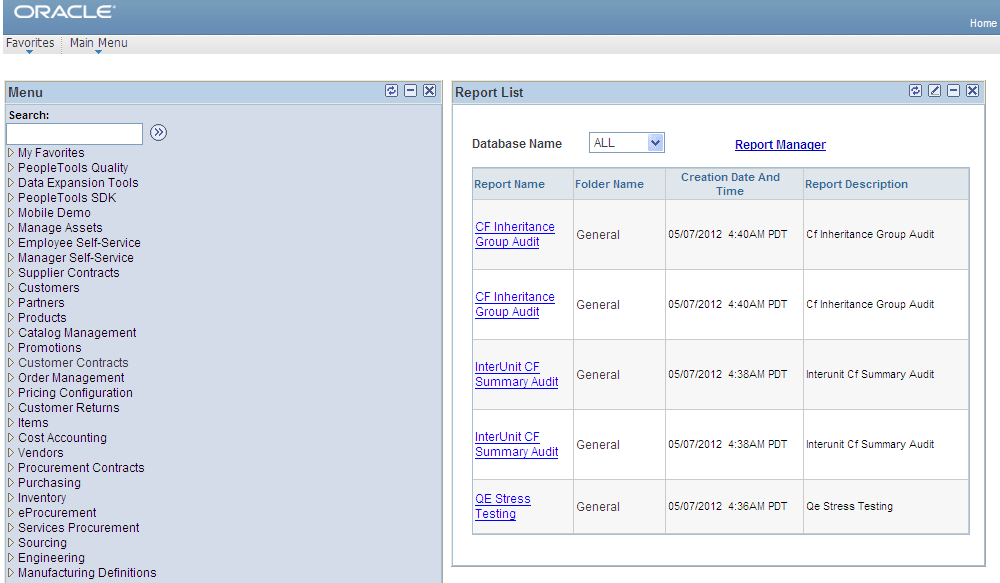
The Report List pagelet enables you to display selected reports on your PeopleSoft home page. To view a report, click the report in the Report Name column. You can select the database name from the Database Name list to view the report from a specific system.
This example illustrates the fields and controls on the Example of My Reports pagelet. You can find definitions for the fields and controls later on this page.
Note:
Use the Report Manager link to access the Report Manager - Explorer page.
To display the My Reports pagelet:
-
Select Personalize Content, which is located above the PeopleSoft menu.
-
Select My Reports from the PeopleSoft Applications menu.
-
Click Save to return to the home page.
-
Rearrange the home page layout by selecting Personalize Layout and making the required changes.
-
Click Save to return to the home page.
-
Click the Customize button at the top of the My Reports pagelet.
The Personalize My Reports page appears.
-
Enter the maximum number of reports to display.
-
Select to display reports created within a specified number of days or hours.
-
Click the Save Options button.
-
Click the Close button and the Return to Home Page link.