Changing Configuration Manager Settings
The settings in the Edit Profile – nVision dialog box control where PS/nVision looks for various file types. PeopleSoft Query Link, the feature that enables you to send PeopleSoft Query output to a spreadsheet, also refers to these Configuration Manager settings.
Use these steps to access the Configuration Manager:
-
Open the Configuration Manager by double clicking the Configuration Manager icon on your desktop.
Alternatively, select
-
Select the Profile tab.
-
Select the profile to edit, and click the Edit button.
-
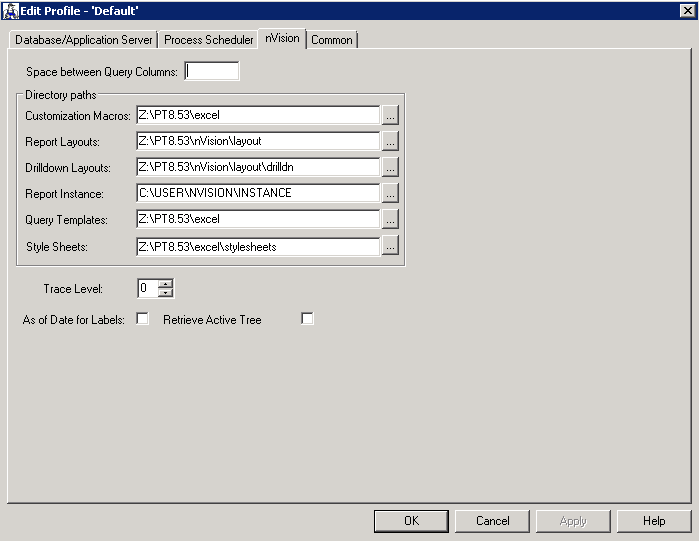
Select the nVision tab in the Edit Profile dialog box to view or change PS/nVision settings.
The Edit Profile – nVision dialog box appears.
This example illustrates the fields and controls on the Edit Profile dialog box: nVision tab.
Note:
Changes made with the Configuration Manager do not take effect until you sign on to the system. If you are signed on while making changes to Configuration Manager, you have to sign off and sign back on to see the effect of the changes.
The following table lists and describes the controls that are available for PS/nVision in the Configuration Manager.
| Control | Description |
|---|---|
|
Space Between Query Columns |
Sets the number of blank Microsoft Excel characters that PeopleSoft Query Link places between query output columns. To eliminate spacer columns, set this value to 0. Spacer columns improve readability, but they can be problematic with Microsoft Excel list features (such as filters or subtotals) or if you want to export data to another program. |
|
Customization Macros |
Specifies the directory
path PS/nVision should search for macros used with PS/nVision and
PeopleSoft Query Link. It is usually |
|
Report Layouts |
Specifies the directory
path PS/nVision should search for layout files. They are usually in |
|
DrillDown Layouts |
Specifies the directory
that contains PS/nVision DrillDown layouts, usually |
|
Report Instance |
Specifies the directory into which PS/nVision places report instances. This value can be overridden via the directory template in the Report Request dialog box. |
|
Query Templates |
Specifies where to look for the QUERY.XLT file. This file defines the Microsoft Excel styles used to format output. If no template directory is specified, or if PS/nVision doesn't find Query.XLT there, it searches in the personalization macro path. |
|
Style Sheets |
Specifies the directory of predefined nPlosion styles for the style sheet. |
|
AsofDateforLabels |
Specifies whether the as-of date or the maximum-effective date will be used to retrieve label descriptions of nVision reports and drilldowns.
|
|
RetrieveActiveTreeLabels |
Specifies whether only active tree node label descriptions are retrieved for nVision reports and drilldowns.
|
Note:
These settings are for the Windows version of PS/nVision. To run PS/nVision through Process Scheduler, the configuration settings are in the [nVision] section of
In the Process Scheduler Configuration file (psprcs.cfg), the default directory of the report instance is
The report layout and drilldown layouts are located under %PSHOME%; for example, and
%PSHOME% is read-only and only an administrator can add a new layout or modify existing layouts. You can relocate these two directories outside of PSHOME if all users need the write access to these directories.
General configuration settings in Process scheduler configuration (psprcs.cfg) for PS/nVision are:
DrillDownDir=%PS_HOME%\NVISION\LAYOUT\DRILLDN
InstanceDir=%PS_SERVDIR%\NVISION\INSTANCE
LayoutDir=%PS_HOME%\NVISION\LAYOUT
MacroDir=%PS_HOME%\EXCEL
StyleDir=%PS_HOME%\EXCEL\STYLESHEETS
TemplateDir=%PS_HOME%\EXCEL
EnableDrillDownForFile=0
EnablePollDialogs=0
PollDialogSeconds=30
TraceLevel=4
SaveTempFile=0
UseExcelAutomation=0
AsofDateForLabels=0
RetrieveActiveTreeLabels=0
UseExcelAutomation is used to enable or disable Excel automation mode. The default setting, UseExcelAutomation=0, should not be changed because this is the only mode under which nVision can run currently.
RetrieveActiveTreeLabels is used to specify whether only active tree node label descriptions are retrieved for nVision reports and drilldowns. The default setting RetrieveActiveTreeLabels=0 enables PS/nVision to disregard the activeness of the tree node label descriptions. When RetrieveActiveTreeLabels=1, nVision strictly use the activeness of the tree node label descriptions.