Customizing Menus
Access the PeopleSoft nVision Menu Control Table window by clicking the PSMenu tab on the nVision home page NVSUSER.XLS.
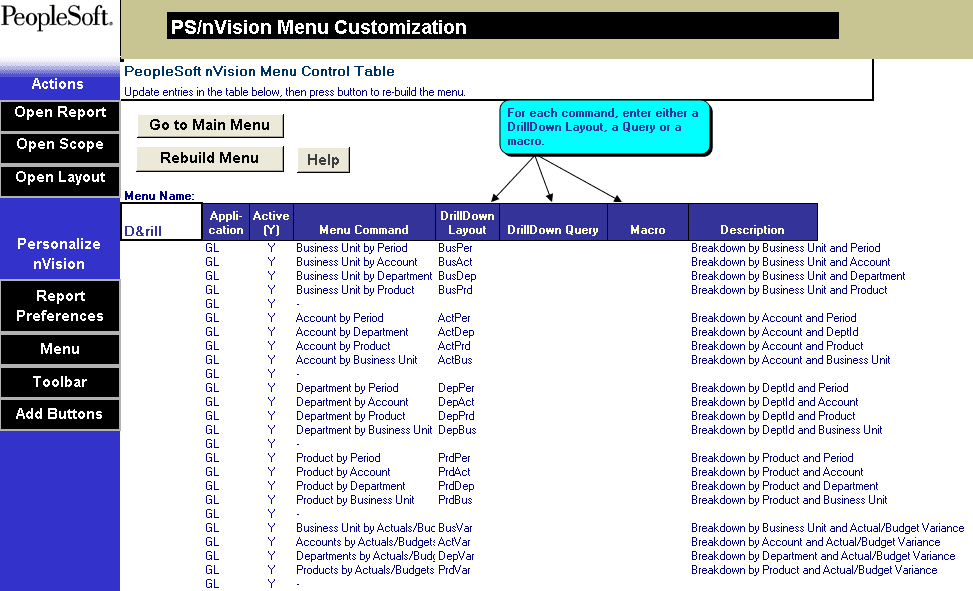
This example illustrates the fields and controls on the PeopleSoft nVision Menu Control Table window.
Note:
You can select a DrillDown layout, DrillDown query, or a macro to run when a menu command is selected.
| Field or Control | Description |
|---|---|
|
Application |
Identifies the application that uses this menu item. This identification makes it easier to enable or disable the actions associated with an application by setting its Active option. The Application field is not used by the supplied macros, but it acts as a description on this page. |
|
Active |
Enter Y to make the menu item active or N to keep it in the table but deactivated. |
|
Menu Command |
Enter the text that appears when the user pulls down the menu. |
|
DrillDown Layout |
Select a layout, present in your DrillDown layout path, to be used in a matrix or tabular DrillDown. |
|
DrillDown Query |
Enter a query name to be used in a PeopleSoft Query Link-style tabular DrillDown. |
|
Macro |
Enter the name of a macro to run when the item is selected. |
|
Description |
Enter descriptive text to appear in the status bar when a user highlights the command. |
Rebuilding the Menu
To rebuild the menu with new information that has been entered, click the Rebuild Menu button.