Defining Report Books
Use the Report Books page (IC_NVSBOOK) to create a report book. Before creating a report book, make sure you have report requests defined for all the reports you want to include in the book. The report book is a list of requests, not a substitute for the request. You might also want to review the requests you plan to use to ensure they use the desired scope and layout, and ensure that you have access to all the reports you want to include in the report book.
Navigation:
-
Select
-
From the Define Report Book page, search for an existing report book or create a new one.
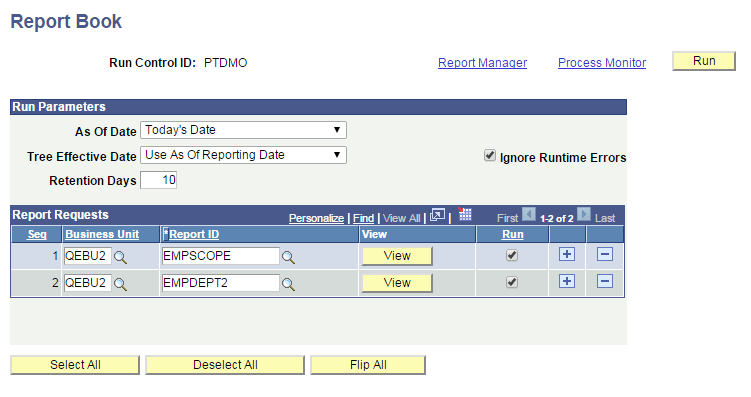
This example illustrates the fields and controls on the Report Book page. Definitions for the fields and controls appear following the example.
| Field or Control | Description |
|---|---|
|
As Of Date |
Available options are:
|
|
Tree Effective Date |
Available options are:
|
|
Ignore Runtime Errors |
Select to keep the entire Report Book from stopping if one of the reports encounters an error. Note: In such a case, the completion status will be Success, even though one or more reports may have had errors. |
|
Retention Day |
If the report has the output type set to Web, enter the number of retention days. Note: This field is not available when the output type of the report is not Web. The value of retention days set at the Distribution Detail page overrides the value of retention days set at the Report Book page. The value of retention days set at the Report Book level overrides the value set at the individual report request that are attached to the Report Book. When the value of retention days is not set at the Report Book level, the value set at the Report Request level is used. See “Using the Retention Day in the nVision Web Output Page” in Setting Up Report Requests. |
|
View |
Click to launch another browser window displaying the report request. |
|
Business Unit |
Select the business unit of the report requests for this report book. To reorder your entries, insert or delete rows as necessary. |
|
Report ID |
Select the report ID of the report requests for this report book. To reorder your entries, insert or delete rows as necessary. |
|
Run |
Click the Run button for all reports you want to run when this book is requested. For example, you might define a book of reports to be run at month end, and include a report that is only run quarterly, but select its Run button indicator only at quarter end. |
|
|
Click the Add icon to add a new blank row, and you are enable to enter a new report request. Note: You cannot add a report request to a report book if you do not have access to the report book. |
|
|
Click the Delete icon to delete the current row. |
|
Select All |
The Select All button selects all reports in the Report Book to be “Run”, i.e. for all the Report Requests on the Report Book, all the Run check boxes are selected. |
|
Deselect All |
The Deselect All button deselects all reports in the Report Book to be “Run”, i.e. for all the Report Requests on the Report Book, all the Run check box are deselected. |
|
Flip All |
The Flip All button flips the status of all the Reports in the Report Book to be “Run”, i.e. if the current status of the Run check box is set as “True” (selected), then by clicking on the Flip All Button, the Run check box is set to “False” (deselected) and vice-versa. |

