Generating a Consolidated Workbook from Multiple Reports
You can generate a consolidated workbook that contains multiple matrix reports by combining the outputs of individually executed PS/nVision reports.
Note:
The Merge Layout feature uses Microsoft Excel macros during report processing. To use this feature, Microsoft Excel must be installed and properly configured on the Process Scheduler server. The merge process may not complete successfully if Microsoft Excel is unavailable or incorrectly configured. This feature is supported only in Excel Automation and OpenXML modes and is not supported in Cross Platform mode because macros are not supported in cross-platform environments.Prerequisites
Perform these actions before configuring the Report Book:
- Create or identify the folder that will store the output files generated by the source report requests.
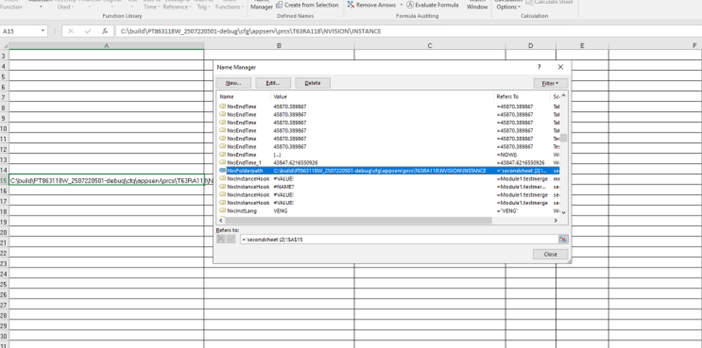
- Open the delivered merge workbook and add a workbook-level defined name called NvsFolderpath, if it does not already exist, and set its value to the full shared folder path. During report processing, the merge layout uses this location to locate the source report output files.
This example illustrates the shared folder path associated with NvsFolderpath variable.
- Ensure that Merge report request is created in the appropriate Business Unit. If a report request with the Report ID Merge does not already exist, select Add a New Value from Reporting Tools > PS/nVision > PS/nVision Schedule Requests, and create a report request with Merge layout. Save the request.
- The merge layout uses the LOCAL ledger in the sheet criteria. If your environment does not use a ledger named LOCAL, update the ledger value to match your ledger name.
Configuring the Source Report Requests
To configure a source report request:
- Access Reporting Tools > PS/nVision > PS/nVision Schedule Requests and add report requests, ensuring that Output Type is set to File. See Selecting Type and Output Options.
- Select Scope and Delivery Templates and enter the folder path where you want the merge layout to be created in Directory Name Template field. Create or identify a shared folder that is accessible to the Process Scheduler server and the intended recipients. Ensure that you specify the shared output folder configured in NvsFolderPath.
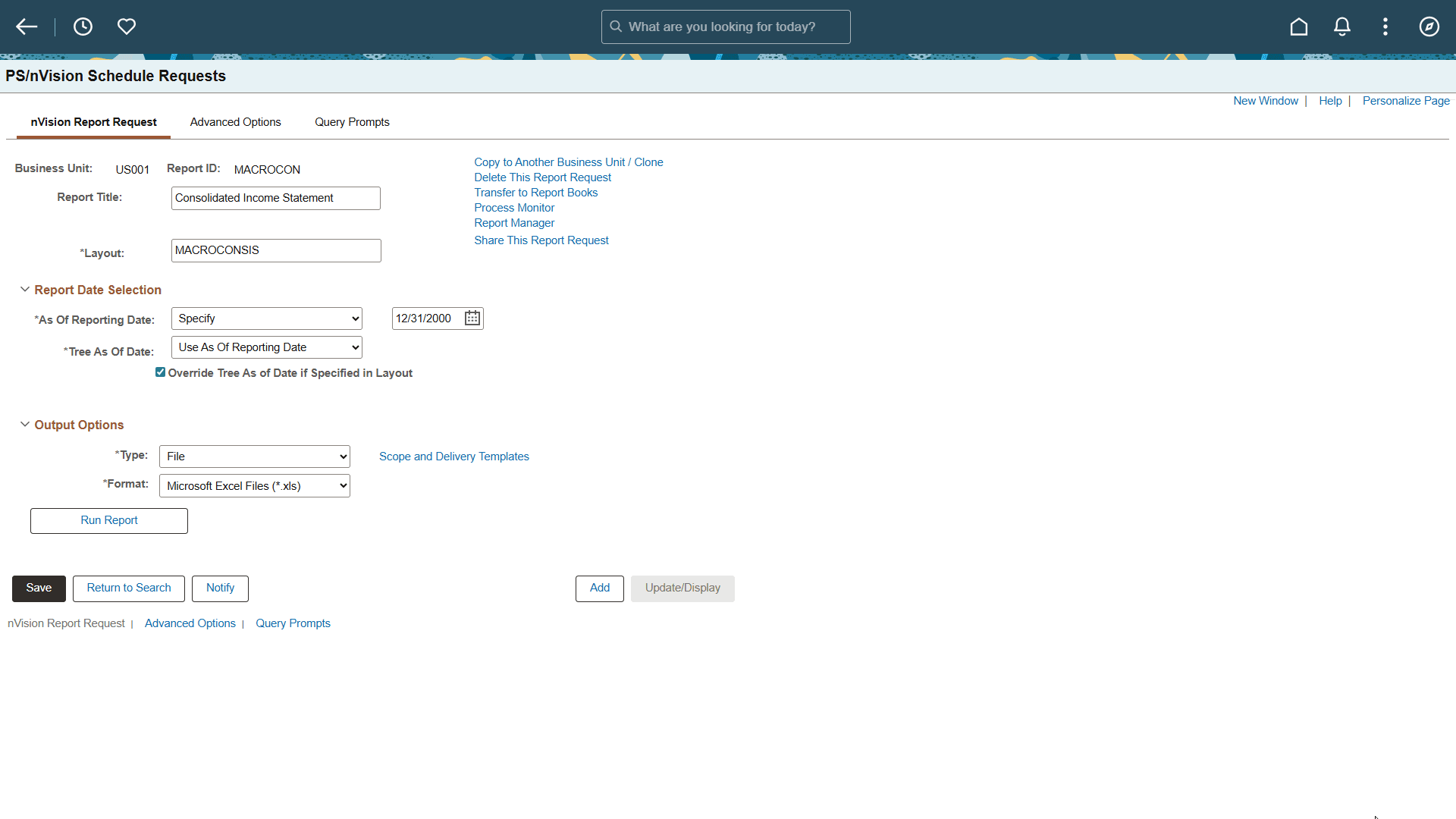
This example illustrates the fields and controls on the PS/nVision Schedule Requests page.
- Save the report request to retain the file output configuration.
Repeat these steps for each report request that you include in the consolidated workbook except the final one, ensuring that each source report writes its output to the same shared folder.
Configuring the Final Report Book and Merging the Reports
To configure the final report and merge the reports:
- For the final report request in the Report Book, configure a Merge report request from Reporting Tools > PS/nVision > PS/nVision Schedule Requests and select it as the last report request.
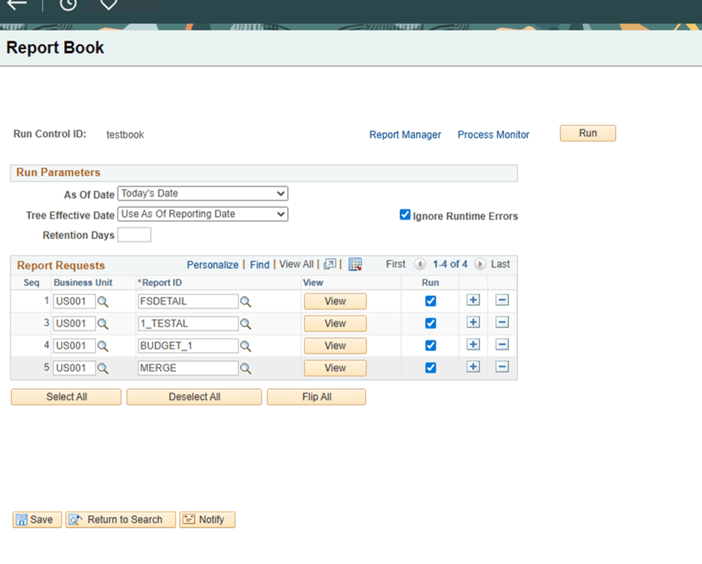
This example illustrates the fields and controls on the Report Book page, where the final report request in the Report Book corresponds to the MERGE Report ID.
Note:
Use Web distribution only for the final merge request. Configure all preceding source report requests to use File output so that the Merge layout can access the generated workbooks. - Specify the same output location used by the source report requests.
- Select all the report requests and run the Report Book. The source report requests generate Excel output files in the shared folder, and the final merge request consolidates the output files produced by the source report requests into a single workbook.
Verifying the Results
Verify the following after the Report Book is run successfully:
- Multiple Excel output files are created in the shared folder.
- The consolidated workbook has been created in the configured output folder.
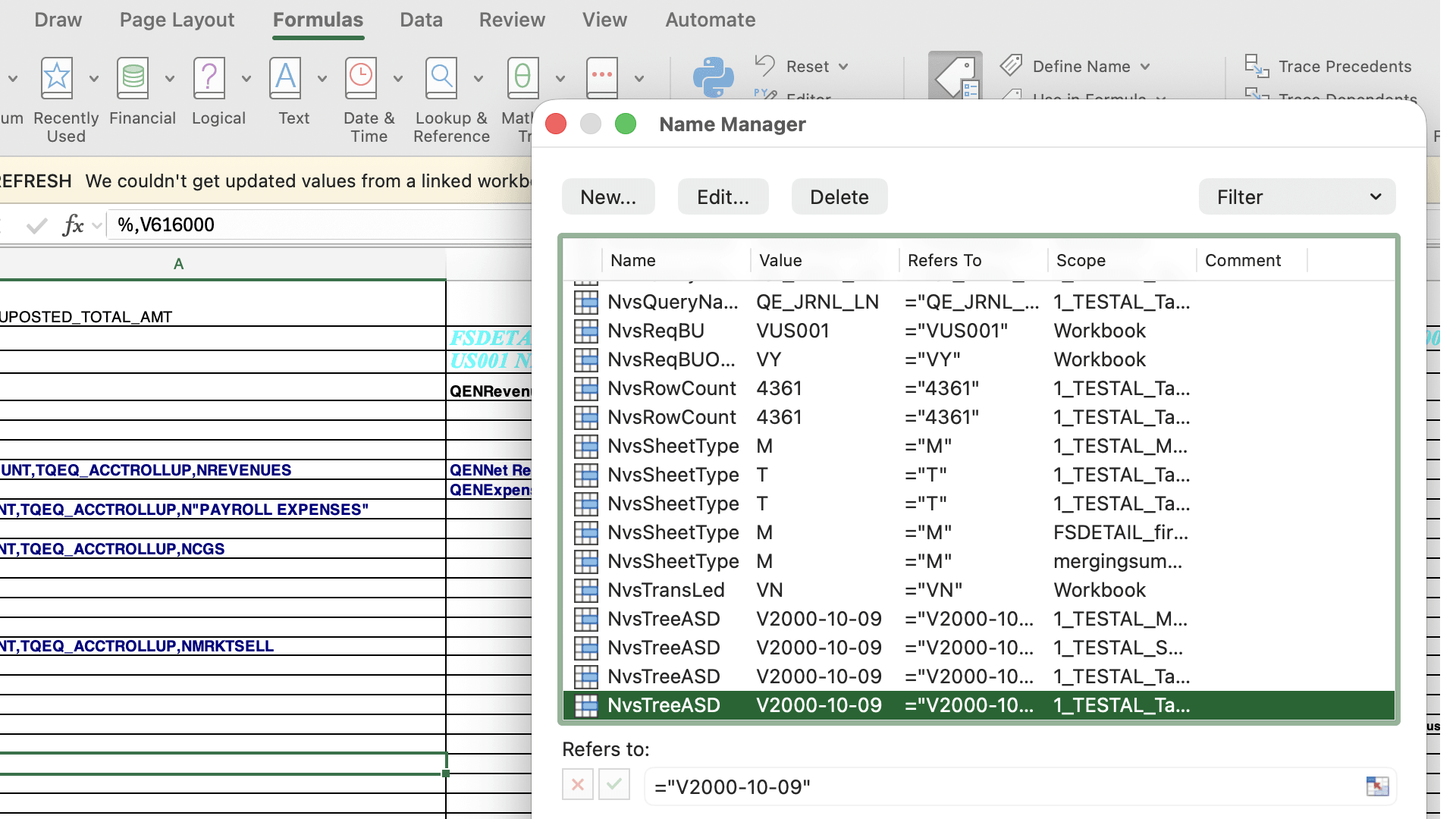
- The merged workbook contains worksheets from all source reports. Ensure that NvsSheetType variable in Name Manager contains more than one matrix sheet type (‘M’). To standardize worksheet names, use the format mainreportname_tabnameofeachreport.
This example illustrates NvsSheetType variable with multiple source report outputs in the shared folder.
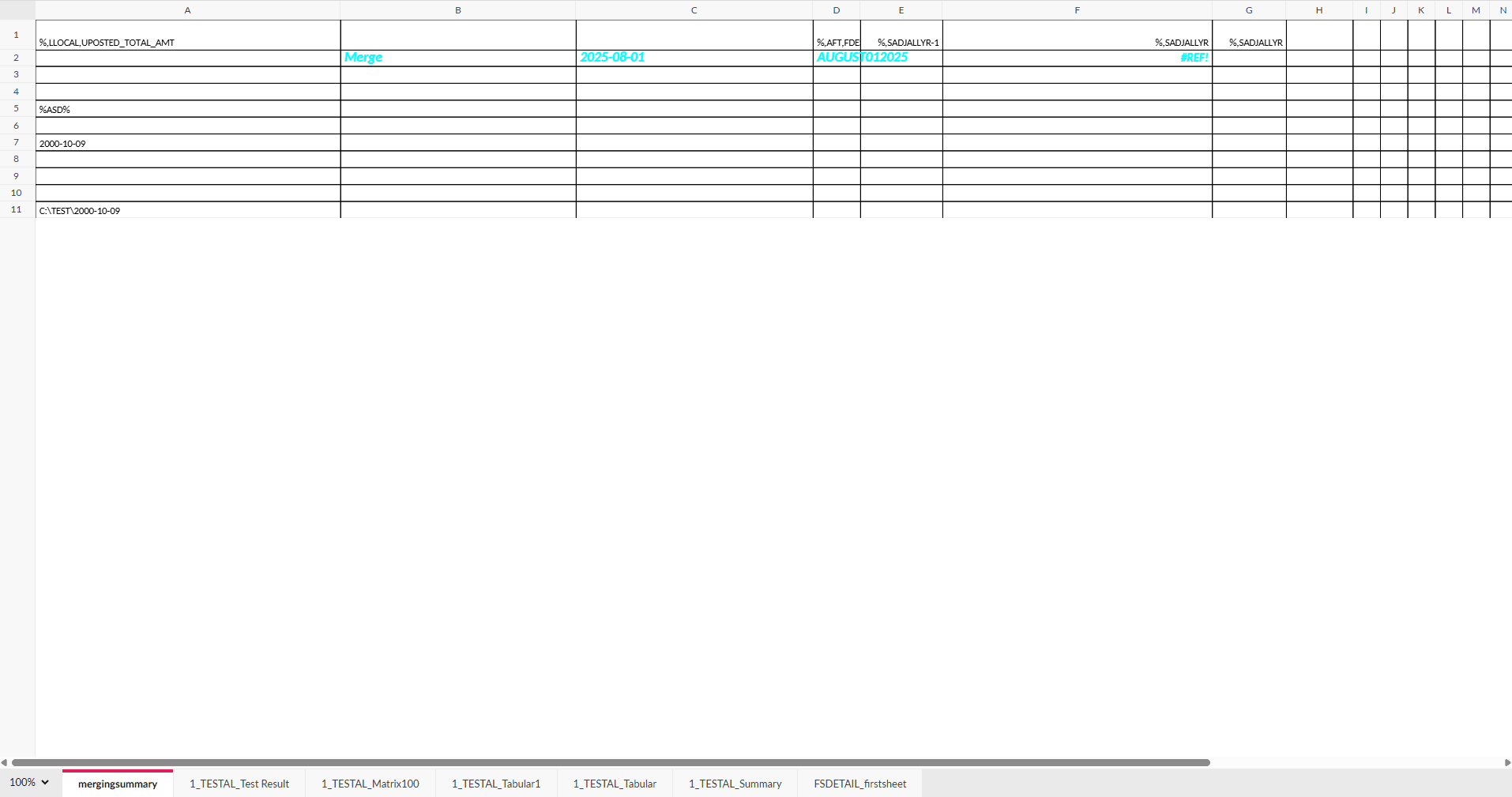
This example displays a consolidated workbook that contains multiple worksheets after merge.