Inserting Formulas
Formulas enable you to perform calculations such as adding column or row data, computing variances, calculating ratios, and so forth. You can use cell references such as =C2+C3, name references such as =Revenue-Expenses, or worksheet functions (see the Excel documentation or online help for a list of commands). All formulas begin with an equal sign (=). You can use a number of formula operators for calculations.
The following table lists the most common operators.
| Symbol | Description | Purpose |
|---|---|---|
|
+ |
Plus sign |
Addition |
|
− |
Minus sign |
Subtraction |
|
* |
Asterisk |
Multiplication |
|
/ |
Slash |
Division |
|
: |
Colon |
Range |
|
|
Space |
Intersection |
|
, |
Comma |
Union |
|
− |
Hyphen |
Negation |
|
% |
Percent sign |
Percent |
|
& |
Ampersand |
Text concatenation operator |
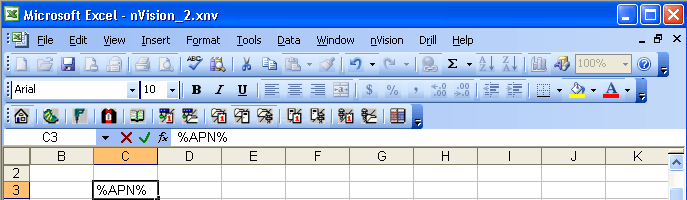
To enter a formula, click in the worksheet cell where you want the formula or text to appear, and begin typing. As you type, your cursor appears in the Excel formula bar (the rectangular box just below the menu bar, above the worksheet). The Cancel and Enter buttons appear to the left of the cursor.
This example shows the Excel and nVision formula bar.