Linking Routing Information Into PS/nVision
When Security and Tree Manager have the correct information, the final step is to connect it to PS/nVision.
This section describes the steps to complete this task:
-
Check scope definition.
-
Specify scope in report request.
-
Specify email and security delivery template options.
Checking Scope Definition
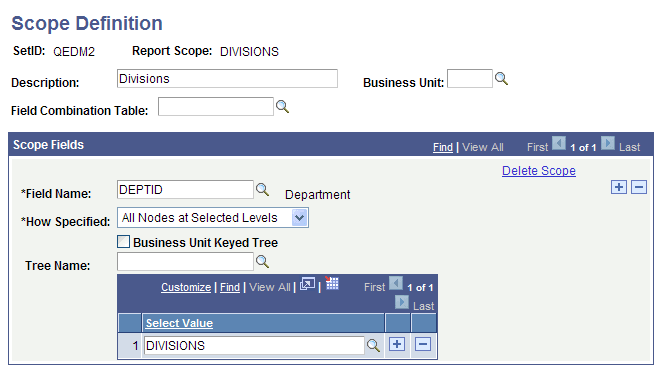
The following example shows the scope definition DIVISIONS, which is on the field DEPTID against all nodes at the level DIVISION using the DEPARTMENTS tree.
This example illustrates the fields and controls on the Scope Definition page.
Specify Scope in Report Request
Specify the scope for which the report is being run. The scope drives the distribution process. So in this example, make sure scope DIVISIONS is used in your report request.
To specify scope in nVision report request:
-
Select
-
Search for an existing business unit or create a new one.
-
Click the Scope and Delivery Templates link in the nVision Report Request page.
-
Click the Scope Definition link in the output page.
-
Enter the set ID and report scope, as needed.
The Scope Definition page appears.
-
Specify the scope for which the report is being run.
Specifying Email and Security Template Options
The Email and Security template fields in the report request tell PS/nVision who to distribute the report to and by what route, for example, email or via the web. To route each scope-based report instance to the person associated with each scope value that drives the generation of the report, use the %DES% variable to pick a field value from the tree node table.
-
Select in PIA.
-
Click the Scope and Delivery Templates link.
-
To distribute the report by email, enter %DES…EMAIL_TO% in the Email Template field.
When you run the report, PS/nVision bursts report instances based on the nodes in DIVISION level of the DEPARTMENT tree and delivers the results through email to the email addresses associated with each node. Those email addresses are the ones specified in the Email ID in NODE_DEPT_TBL page.
Alternatively, to distribute the report via the web, enter %DES…DISTLIST% in the Security Template field.
When you run the report, PS/nVision bursts report instances based on the nodes in DIVISION level of the DEPARTMENT tree and delivers the results to the Report Managers of associated users of each node. Those users are specified in the Distribution ID in NODE_DEPT_TBL page.
Related Topics