Opening Existing Scopes
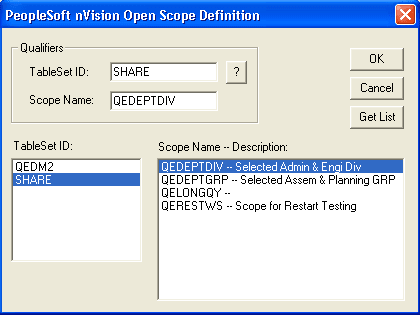
This example illustrates the fields and controls on the PeopleSoft nVision Open Scope Definition dialog box.
To open an existing scope in PS/nVision:
-
Select from the nVision menu.
-
Click theNew button, and enter a scope name and a description.
-
Enter the setID and other values for this scope.
-
Add fields to the scope definition by clicking the Add button.
-
Select either All Nodes at Selected Levels, Selected Tree Nodes, Children at a Level, or Detail of Selected Parents option.
-
In the PeopleSoft nVision Tree Nodes dialog box, select a level.
-
Place the cursor in the Tree Node field and click to see a list of nodes either by name or by position.
-
Select the nodes to use for your report.
-
Click the OK button.
-
From within the PeopleSoft nVision Scope Definition dialog box, click the Open button.
The PeopleSoft nVision Open Scope Definition dialog box appears.
-
Click the Get List button to see a list of available scope definitions.
In the TableSet ID list box, there is a list of setIDs; in the Scope Name – Description list box, there is a list of scope definitions for each setID.
You can limit the list by entering qualifiers into either the TablesSet ID or Scope Name fields before clicking the Get List button.
-
Select a scope definition from the list.
-
Click the OK button.