Securing PS/nVision Menu Items
Use the Page Permissions page (ACL_PAGES2) in PeopleSoft Security to specify the page permissions that control the operations users can perform in PS/nVision. Authorizations specified at the Page Permissions page are applied to both the Windows client and the PeopleSoft Pure Internet Architecture (PIA).
Navigation:
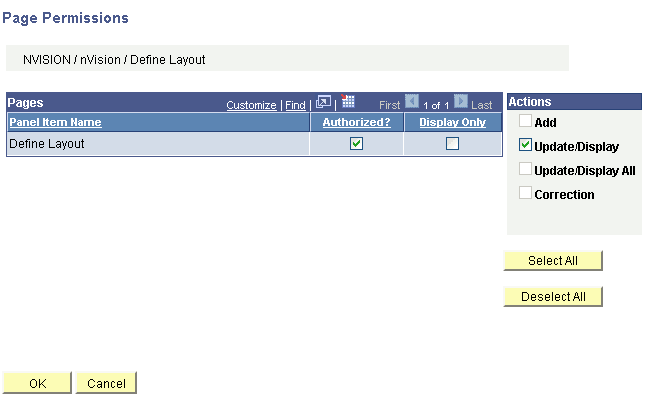
This example illustrates the fields and controls on the Page Permissions page.
To set component permissions in PIA:
-
Select
-
Select the required nVision Permission list.
-
Select the Pages tab.
-
Click the Edit component link, corresponding to the required menu, to display the Component Permissions page.
-
Click the Edit Pages button for a component to display the Page Permissions page.
-
Change the settings to authorize the action or leave the settings as display-only.
When selecting page permissions, you must select both an action and the Authorized option. For example, when you allow a user to run report requests, you must select the Update/Display button and the Authorized option adjacent to the RUN_REPORT page name on the Page Permissions page.
-
Click the OK button.
Important:
If no items are authorized, you cannot run PS/nVision at all.
nVision is controlled through individual components associated with the REPORT_BOOKS and NVISION menus.
The following table lists the available PS/nVision page permissions and describes the actions they control.
| Page Permission | Action Controlled |
|---|---|
|
DEFINE_LAYOUT |
Allows the user to use the Open Layout, Layout Definition, and similar menus in Excel. |
|
OPEN_REPORT |
Enables the Open button in the PeopleSoft nVision Report Request dialog box on the Windows client. |
|
EDIT_REPORT |
Allows the user to modify values in the PeopleSoft nVision Report Request dialog box. Note: The EDIT_REPORT setting does not control access to report layout (Excel XNV) files. To restrict users from accessing XNV files entirely, use the Network Security settings. |
|
RUN_REPORT |
Allows the user to run report requests using the Run button in the PeopleSoft nVision Report Request dialog box, the Run Current Request menu item in the Windows client, and the Run button in the web report request. |
|
SAVE_REPORT |
Enables the Save button in the PeopleSoft nVision Report Request dialog box on both the Windows client and the web. Note: When you make changes to a report request, it is automatically saved when you run the request. To save a report request without running it, click the Save button. You cannot change a report request without saving it. |
|
DELETE_REPORT |
Enables the Delete button in the PeopleSoft nVision Report Request dialog box on both the Windows client and the web. |
|
OPEN_SCOPE |
Enables the Open button in the PeopleSoft nVision Scope Definition dialog box on the Windows client. |
|
EDIT_SCOPE |
Allows the use to modify values in the PeopleSoft nVision Scope Definition dialog box on the Windows client. |
|
SAVE_SCOPE |
Enables the Save button in the PeopleSoft nVision Scope Definition dialog box on the Windows client. |
|
DELETE_SCOPE |
Enables the Delete button in the PeopleSoft nVision Scope Definition dialog box on the Windows client. |
|
PERFORMANCE_OPTS |
Enables the nVision Performance menu item, by which you access the Tree Performance Options dialog box. |