Selecting Ledger Criteria
To select ledger criteria in PS/nVision:
-
With a nVision layout open, select from the nVision menu.
-
Select the Source tab on the PeopleSoft nVision Layout Definition dialog box.
-
Select Ledger from the drop-down list.
The PeopleSoft nVision Layout Definition – Source dialog box appears.
Like query criteria, you can apply ledger criteria at the worksheet, column, row, or cell level.
This example illustrates the fields and controls on the PeopleSoft nVision Layout Definition dialog box: Source tab.
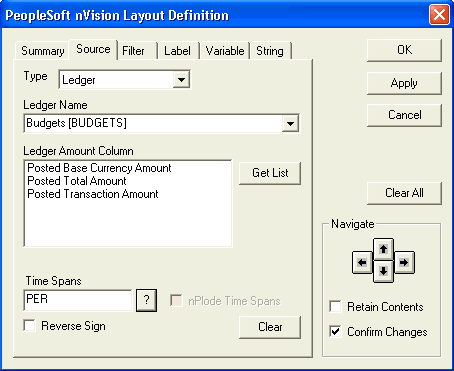
| Field or Control | Description |
|---|---|
|
Ledger Name |
Select the ledger to use. |
|
Ledger Amount Column |
Click the Get List button and select an amount column from the list. |
|
TimeSpans |
Select a TimeSpan to limit the amount of information returned in your report. |
|
Reverse Sign |
Select this option to change the sign of the amounts returned from the database. |
See Understanding Ledger-Based Matrix Layouts, Defining Ledger Criteria.