Setting Tree Performance Options
PS/nVision and PeopleSoft Tree Manager each provide a number of techniques and tuning options that can dramatically improve reporting performance. These performance enhancement techniques apply to both query-based and ledger-based layouts.
To change the technique used for a given tree, you can specify the technique using the Tree Performance Options dialog box in PeopleSoft Tree Manager. To override any Tree Manager settings and specify the technique used for a particular report layout, you specify the technique using the Tree Performance tab on the Layout Options dialog box in PS/nVision.
The tree performance options enable you to control the database access techniques PS/nVision uses to implement tree criteria for your report. These options can have a dramatic effect on how fast your reports run.
In setting these options, work with your database administrator to determine the best options, and to ensure that indexes are tuned for the SQL techniques selected. You should be prepared for some trial and error to find the best settings for your data and reporting requirements.
Note:
The performance-tuning information presented here is intended for database administrators and advanced PS/nVision users who understand how PS/nVision accesses relational databases. The techniques discussed are not useful for casual users or for customizing performance on a workstation-by-workstation basis.
Access the Tree Performance tab from Excel, select ; and then select the Tree Performance tab.
This example illustrates the fields and controls on the PeopleSoft nVision Layout Options dialog box: Tree Performance tab.
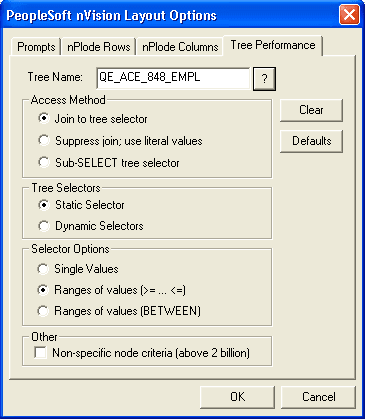
Tree performance options are saved in the sheets named NvsTree.treename for each specified tree.
You are setting performance options for a specific layout, one tree at a time. Optimum performance often is achieved using different techniques for different trees, depending on the nature of those trees and the way each tree is used in the report.
If you do not specify the tree performance options for a tree used in a report layout, and no performance options are defined in Tree Manager for that tree, PS/nVision uses the same SQL techniques used in the past on your database platform.
| Field or Control | Description |
|---|---|
|
Join to tree selector |
Select to include the tree selector table in the From clause and use join criteria to select the appropriate rows from the fact table. This method is sometimes used by PS/nVision even when another method is specified, if tree node information is needed to produce the report. |
|
Suppress join; use literal values |
Select to eliminate a SQL join by retrieving the detail ranges associated with the selected node and coding them in the Select statement. If you select the suppress join technique, but PS/nVision cannot use it because of the need to group results by tree node, it will automatically use the join method you select (that is, either static or dynamic). However, if PS/nVision can use the suppress join technique, it ignores the selector options for this tree. Therefore, pick a selector technique in addition to selecting the suppress join option. Note: This option is not available for use with winter trees. |
|
Sub-SELECT tree selector |
Select to add the tree selector to the From list of the main query. The tree selector criteria and its relation to the data in the main query is within an Exists clause in the Where portion of the main query. |
|
Static Selectors |
Select to build a selector that represents the entire tree and remains valid until the tree changes. |
|
Dynamic Selectors |
Select to creates a new tree selector for use in a section of a single report. The dynamic selector represents just the requested nodes. |
|
Single values |
Used only with dynamic selectors. Select to cause PS/nVision or PeopleSoft Query to build a selector using the individual detail values (from the detail table specified in the tree structure) that fall within the detail ranges of the selected nodes. |
|
Range of values (>= <=) |
For a tree with ranges of values, select to make the selectors more compact (fewer rows) and less likely to become obsolete as detail values are added. For some database optimizers, the syntax “fieldname >= RANGE_FROM_nn AND fieldname <= RANGE_TO_nn” gets a better access plan than BETWEEN. Note: If you specify one of the range syntax options, but the tree has no ranges, PS/nVision uses the single-value syntax (field = L.RANGE_FROM_nn). |
|
Range of Values (BETWEEN) |
Select to use the syntax “fieldname BETWEEN RANGE_FROM_nn AND RANGE_TO_nn”. This choice is best for ranged selectors on most database platforms. |
|
Non-specific node criteria (above 2 billion) |
Select to prevent the optimizer from selecting the driving criteria field based on how inclusive the node number criteria are. This option has been used on Db2 when criteria for multiple trees were present. Unless you are a Db2 customer who has tuned your database around this extra criteria, we recommend that you not use this option. |
Note:
Trees with a mixture of dynamic detail and range detail are not supported by nVision. Reports generated using such trees may not be accurate.