Adding Multiple Query Security Records for a Record Definition
You are able to add multiple query security records for a record definition, including:
-
Associating multiple query security records with a single record.
-
Specifying the fields (including non-key fields from the query security record) and the base record that will be used to secure the data.
Adding Multiple Query Security Records for Record Definitions
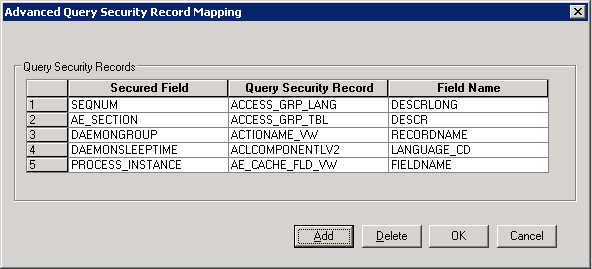
Query Administrator uses the Advanced Query Security Record Mapping dialog box and the Add Query Security Record dialog box in Application Designer to add multiple query security records for a record definition. Note that each base record can have one query security record defined in the Record Property dialog box and as many as five additional query security records defined in the Advanced Query Security Record Mapping dialog box. When you add more than five query security records using the Advanced Query Security Record Mapping dialog box, an error message appears to alert you that the maximum limit has been reached.
Navigation:
-
Open the Record Properties dialog box in Application Designer.
-
Click the Advanced Query Security button.
-
In the Advanced Query Security Record Mapping dialog box, click the Add button.
This example illustrates the Advanced Query Security Record Mapping dialog box in Application Designer.
This example illustrates the Add Query Security Record dialog box in Application Designer.
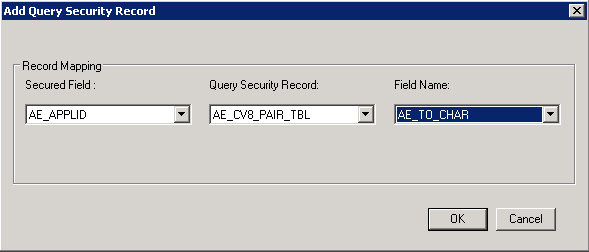
| Field or Control | Description |
|---|---|
|
Secured Field |
Select a field from the available fields in the base record. |
|
Query Security Record |
Select a record that you have permission to access. Note: Dynamic views, derived or work records, subrecords, and temporary records cannot be used as query security records. These records are excluded from the Query Security Record drop-down list. |
|
Field Name |
Select a field from the selected query security record. |
To add multiple query security records for record definitions:
-
In Application Designer, open the Record Properties dialog box.
-
Click the Advanced Query Security button.
The Advanced Query Security Record Mapping dialog box appears with the list of query security records that are already set to the current record.
-
Click the Add button to access the Add Query Security Record dialog box.
-
Use the Add Query Security Record dialog box to enter additional query security records and their corresponding field mappings.
Removing Query Security Records from Record Definitions
To remove query security records from record definitions:
-
In Application Designer, open the Record Properties dialog box.
-
Click the Advanced Query Security button.
The Advanced Query Security Record Mapping dialog box appears with the list of query security records that are already set to the current record.
-
Select a row in the Query Security Record section.
-
Click the Delete button.
A warning message appears.
-
Click the Yes button to confirm the deletion.