Editing Expression Properties
Use the Edit Expression Properties page (QRY_EXPR_SEC) to edit the expression properties.
Navigation:
-
Select Reporting Tools, Query, Query Manager.
-
Add a new query or search for an existing one.
-
Access the Expressions page.
-
Click the Add Expression button or the Edit button.
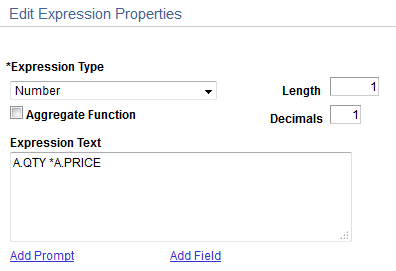
This example illustrates the fields and controls on the Edit Expression Properties page.
To add or edit expressions for queries:
-
Select
-
Select the Expressions tab to open the Expressions page.
-
Click the Add Expression button to open the Edit Expression Properties page, where you can select expression types.
-
Select an option from the Expression Type drop-down list.
If you select Character, enter the maximum length of the expression result in the Length field.
If you select Number or Signed Number, enter the total number of digits in the Length field and the number of digits after the decimal point in the Decimal field.
Note:
For Number and Signed Number, expression types, the Length field defines the total length of the number (integer portion + decimals portion). For example, if Length = 10 and Decimals = 3, then this means that the integer portion = 7 (Length - Decimals = Integer).
-
If you are entering an aggregate value, such as SUM, AVG, or COUNT, select the Aggregate Expression check box.
-
In the Expression Text field, enter the expression (for example, A. Total * .1, where A represents the first record.)
Query Manager inserts the expression into the SQL for you. You can include Oracle hints in PeopleSoft Query expressions as long as you adhere to the following rules:
-
Expressions containing a hint must begin with /*+ .
-
Expressions can contain only one hint.
For example, only one set of /*+ */ is allowed.
-
Expressions must contain a complete hint.
For example, an expression can't have only /*+ or */ . Both must be in the same expression.
-
-
Click the Add Prompt button to add prompt properties for this expression; click the Add Field button to add another field to this expression.
Note:
You must define a prompt, as described in the next section, before you can add it to your expression.
Using MetaSQL in Expressions
MetaSQL enables you to enter an expression that can be used across any supported database. For example, to concatenate strings, use the MetaSQL %CONCAT, and Oracle's PeopleTools will convert it to the appropriate database string concatenation function. To create a substring, use %SUBSTRING.
Note:
You need to make sure that the expression type and length are set correctly for the data that is going to be returned. Only the MetaSQL functions that are valid for dynamic views will work with PeopleSoft Query.
Related Topics