Enforcing Row-Level Security
By default, when you give PeopleSoft Query users access to a record definition, they can access all the rows of data in the table that were built using the associated record definition. In some cases, though, you may want to restrict users from seeing some of those data rows. For example, you may not want your human resources staff to access compensation data for vice presidents or above. That is, you want to enforce the row-level security feature that is offered by many PeopleSoft applications.
Row-level security enables users to access a table without accessing all rows on that table. This type of security is typically applied to tables that hold sensitive data. For example, you might want users to be able to review personal data for employees in their own departments but not for employees in other departments. To accomplish this, you would give everyone access to the PERSONAL_DATA table, but would enforce row-level security so that users could see only the rows where the DEPTID matches their own.
Note:
PeopleSoft Query row-level security is enforced only when you are using PeopleSoft Query or Scheduled Query; it doesn't control runtime page access to table data.
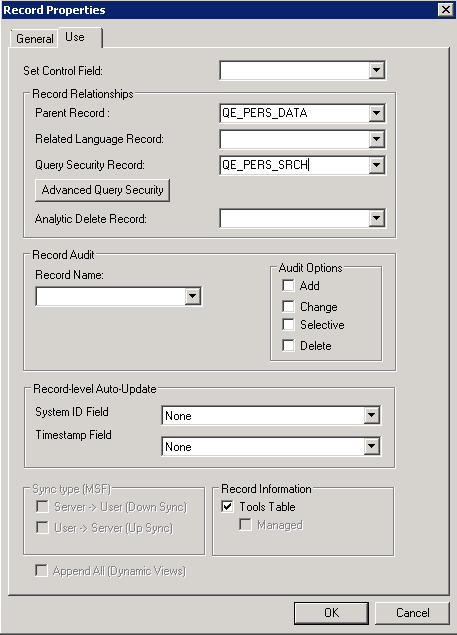
PeopleSoft applications implement row-level security by using a query security record (typically a view) that is specified on the record definition that joins the data table with an authorization table. When a user searches for data in the data table, the system performs a related record join between the security record view and the base table (rather than searching the table directly). The view adds a security check to the search, based on the criteria that you have set up for row-level security. For example, to restrict users to seeing only data from their own departments, the view would select from the underlying table only those rows where the DEPTID matches the user’s DEPTID. You can specify the query security record by selecting an appropriate view from the Query Security Record drop-down list on the Record Properties dialog box for any record definition.
This example illustrates the Record Properties dialog box - Use tab with the Query Security Record field is set to QE_PERS_SRCH.
Note:
Process and role queries override the automatic row-level query security logic that is applied to all other types of queries. For this reason, you should restrict access to creating these types of queries to administrative types of roles and not include any sensitive data columns in the select list for these types of queries. You can restrict access to creating and modifying these queries based on query profile settings that are assigned to a permission list. Note that Workflow queries also override the row-level security logic.
Securing Data Through the Search Record
To secure data through the query security record view, create a query security record that has both of the following criteria:
-
The same key field as the base record that you are securing.
-
One of the following three row-level security fields as a key field and not as a list box item:
-
OPRID (User ID).
-
OPRCLASS (Primary Permission List).
-
ROWSECCLASS (Row Security Permission List).
-
Note:
These security criteria are applied for all definitions, including multiple query security record definitions and single query security record definitions.
When you add one of the preceding fields as a key field, PeopleTools automatically adds a WHERE clause when it does a SELECT through the record. This forces the value to be equal to the current user’s value.