Entering Comparison Values
This topic provides an overview of comparison values and discusses how to:
-
Select a constant value.
-
Build a list of values.
-
Add prompts to an expression list.
-
Add comparison values to an expression list.
The procedure for entering comparison values differs depending on what kind of value you are entering. If you are comparing one field to another, select the second record field; if you are comparing the rows to a constant value, enter the constant.
The following table describes all the available value types, the pages that appear based on each comparison type, and the fields that you must complete in those pages.
| Value Type | Action |
|---|---|
|
Field |
The value in the selected field is compared to the value in another field, usually a field in another record component. When you select Field as the comparison value, the Choose Record and Field page appears. The Record Alias field lists all the records that are part of the current query. Select the record and the field. The selected field name appears in the second Expression column of that field’s row. |
|
Expression |
The value in the selected field is compared to an expression that you enter, which PeopleSoft Query evaluates once for each row before comparing the result to the value in the selected field. When you select Expression as the comparison value, the Define Expression page appears. In the text box, enter a valid SQL expression. To add a field or user prompt to the expression, click the Add Field or Add Prompt link, respectively. These links display the same pages that you see when adding a field or prompt as a comparison value: Add Prompt displays the Run-time Prompt page; Add Field displays the Select a Field page. The only difference is that PeopleSoft Query adds the field or prompt to your expression rather than using it directly as the comparison value. |
|
Constant |
The value in the selected field is compared to a single fixed value. When you select Constant as the comparison value, the Define Constant page appears. In the text box, enter the value that you want to compare the first expression to. To add a value by selecting it from a list, click the Look Up button to display the Select a Constant page. Note: A list of constants is available only for fields that have translate values or an assigned prompt table. |
|
Prompt |
The value in the selected field is compared to a value that you enter when running the query. When you select Prompt as the comparison value, the Define Prompt page appears. Click the New Prompt link to move to the Edit Prompt Properties page. To modify an existing prompt, click the Edit Prompt link. See Defining Prompts. |
|
Subquery |
The value in the selected field is compared to the data that is returned by a subquery. When you select Subquery as the comparison value, the Define Subquery page appears. Click the Define/Edit Subquery link to move to the Records tab to start a new query. |
|
In List |
The value in the selected field is compared to a list of values that you enter. This value type is available only when the selected operator is in list or not in list. When you select in list as your comparison value, the Edit List page appears. Use the Look Up button to display the Edit List page and search for the desired values. Note: Values will appear here only if you have entered them previously. |
|
Current Date |
The value in the selected field is compared to the current date on the database server. |
|
Tree Option |
The value in the selected field is compared to a selected set of tree nodes. This value type is available only when the selected operator is in tree or not in tree. When you select Tree Option as the comparison value, the Select Tree Node List page appears. Use this page to create a list of values for PeopleSoft Query to compare to the value from the first expression. |
|
Tree Prompt Option |
The value in the selected field enables you to select a tree value as a tree prompt, when the query is run. This value type is available only when the selected operator is in tree or not in tree. When you select the Tree Prompt Option as the comparison value, all options to select tree values at design time are not available. However, you are able to select tree values as tree prompts when you run the query. |
|
Effective Seq (effective sequence) |
Used on some effective-dated records, the effective sequence is a sequencing number that is provided to further refine the effective date. |
Note:
Not all value types are available for all operators. For example, when you select the exists operator, Subquery is the only available value type. After you select an operator, PeopleSoft Query displays only the value types that are available for that operator.
Selecting a Constant Value
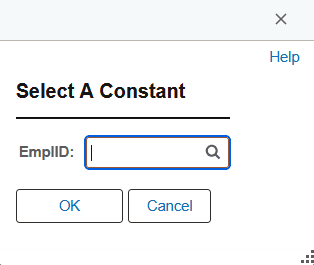
When you select Constant in the Choose Expression 2 Type section as your comparison value, the Define Constant section appears. In the Constant field, enter the value to which you want to compare the first expression. Otherwise, click the Constant Look Up button to access the Select a Constant page where you can select a constant value from the available constants.
Note:
A list of constants is available only for fields that have translate values or an assigned prompt table.
To select a constant value from the available constants:
-
Click the Constant Look Up button on the Select A Constant page.
-
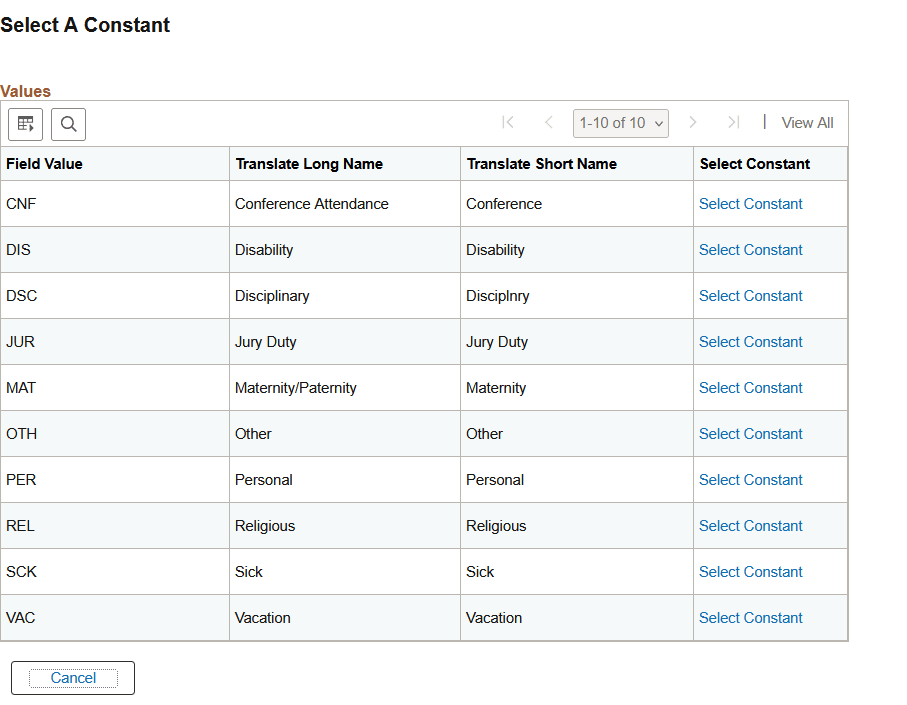
Select the value that you want from the result list by clicking its associated link.
The Select A Constant page appears again with the selected value in the field. If you are working with a date field, you can select a date/constant from a calendar.
-
If more than one field exists on the Select A Constant page, you must repeat steps 1 and 2 for each field to further narrow your search for the constant.
-
Click the OK button.
The Edit Criteria Properties page appears with the selected value in the Define Constant section.
This example illustrates the field and controls on the Select A Constant page when there is only one constant field.
This example illustrates the fields and controls on the Select a Constant page when there are multiple constant fields.
Building a List of Values
When you select In List as your comparison value, the Edit List page appears. Use the Edit List page to build a list of values for PeopleSoft Query to compare to the value from the first expression. (After you have created such a list, you can also use this page to select from the list.)
To add a comparison value to the list, click the Look Up button on the Edit List page, which dynamically reflects which record is used.
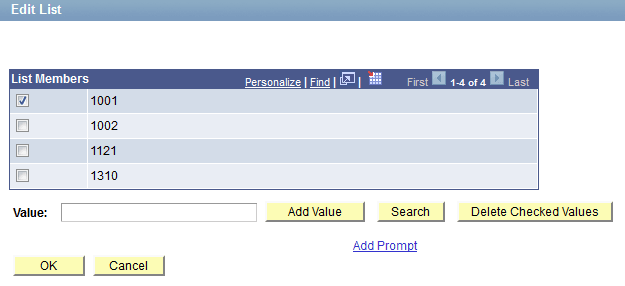
This example illustrates the fields and controls on the Edit List page. Definitions for the fields and controls appear following the example.
| Field or Control | Description |
|---|---|
|
List Members |
Lists the values that have been selected using the Add Value button. Note: The grid, containing the selected value, appears when a value is selected. To delete a value, select the check box to the left of the appropriate List Members value, and click the Delete Checked Values button. |
|
Value |
To add a value, enter it into the Value text box and click the Add Value button. The value appears in the List Members grid. To select from a list of values, click the Search button to display the Select a Constant page. Click the Look Up button to display the Look Up page. Enter part of a value in the text box. (The system automatically adds a wild card to the end of the entry, which enables you to do a partial search. For example, if you enter a value of 10, the system returns all values, (up to a total of 300), that begin with 10, such as 10, 100, and 10069.) Click the Look Up button to display the list of values that corresponds to the search criteria. Select the desired value from the list by clicking its associated link. When the Select a Constant page appears again, click the OK button, and the selected value appears in the List Members grid. |
|
Add Prompt |
Click to add one or more prompts to the list so that users can enter the comparison values when they run the query. Note: The prompts must be defined before you can select them. If no prompts have been defined, you will receive an error message. |
|
OK |
Click to accept the values that are listed in the List Members grid. You will return to the Edit Criteria Properties page, where the selected values are displayed in the Edit List page. |
|
Cancel |
Click to return to the Edit Criteria Properties page without saving selections. |
Adding Prompts to an Expression List
You can add one or more prompts to the expression list so that users can enter comparison values when they run a query.
Note:
You must have defined the prompts before you can add them to your expression list.
To add prompts to an expression list:
-
With the expression list open, click the Add Prompt link in the Edit List page to access the Select a Prompt page.
-
Click the required prompt.
The prompt appears on the Edit List page.
If you selected the in list operator, you may want to add more than one prompt so that your users can enter more than one value to search for.
-
To add another prompt, click the Add Prompt link again and select a different prompt.
Because you already have a prompt in place, a different page appears showing the prompt that you have already added.
-
To add the next prompt, click the New button and complete the Run-time Prompt page.
The settings for this second prompt are the same as those that are used with the first prompt. If you want a different label for this prompt, enter that label in the Heading Text text box.
When you click the OK button, the second prompt appears in the Available Prompts list.
-
Highlight the second prompt, and click the Select button to add it to the list of comparison values.
The prompt then appears in the Edit List page.
-
Repeat this process for each prompt that you want to add.
When you finish adding prompts, click the OK button to close the Edit List page.
Adding Comparison Values to an Expression List
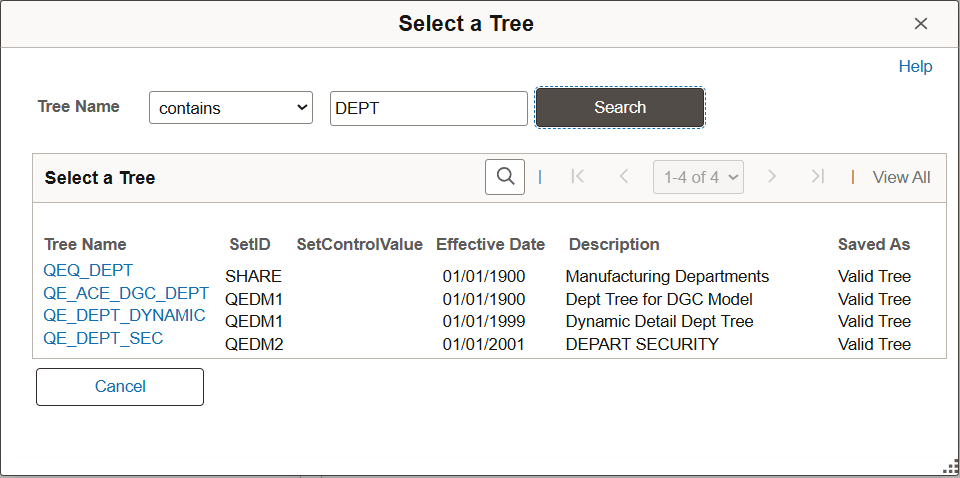
When you select the Tree option as the comparison value (available if you select the in tree or not in tree condition type), the Select Tree Node List page appears. Use this page to create a list of values for PeopleSoft Query to compare to the value from the first expression. Click the New Node List link to display the Select Tree page.
If the Selected Nodes List has been previously populated, you can either:
-
Change the tree by clicking the New Nodes List link.
-
Open the previously selected tree, bypassing the Tree Selection page, by clicking the Edit Node List link.
Click the name of the tree that you want to display the Display and Select TreeNodes page, which you can use to select which element of the tree PeopleSoft Query will check. If no nodes have been previously selected, the Selected Nodes List grid is collapsed. If you do not know the name of the tree, you can perform a search for the tree.
This example illustrates the fields and controls on the Select a Tree page.
This example shows how to select tree nodes in the Display and Select TreeNodes page.
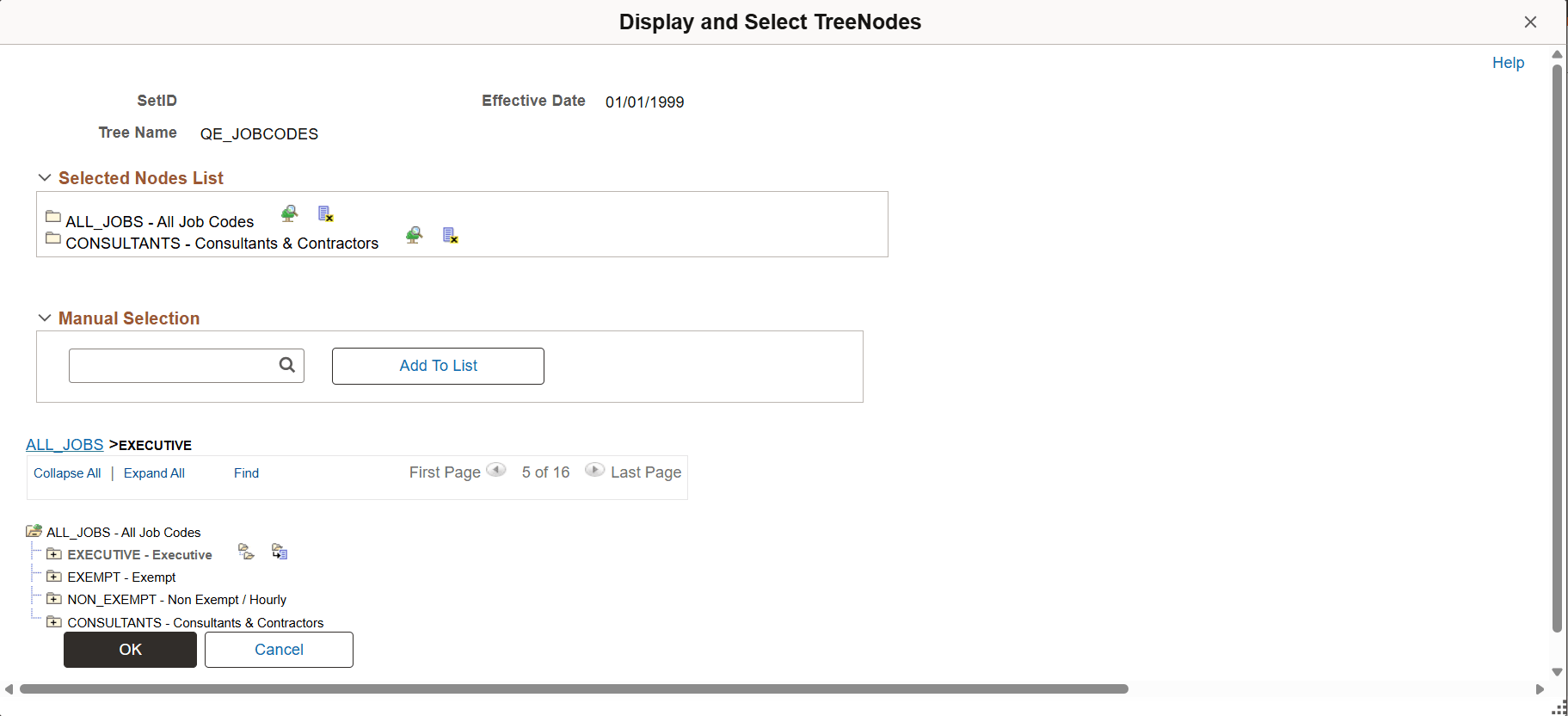
To select tree nodes:
-
In the Display and Select TreeNodes page, highlight the desired tree node, and click the Add Node icon.
-
If you know the name of the node that you want, enter the name of the node in the Manual Selection drop-down list.
Alternatively, click the Look Up button to select the desired node from a list of available nodes. When you find the node that you’re looking for, click the Add to List button to add it to the list. The nodes that you enter or select from the list appear in the Selected Nodes drop-down list.
-
Remove nodes from the list by clicking the Remove from List icon corresponding to the node to be deleted.
-
Display the selected tree branch by clicking the corresponding icon.
-
When you are done selecting nodes, click OK.
The selected tree setID, tree name, effective date, and nodes appear in the Select Tree Node List page.
Defining a Criteria with Tree Prompt in PeopleSoft Query
In addition to the option of selecting the tree value at design time for a criteria, Tree Prompts option will allow the user an option to select the tree and node value at run time. This allows the user to reuse the same query to get various organizational reports.
Note:
In both web-based Query Manager and Windows client [psqed.exe], while creating a query you have the option of selecting to enter the tree details either at the design time or at the runtime. There is a Tree Prompt Option (an expression type) and a Tree Option when you select the condition type as In Tree or Not In Tree. Based on your selection, the tree option is handled to execute the query accordingly in the specified modules.
When you select the Tree Prompt Option as the comparison value, all options to select tree values at design time are not available. However, you are able to select tree values as criteria prompts when you run query.
This is an example of the Edit Criteria Properties with the Tree Prompt Option is selected.
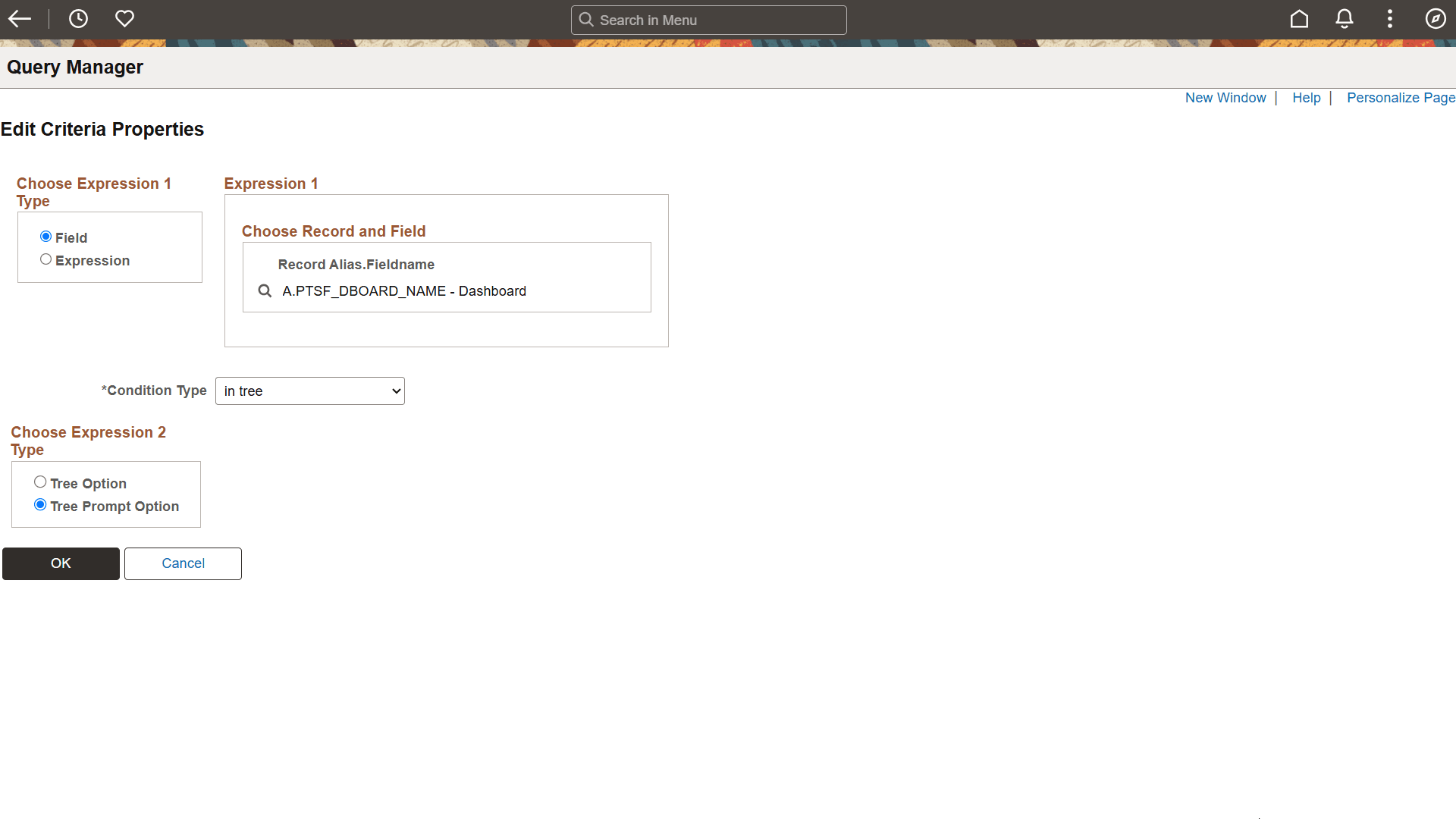
After the Tree Prompt Option is selected:
-
The Criteria page has a same criteria prompt entry.
-
The View SQL page displays the viewable SQL for the in tree prompt.
Note:
Since tree information at query design time is not known yet, the SQL in the View SQL page is different from the SQL that actually runs in the database. When query is finally executed, based on the user's selection of tree and nodes when prompted, the SQL is modified accordingly with tree info in order to fetch rows of data.
-
When you access the Run page, you are prompted for selecting the tree for the specified field and its node list.
Based on the tree node list that you selected, and after collecting the other prompt values, if any, the results are displayed on the Run page.
Note:
Query that has a criteria with tree prompts cannot be run as part of any process, either via Process Scheduler or from command line. However, you can execute the query with tree prompts from Query Scheduler.