Grouping Multiple Criteria
Using PeopleSoft Query, you can relate multiple criteria in specific ways that you define using the AND, AND NOT, OR, and OR NOT operators. You can also group criteria using parentheses.
This topic describes the AND and OR logical operations and discusses how to group criteria in query.
Understanding the AND and OR Logical Operators
When you specify two or more selection criteria for a query, you must tell PeopleSoft Query how to coordinate the different criteria. For example, suppose you are querying your list of customers and you have defined two criteria: one selects customers from the state of Washington and another selects customers who have purchased airplanes. You may want PeopleSoft Query to return only those rows that meet both conditions (customers in Washington who have purchased airplanes), or you may want the rows that meet either one of the conditions (all Washington customers plus all customers who have purchased airplanes).
This diagram illustrates the rows that are returned by AND and OR.
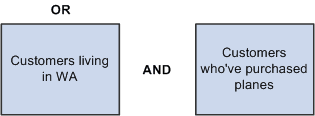
When your query includes multiple criteria, link them using either AND, AND NOT, OR, or OR NOT. When you link two criteria with AND, a row must meet the first and the second criterion for PeopleSoft Query to return it. When you link two criteria with OR, a row must meet the first or the second criterion, but not necessarily both.
By default, PeopleSoft Query assumes that you want rows that meet all of the criteria that you specify. When you add a new criterion, PeopleSoft Query displays AND in the Logical column on the Criteria tab. To link the criterion using one of the other options instead, select the required option from the drop-down list.
Grouping Criteria in Query
When your query includes multiple criteria, PeopleSoft Query checks the criteria according to the rules of logic: it evaluates criteria that are linked by ANDs before those that are linked by ORs. When all the criteria are linked by ANDs, this order always returns the correct results. When you include one or more ORs, however, this is not always what you want.
This example shows the criteria settings for a list of customers who are not friends and reside in either California (CA) or Florida (FL).
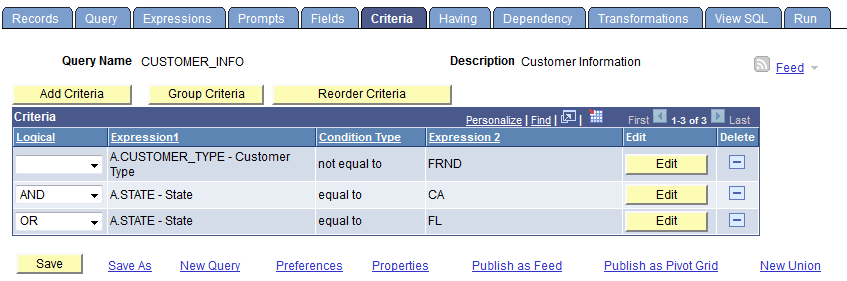
The set of criteria that was entered in the previous sample page returns a list of customers in California (except for those who are friends) and all customers in Florida (including those who are friends). This list results because PeopleSoft Query evaluates criteria in the order of appearance. It looks for rows where the customer is not friend and where the state is California or rows where the state is Florida.
What you really want PeopleSoft Query to search for are rows where the state is California or Florida, and where the customer type is not friend. That is, you want PeopleSoft Query to evaluate the OR before the AND. To accomplish this task, add parentheses to the list of criteria. When a list of criteria includes parentheses, PeopleSoft Query evaluates the criteria inside the parentheses before the criteria outside the parentheses.
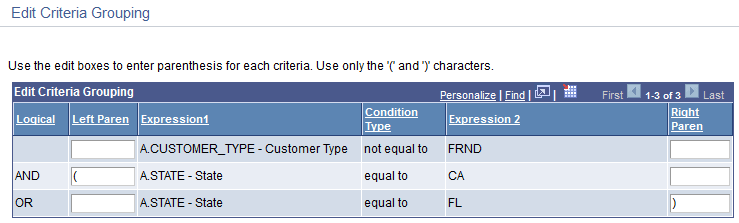
Using the Group Criteria button on the Criteria page to access the Edit Criteria Grouping page (QRY_CRITERIA_GROUP) where you can insert the opening parenthesis just before the field name and the closing parenthesis just after the comparison value.
This example shows the Edit Criteria Grouping page with open and close parentheses around the second the third criteria.
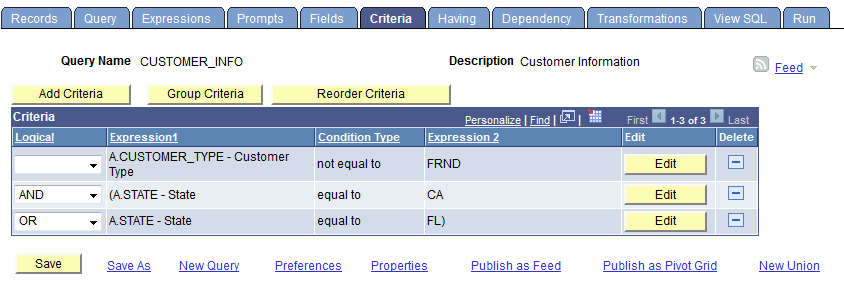
This example shows the Criteria page with open and close parentheses around the second the thirst criteria.
To group criteria:
-
Click the Group Criteria button on the Criteria tab.
The Edit Criteria Grouping page appears.
-
Use the edit boxes to enter parentheses for the criteria as needed.
A parenthesis appears at the beginning of the Expression1 column for the first row that you selected and at the end of the Expression2 column for the last row that you selected. In the previous example, notice that the AND operator precedes the parentheses, while the OR operator is located within the parentheses.
You can add as many parentheses as needed.