Adding Saved Searches to Favorite Searches
You can group your saved searches based on your business requirements and access them from a centralized list in the My Favorite Searches page.
The Favorite Searches feature is enabled by default. This feature can be disabled by a user with an administrator role using the PeopleTools Options page. For more information, see System and Server Administration: PeopleTools Options.
Note:
The maximum number of saved searches that a user can add to the My Favorite Searches page is set to 10 by default. Administrators can configure the maximum number of saved searches for a user using the PeopleTools Options page. For more information, see System and Server Administration: PeopleTools Options.
Adding a New Saved Search to Favorite Searches
You can add a new search to favorites while saving the search using the Save Search dialog box. For more information about entering and saving search criteria, see Applications User’s Guide: Entering and Saving Search Criteria.
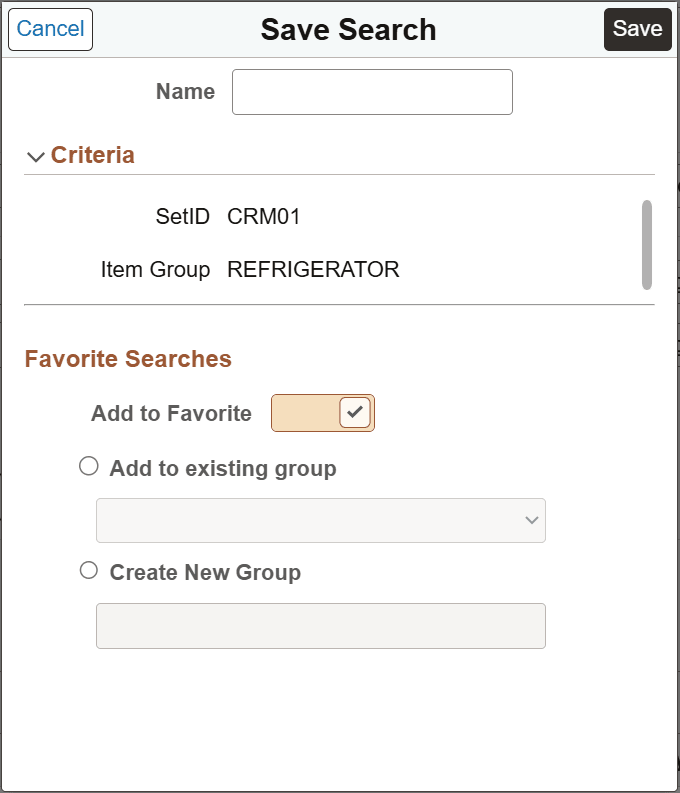
Select the Save Search button on a configurable search page to access the Save Search dialog box. To add the new search to favorites, select the Add to Favorite check box. You then have the option to add the search to an existing group or to create a new group for the search.
This example illustrates the properties for the Save Search dialog box. Descriptions of the properties appear after the example.
| Field or Control | Description |
|---|---|
|
Name |
Enter a name for the new search. You must enter a unique name for the search. |
|
Criteria |
Displays the criteria that you had specified for the search. |
|
Add to Favorite |
Select this option to add the search to favorites and then select one of the following options to add it to a group:
|
Adding an Existing Saved Search to Favorite Searches
You can add an existing saved search to favorites using the Manage Saved Search dialog box.
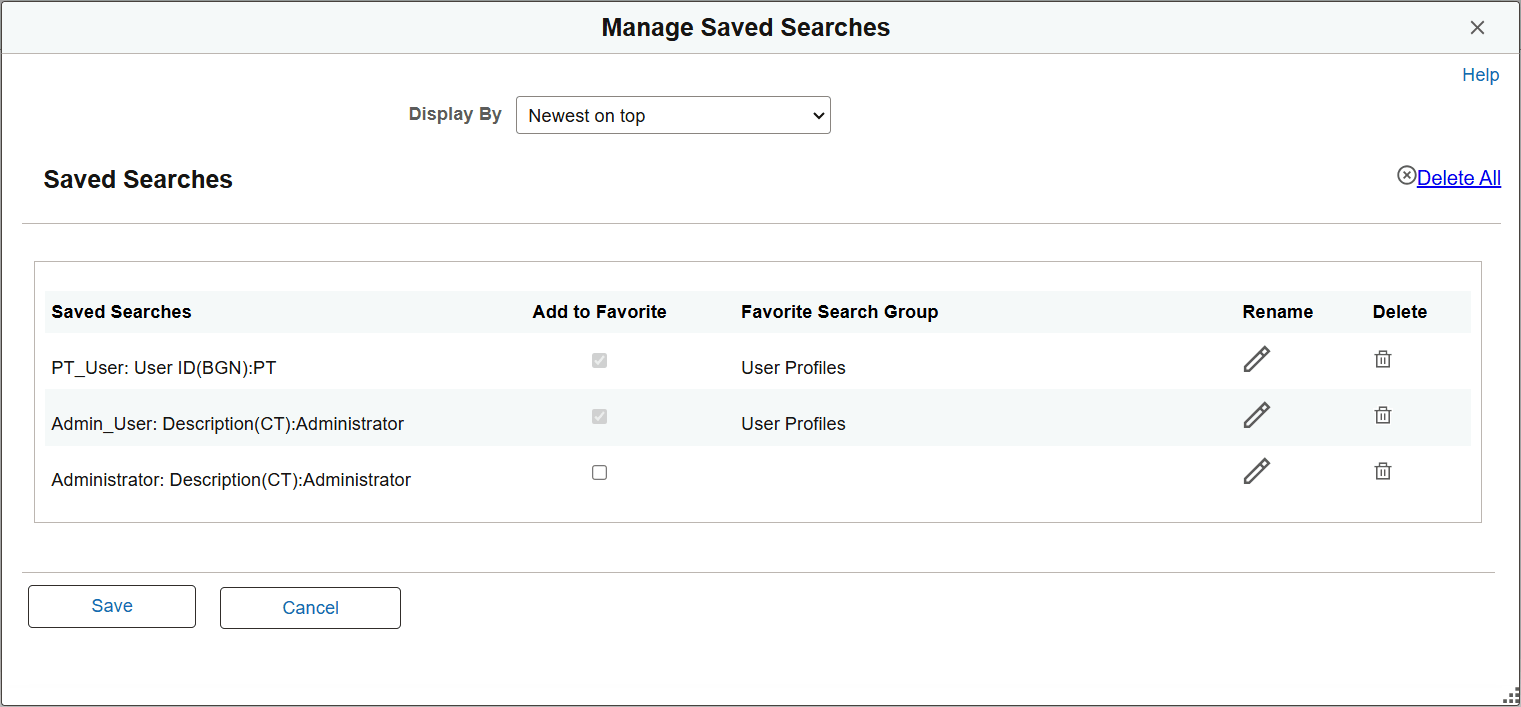
From any configurable search page, use the pencil icon for the Save Search edit box to display the Manage Saved Search dialog box. From this dialog box, you can add an existing saved search to favorites, rename a saved search, or delete a saved search.
On the Manage Saved Search dialog box, select the Add to Favorite check box to access the Save Search dialog box. Then add your existing saved search to favorites using the Save Search dialog box. For more information, see the previous section in this topic, Adding a New Saved Search to Favorite Searches.
This example illustrates the properties for the Manage Saved Searches dialog box. Descriptions of the properties appear after the example.
| Field or Control | Description |
|---|---|
|
Display By |
Use this drop-down list to select the display order of the saved searches. Select one on the following options:
|
|
Delete All |
Select this link to delete all the saved searches for the search page. |
|
Saved Searches |
Displays the name of the saved search. |
|
Add to Favorite |
Select this option to add the saved search to favorites. When you select this option, the Save Search dialog box appears. For more information, see the previous section, Adding a New Saved Search to Favorite Searches, in this topic. |
|
Favorite Search Group |
Displays the name of the favorite search group in which the saved search is saved/stored. |
|
Rename |
Select to open the Rename dialog box where you can rename the saved search. |
|
Delete |
Select to delete the saved search. |