Understanding the Search Test Page
The search test page enables you to test an index independent of any existing PeopleSoft application PeopleCode or additional APIs. Using the Search Test page, you can isolate various search features and view the behavior, without signing on to the PeopleSoft application or the search engine. Also, by observing the underlying PeopleCode, the Search Test page can be a useful tool when studying the use and behavior of the query API. If you do not enter any criteria on the Search Test page, and click Search, the system will return all documents indexed for a search instance in the search engine. Using the criteria on this page, you can test how you anticipate search results to display for your application.
Access the Search Test page by selecting .
This example illustrates the fields and controls on the Search Test page. You can find definitions for the fields and controls later on this page.
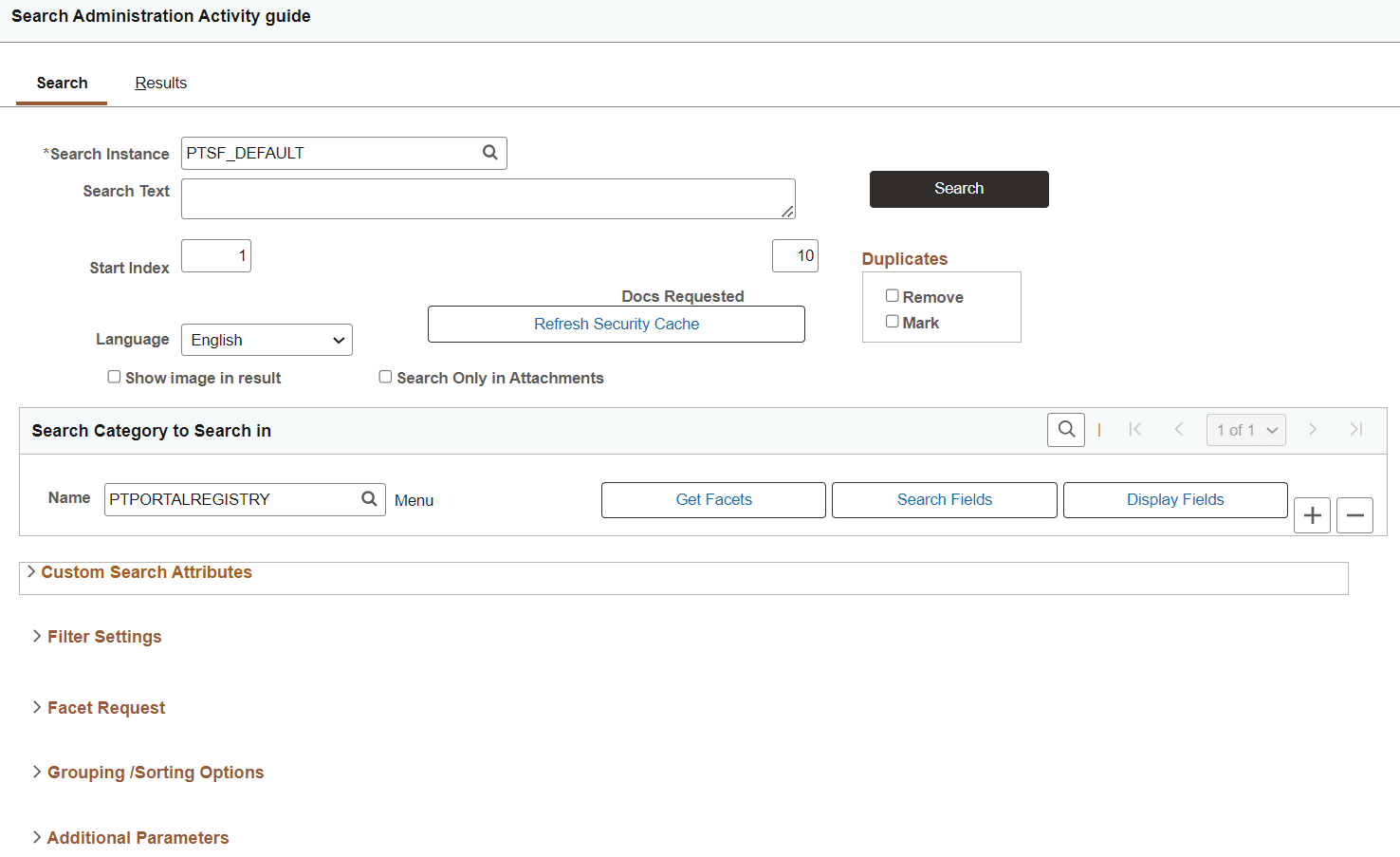
| Field or Control | Definition |
|---|---|
|
Search Instance |
Choose a search instance from which you want to fetch search results. |
|
Search Text |
Enter the free text search request string to test. |
|
Search |
Select to initiate the search request against the desired search instance. |
|
Start Index |
Enables you control which result document displays first. For example, if you set it to 10, the system displays the 10th search result at the top of the search result list. |
|
Docs Requested |
Enables you to control the number of search results displayed on the Results tab. |
|
Language |
Select the language for which you want to test the search index. Select blank to run against all languages. |
|
Refresh Security Cache |
When you select the Refresh Security Cache button, all the security values for the particular user are deleted from the search engine server. Then during the next search on a particular index, security values will be fetched from PeopleSoft for that index alone. When complete, you should see a message similar to: Security cache cleared successfully (262,1300) |
|
Duplicates |
Enables you to control how duplicates are displayed:
|
|
Show image in result |
If you have a drilling URL pointing to an image field, and you want to display the image in the test results, select this option. |
|
Search Only in Attachments |
If you have a search definition that contain configured attachments, and you want to do a keyword search in attachments alone, select this option. |
|
Get Facets |
Select the Get Facets button to automatically load the Facet Requests group box with all valid facets for the selected search category. |
|
Search Fields |
Select the Search Fields button to automatically load the Filter Settings group box with all valid filters for the selected search category. |
|
Display Fields |
Select the Display Fields button to automatically load the Custom Search Attributes group box. |