Working with Search Results on a Touch Friendly Device
On small form factor devices, the search results display varies from desktop or tablet display.
The following search results features are available on small form factor devices:
-
Initiate global search using the Search option in the Actions menu.
-
Search results are displayed in list and chart view. List is the default view.
-
Filter options and search criteria options are available on the options icon.
-
Selected filters are listed in the Selected Filters button.
-
In real-time component search, advanced search options are not available.
-
In component search, the Add button is not available.
-
Related actions and bulk related actions are not available.
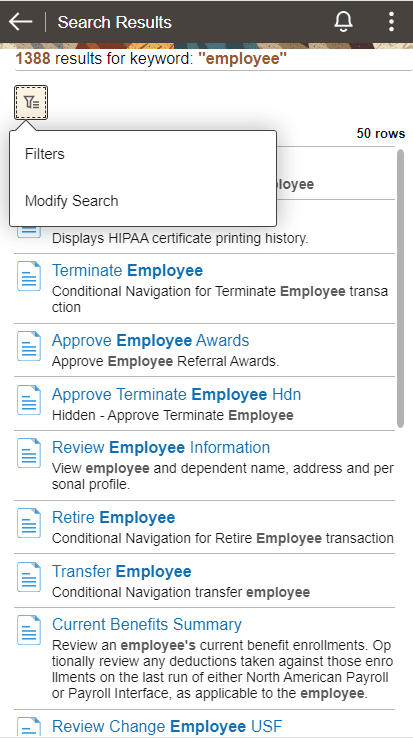
This example illustrates the fields and controls on the Global Search Results page. You can find definitions for the fields and controls later on this page.
| Field or Control | Description |
|---|---|
|
|
Click the options icon to display the Filters and Modify Search options. |
|
Filters |
Displays the available facets and enables you to filter the search results. |
|
Modify Search |
Displays the New Search panel that allows you to enter search criteria. |
|
|
On the search results page, use the back button to return to the previous screen. For example, when you drill into a search result, use the back button to return to the search results page. |

