Configuring User Two-Factor Verifications
Use the Authenticator Enrollment page (PTMFAUSERDVCMGMT) to add authenticators to verify sign-on. You can have up to five active authenticators. One authenticator must be designated as primary, which is used for identity verification.
Before the end user can add an authenticator on this page, the administrator must complete the setup steps.
See Understanding Two-Factor Authentication with TOTP.
You can use any authentication app that supports TOTP. The authentication app must reside on a device outside the computer where the PeopleSoft environment is installed. This procedure includes steps in both the PeopleSoft system and the outside device.
Adding a New Authenticator
You can add up to five authentication devices, such as a phone or tablet. This procedure enrolls your authentication device, so that it generates secrets that the PeopleSoft system will verify to allow access. To define an authenticator:
- Select My Two-Factor Verifications from the main menu.
- Click Add New Authenticator.
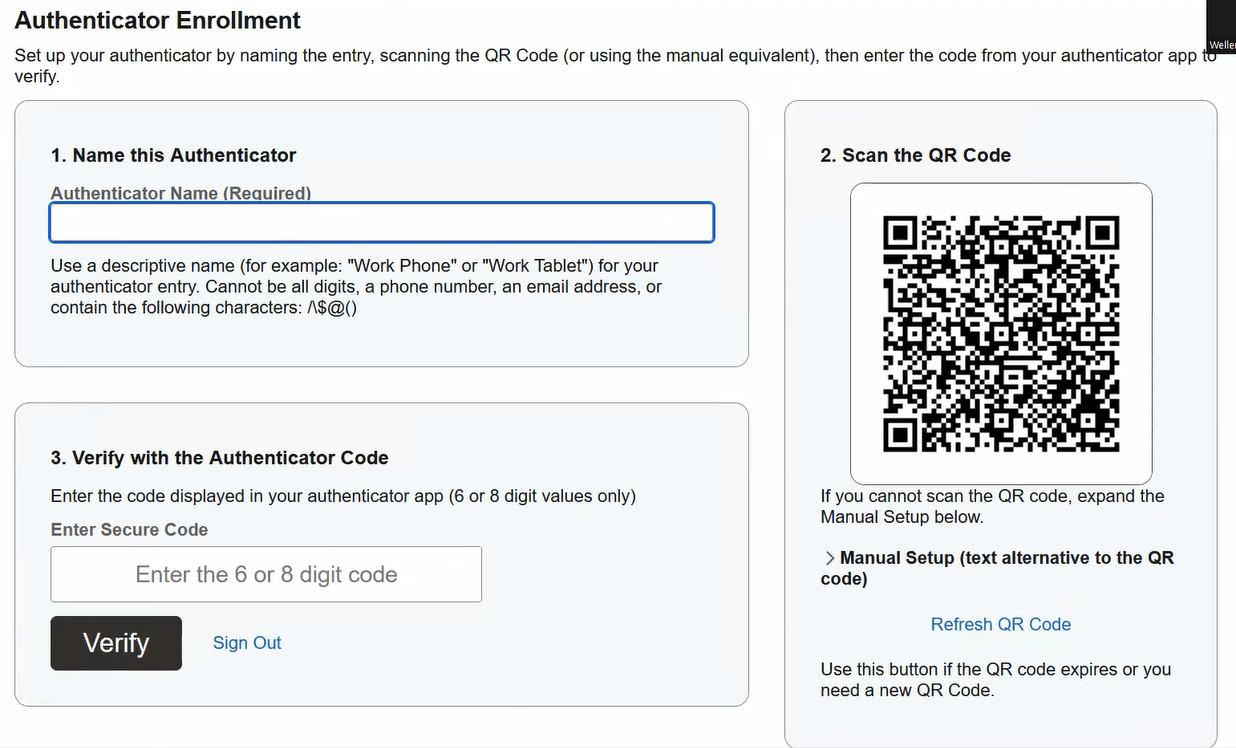
- On the Authenticator Enrollment page, enter a name in the Name this Authenticator field.
Enter a descriptive name, and ensure that it meets the following requirements:
- It cannot be all digits.
- It cannot be a phone number.
- It cannot be an email address
- It cannot include any of these characters: forward slash (/), back slash (\), dollar sign ($), at sign (@), left and right parentheses (()).
- Use your device to scan the QR code on the page.
If you cannot scan the code, expand the section Manual Setup (text alternative to the QR code) below the code. The section includes a URL that you enter in the authentication app on your device.
If you need a new QR code, for example if it expires before you enter the one-time code, select Refresh QR Code.
Note:
The number of digits and the time before a code expires are set by the administrator. - Go to the authentication app on your outside device to find the generated one-time code.
- Return to the Authentication Enrollment page and enter the code in the section Verify with the Authenticator Code.
- Click Verify.
A card with the authenticator entry appears on the page.
- After setting up the authentication entry, click the three-dot icon at the top right of an authenticator card to access these actions.
- Rename
- Renew/Replace
- Mark as Primary
- Deactivate
Using Two-Factor Authentication
When you sign into the PeopleSoft system after you enroll an authenticator:
- Enter your password, which is validated.
- If the password is correct, you see a window asking for the TOTP code.
- Enter the TOTP code generated on the enrolled device, and click Verify.
- The system checks the TOTP code against the valid generated code based on the shared secret and the current timestamp.
- The system allows access if both the code and timestamp are valid.
If two-factor authentication is set up and a user who has not enrolled an authentication device tries to sign in, they see a window with instructions to enroll an authenticator. Click the button to go to the Authenticator Enrollment page and follow the instructions above.