Creating Email Text for Forgotten Passwords
Before the system emails a new, randomly generated password to a user, you want to make sure they are who they claim to be. The Forgotten Password feature enables you to pose a standard question to users requesting a new password to verify the user's authenticity. If the user enters the appropriate response, then the system automatically emails a new password.
When a user has forgotten a PeopleSoft password, the system sends the user a new password within an email message. You can have numerous password hints, but typically, you send all new passwords using the same email message template. Because of this, PeopleSoft provides a separate page just for composing the standard email text that you use for your template.
To access the Forgot My Password Email Text page select and click the Forgot My Password Email Text tab.
This example illustrates the fields and controls on the Forgot My Password Email Text page.
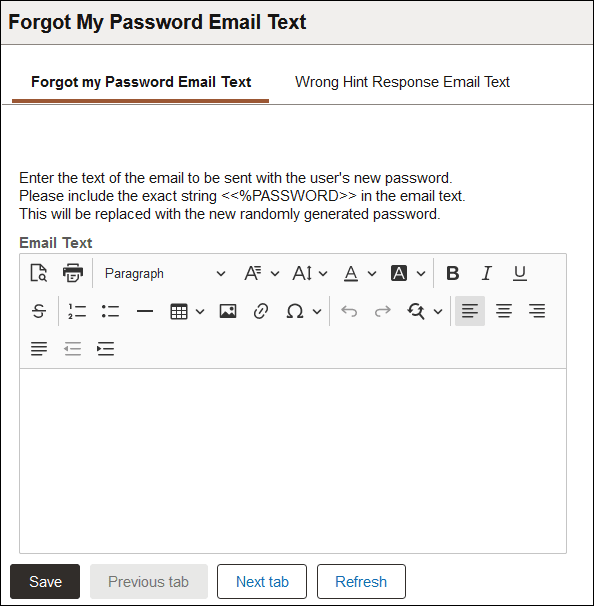
For information on the rich text editor interface, see Applications User’s Guide: Working With Rich Text Editor Fields.
Add the following text string in the Email Text field:
<<%PASSWORD>>The system inserts the new password here. The %PASSWORD variable resolves to the generated value.
Note:
You might instruct the user to change the password to something easier to remember after they sign in to the system with the randomly generated password. Only users who have the Allow User ID/Password to be Emailed option enabled on the Permission List - General page can receive a new password using this feature.
For example:
Your new password is <<%PASSWORD>>.

To change this system-generated password, from the Main Menu click the Change Password link.