Enabling Signon PeopleCode
Access the Signon PeopleCode page ().
This example illustrates the fields and controls on the Signon PeopleCode page.
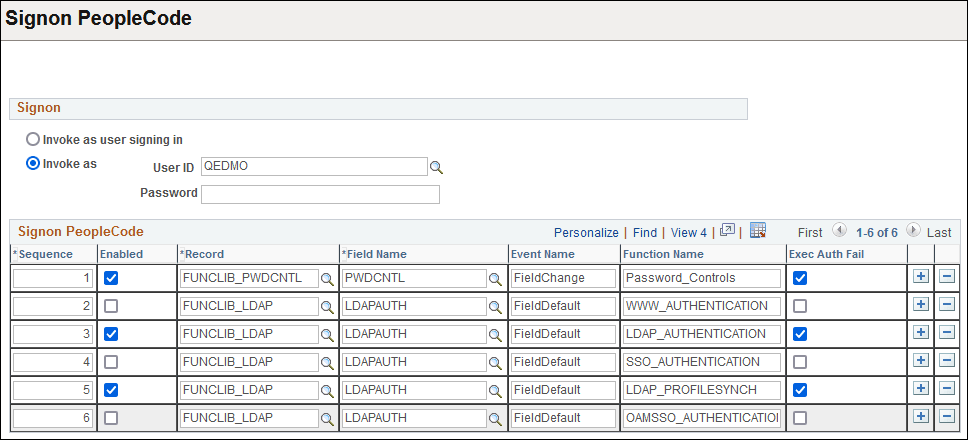
Signon PeopleCode is different from other PeopleCode in that you specify which Signon PeopleCode you want to have on a specific Signon PeopleCode page. Notice that the PeopleSoft Password Controls program, which is written in PeopleCode, is also on this page.
By default, some of the Signon PeopleCode programs are disabled. You enable them on this page. You can also enable them by enabling password controls on the Password Controls page or by enabling directory authentication on the Directory Authentication component. After enabling each option on the appropriate page, the system enables the associated PeopleCode program on the Signon PeopleCode page.
Note:
Using PeopleSoft password controls is valid only if you are not using LDAP authentication. When you're using LDAP authentication, the directory server, not PeopleSoft, controls the password.
You can add your own PeopleCode programs, but you must add them to another record, and then add them to this page. You add and remove rows from the grid using the plus and minus buttons.
| Field or Control | Description |
|---|---|
|
Invoke as user signing in/ Invoke as… |
When a PeopleCode program runs, it has to have a context of a user. This is how you indicate to the system which user is executing the program. This is important because the user ID provided must have access to all of the objects that your signon program uses. For example, if you are using LDAP, notice that the Signon PeopleCode contains a business interlink and a component interface. If the user ID provided does not have the appropriate authority to business interlinks or component interfaces, the program fails. Whether you use the value of the user signing in or you create a default user ID for all signon attempts depends on your implementation. For example, if your Signon PeopleCode creates local copies of users, you have to configure that program to be “Invoked as” an existing user in the system. In this case, you should create a new user within PeopleSoft that only has authority to access the objects required within your PeopleCode program. You should then enter this user as the “Invoke As” user. |
|
Sequence |
Displays the sequence in which the signon programs run. You can change the sequence by changing the numerical value in the edit box. The application server runs all programs in the ascending order in which they appear. |
|
Enabled |
To enable a program to run at signon, select this check box. If it is not selected, then the system ignores the program at signon. |
|
Record |
Specify the record on which your record PeopleCode exists. |
|
Field Name |
Enter the specific field that contains the PeopleCode. |
|
Event |
Enter the event that triggers a particular program. |
|
Function Name |
Enter the name of the function to be called. |
|
Exec Auth Fail (execute authentication fails) |
Select this check box to "execute if PeopleSoft authentication fails." In other words, if PeopleSoft does not successfully authenticate the user based on the password within the PeopleSoft database, you still want the program to run. For example, you want the LDAP authentication program to run after PeopleSoft denies access so that your program can authenticate the user instead. Also, you can leave this option clear to further secure your system. If you aren't using LDAP authentication, leaving this option unchecked prevents any program or script from running if your PeopleSoft authorization fails. |