Setting Access Profile Properties
When you create or modify an access profile using the Access Profiles dialog, you need to understand the properties that comprise an access profile. After reading this section, you will be familiar with these properties.
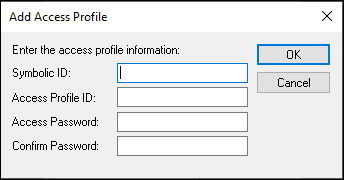
Access the Add Access Profile dialog box (click the New button in the Access Profiles dialog box).
This example illustrates the fields and controls on the Add Access Profile dialog box.
| Field or Control | Description |
|---|---|
|
Symbolic ID |
Enter the Symbolic ID that is used to retrieve the encrypted access ID and access ID password from the PSACCESSPROFILE table. For your initial installation, set it equal to the database name. |
|
Access Profile ID |
Enter the Access Profile ID, which must be a valid RDBMS ID with system administrator privileges and must match the associated RDBMS ID. The system assumes that the RDBMS ID that you enter is the same as the Access Profile ID. The Access Profile ID must be a different logon ID than the User ID. Logic within PeopleTools ensures that if Access ID = User ID, then PeopleTools does not log off and log on again, nor does the system issue a SET CURRENT SQLID = ‘owner ID’. |
|
Access Password |
Enter the password associated with your RDBMS ID/Access Profile ID, which is the password that the Access ID uses to sign in to the database. |