Setting Up SSL in PeopleSoft Applications
This section discusses how to configure the LDAP business interlink to establish SSL encrypted LDAP connections. The LDAP business interlink uses a root CA certificate that you install in the PeopleSoft database through the Digital Certificates page.
To enable SSL, the SSL parameter in the LDAP business interlink should be set to YES either:
-
Manually in Application Designer.
-
Programmatically through PeopleCode.
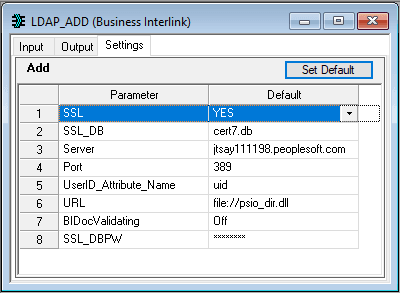
Setting the Business Interlink SSL Parameter in Application Designer
To set the SSL parameter in Application Designer:
-
Open an existing instance of the LDAP business interlink, or create a new instance.
-
Select the Settings tab.
-
Set the SSL parameter to YES.
-
Save the business interlink.
This example shows the correct setting of the SSL parameter for the LDAP_ADD business interlink.
Note:
This example shows the LDAP_ADD business interlink transaction, but it applies to all LDAP business interlink transactions.
Setting the Business Interlink SSL Parameter Programmatically
To set the business interlink SSL parameter programmatically:
-
Drag the business interlink definition into the PeopleCode editor. The following code is created:
/* ===>
This is a dynamically generated PeopleCode template to be used only as a helper
to the application developer.
You need to replace all references to ’<*>’ OR default values with references to
PeopleCode variables and/or a Rec.Fields.*/
/* ===> Declare and instantiate: */
Local Interlink &LDAP_SEARCH_1;
Local BIDocs &inDoc;
Local BIDocs &outDoc;
Local boolean &RSLT;
Local number &EXECRSLT;
&LDAP_SEARCH_1 = GetInterlink(INTERLINK.LDAP_SEARCH);
/* ===> You can use the following assignments to set the configuration parameters.
*/
&LDAP_SEARCH_1.SSL = "NO";
&LDAP_SEARCH_1.SSL_DB = "cert7.db";
&LDAP_SEARCH_1.URL = file://psio_dir.dll";
&LDAP_SEARCH_1.BIDocValidating = "Off";
...
Note:
This example uses the search transaction, but the principle applies to any transaction.
-
Change the SSL parameter setting to indicate that SSL should be used. For example:
&LDAP_SEARCH_1.SSL
= "YES";
Note these points:
-
The SSL parameter setting in PeopleCode takes priority over the setting in Application Designer. For example, setting YES in Application Designer and NO in PeopleCode will result in a non-SSL transaction.
-
The application server binds as a client to the LDAP server as part of the authentication, so it is only necessary to have access to the root certificates. The LDAP administrator at your site should have already installed a server (Node) certificate on the LDAP Server.
-
Whenever you enable or disable Signon PeopleCode, reboot the application server domain.
-
Whenever you install or uninstall a certificate, reboot the application server.