Single Signon Transaction Example
Now that you have a general understanding of why a single signon implementation is useful, and some of the details involved with PeopleSoft-only single signon, this section presents an example of how the PeopleSoft-only single signon scheme works.
In this scenario there are two databases, or nodes: an HCM database and Financials database. Recall that the terms database and node are synonymous. Each database has one application server and one web server. The following steps describe the “back-end” events that occur when a user signs in to the HCM database, completes a transaction, and then clicks a link that targets a page in the Financials database.
Step 1: User Signs In to an HCM Application
The following occurs:
-
The user PTDMO clicks this link: http://hcm.myserver.com/psp/hcmprod/?cmd=login&languageCd=ENG
-
The user enters ID and Password at the sign in page and clicks the Sign In button.
Step 2: Application Server Authenticates User
The following occurs:
-
The web server relays sign in request to the HCM application server.
-
The HCM application server authenticates the user.
Step 3: Application Server Generates Single Signon Token
The following occurs:
-
If the user is authenticated by the application server, then it generates a single signon token.
-
The application server encrypts and encodes the token (base 64).
-
The application server sends the token to the web server, along with a return code indicating that the system authenticated the user.
Step 4: Web Server Creates Cookie in User's Browser
When the web server receives the single signon token from the application server, it creates a cookie and inserts the cookie in the user's browser.
If the browser is configured to show the Security Alert dialog, then the user sees a message similar to the following example. In most cases, you don't configure browsers to show this dialog; this dialog box is just an example of the data that the browser receives.
This example illustrates the Security Alert dialog box.
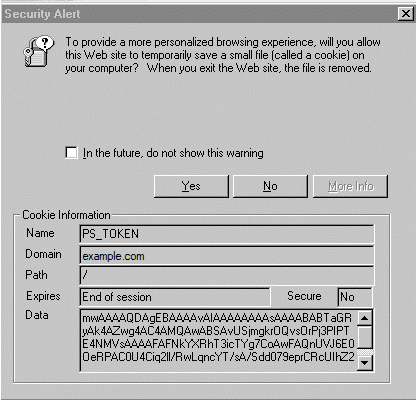
The cookie that the web server distributes for PeopleSoft single signon is named PS_TOKEN. In this case the domain mydomain.example.com set the cookie.
Notice that the cookie expires at the end of session. This indicates that the system never writes the cookie to disk; the cookie exists in browser memory for the duration of the session only.
The web server inserts the single signon token within the Data field of the cookie. So that the system can send the binary data across the HTTP protocol, the token data is encrypted and base 64 encoded.
Step 5: User Needs to Access Financial Application
After the user completes a few transactions in the HCM system, suppose they arrive at a page containing a link to the Financial system. The user clicks the link, and because they've already entered their credentials for the HCM system they don't need to sign in again.
The browser sends the PS_TOKEN cookie to the Financials web server.
Step 6: Financials Web Server Receives PS_TOKEN Cookie
The Financials web server does detect that the user hasn't been authenticated by the Financials system yet. However, because the web server received the signon cookie it does not display the sign in page.
To retrieve the page the user requested (by way of the link in the HCM application), the Financials web server attempts to connect to the Financials application server. It passes only the Data field from the PS_TOKEN cookie because the application server needs only the information in the Data portion.
Step 7: Financials Application Server Authenticates PS_TOKEN
Before allowing the user to connect, the Financials application server evaluates the PS_TOKEN Data field in the following flow:
-
Is the forwarding node trusted?
The application server checks to see that the message node name listed as the Issuing System is a trusted node. The list of trusted nodes for the Financials system resides in the PSTRUSTNODES table. You configure the list using PeopleTools, Security, Security Objects, PeopleSoft Single Signon. The Single Signon page enables the administrator of the Financials system to "trust" authentication tokens generated from HCM as well as any other nodes deemed trusted.
-
Has the token expired?
The application server checks that the authentication token hasn't expired. Using the Issued Date and Time field within the token, the Financials application server makes sure that the token was issued within the interval between the timeout minutes value and the current time. You configure a token's expiration time on the Single Signon page.
Note:
It is important to note that the expiration parameter specified in the Financials system is the relevant value, not the expiration value specified in HCM. This enables the Financials administrator to control the maximum age of an acceptable token. It's also important to consider that all times are in Greenwich Mean Time (GMT), so it doesn't matter what time zones the systems are in.
-
Has the signature been tampered with?
The application server checks that the signature is valid. The Financials application server takes all the fields in the token and the Node password for the issuing node and generates a hash. The token is valid only if the signature within the token exactly matches the one generated by the Financials application server. Because an exact match is the only acceptable situation, Financials can be sure that HCM generated the token, and that it hasn't been tampered with since it was generated. If a hacker intercepted the token in transit and changed the User ID, Language, and so on, the signatures wouldn't match and as a result the Financials application server would reject the token.
Note:
You should use digital certificate authentication when implementing single signon.