Understanding Windows Security Exits
Almost all end users will access PeopleSoft applications by using a browser, so you may not need to implement any client-side Windows exits. However, you can provide this functionality, perhaps for developers.
The Windows client-side exits are:
-
PsGetTuxConnectInfo(): Used only for three-tier Microsoft Windows workstations running PeopleSoft Application Designer or Query, for example.
-
PsGetLogonInfo(): Used for Microsoft Windows workstations in both a two-tier and three-tier environment.
Use these functions to create a customized PSUSER.DLL. These exits are used primarily for the PeopleTools Development Environment, PeopleSoft Query users, or PeopleSoft Tree Manager users. Unless you intend to deploy PeopleSoft applications to Microsoft Windows workstations, these exits are seldom used.
PsGetLogonInfo was used for the Microsoft Windows Client in previous releases to fill in the signon screen programmatically without displaying it to the user.
With the three-tier Microsoft Windows Client signon you can also bypass the PeopleSoft Signon window by modifying the PsGetLogonInfo() function as with the two-tier connection. But because you are connecting to the database through Tuxedo, there are some other authorizations that need to occur.
This diagram shows the Microsoft Windows Client three-tier signon exits.
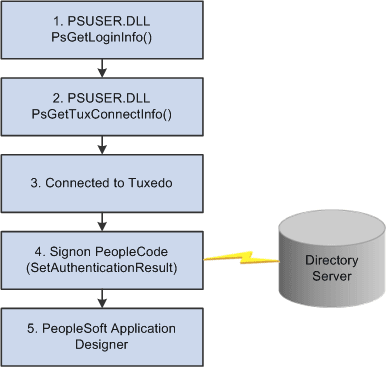
The required authorizations are as follows:
-
The PsGetLogonInfo function must specify APPSERV as the szDBType parameter to bypass the PeopleSoft Signon dialog box.
-
To connect to the Tuxedo application server, the PsGetTuxConnectInfo function retrieves authentication information from directory server.
-
If the authentication information is valid, Tuxedo allows connection.
-
Tuxedo must connect to the database server.
The application server verifies the authentication information passed by the PsGetTuxConnectInfo function.
-
If the authentication is successful, the user is connected to PeopleTools.
The following diagram illustrates the results produced by customizing the PSUSER.DLL PsGetLogonInfo function to bypass the PeopleSoft Signon dialog box.
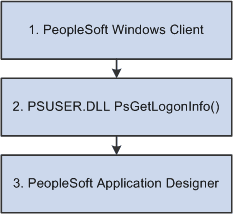
In this case, the sequence of events is as follows:
-
From the workstation the user runs PSTOOLS.EXE. PSTOOLS.EXE calls the PSUSER.DLL.
-
The PsGetLogonInfo function supplies user signon information.
If information is validated by the RDBMS, the user is connected as User ID or Connect ID, and then after the security profile is retrieved and validated the user is connected as Access ID.
-
If the signon information is valid, the PeopleSoft system connects the user to the specified PeopleTool.