Using the Image Resize Test Page
Select to access the Image Resize Test page.
This example illustrates the fields and controls on the Image Resize Test page.
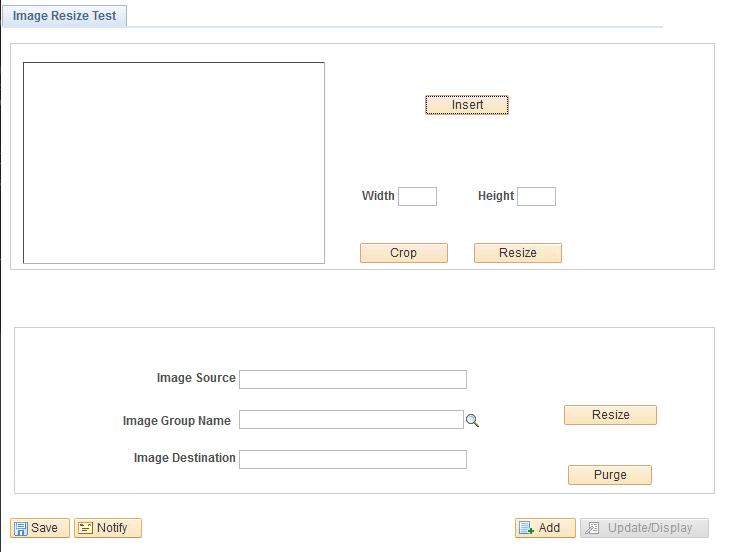
Use this page to test image PeopleCode constructs, such as insert, crop, resize, and so on.
Use the top section of the page to test dimensions for cropping or resizing. After inserting an image, enter the desired dimensions, and then click Crop or Resize. When you click Crop, a window appears that enables you to select the portion of the image to retain. The resulting cropped or resized image appears on this page.
Note:
CropImage displays the image in actual size. If the image dimensions do not match the device dimensions, it may be difficult to crop the image even though a scroll bar is displayed. In such a case, Oracle PeopleSoft recommends that you resize the image and then crop the image.
Use the bottom section of the page to test resizing.
-
Image Source corresponds to the ResizeImage parameter URL.source_URL.
-
Image Group Name corresponds to the array of sizes in the ResizeImage API.
You define image groups on the Image Grouping page.
-
Image Destination corresponds to the ResizeImage parameter URL.dest_URL.
-
When you use the ResizeImage API with a database table specified as the destination location, the PS_PT_IMG_TMPSTORE table is used to temporarily store the images instead of the specified database table. Use Purge to delete the entries from this PS_PT_IMG_TMPSTORE table.