Configuring Browser Settings
Browser Security Settings for Chrome
The following Chrome policies can block extensions. PTF is designed to work with or without these policies. If extensions are blocked as per these policies, then the Chrome-based recorder must be enabled and installed manually as per the instructions provided in the subsequent section for installing PTF Chrome Recorder Extension:
-
[HKEY_LOCAL_MACHINE\SOFTWARE\Policies\Google\Chrome\ExtensionAllowedTypes] "1"="extension" -
[HKEY_LOCAL_MACHINE\SOFTWARE\Policies\Google\Chrome\ExtensionInstallBlocklist] "1"="*" -
[HKEY_LOCAL_MACHINE\SOFTWARE\Policies\Google\Chrome\ExtensionInstallAllowlist]
                                                "1"="boainbfkaibcfobfdncejkcbmfcckljh"
We see the following error message when these policies are configured to block Chrome extensions:
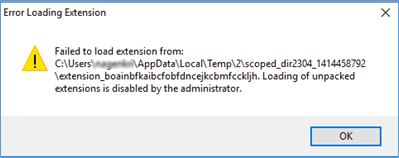
Browser Security Settings for Microsoft Edge
The following Microsoft Edge policies can block extensions. PTF is designed to work with or without these policies. If extensions are blocked as per these policies, then the Microsoft Edge-based recorder must be enabled and installed manually as per the instructions provided in the subsequent section for installing PTF Microsoft Edge recorder extension:
-
[HKEY_LOCAL_MACHINE\SOFTWARE\Policies\Microsoft\Edge\ExtensionAllowedTypes] "1"="extension" -
[HKEY_LOCAL_MACHINE\SOFTWARE\Policies\Microsoft\Edge\ExtensionInstallBlocklist] "1"="*" -
[HKEY_LOCAL_MACHINE\SOFTWARE\Policies\Microsoft\Edge\ExtensionInstallAllowlist]
                                                "1"="boainbfkaibcfobfdncejkcbmfcckljh"
Installing PTF Chrome Recorder Extension
You may want to manually install the recorder extension when certain browser policies block the recorder extension.
To install PTF Chrome Recorder extension:
-
Close all the Chrome windows that already opened.
-
Open a new Chrome browser window as administrator.
-
Open the URL
chrome://extensions/. -
Enable the developer mode by clicking on the Developer mode toggle button.
-
Keep the Chrome window open and then navigate to the PTF installation directory.
-
Select the psTstRecCh.crx file. Next, drag and drop this file on the opened Chrome browser.
An alert box appears with the Add Extension button.
-
Add the extension. A confirmation message appears on the Chrome window.
-
Close the Chrome window, and start PTF to launch the Chrome Recorder.
Uninstalling PTF Chrome Recorder Extension
You may have to uninstall old PTF Chrome Recorder extensions.
To uninstall:
-
Close all the Chrome browser windows that are already opened.
-
Open a new Chrome browser window as administrator.
-
Open the URL
chrome://extensions/ -
Search for PTF Recorder, and click Remove.
-
A message 'Remove PTF recorder?' appears.
-
Click Remove, and then close the Chrome window.
Installing PTF Microsoft Edge Recorder Extension
To install PTF Microsoft Edge Recorder extension:
-
Close all the Microsoft Edge windows that already opened.
-
Open a new Microsoft Edge browser window as administrator.
-
Open the URL
edge://extensions/. -
Enable the developer mode by clicking on the Developer mode toggle button.
-
Keep the Edge window open and then navigate to the PTF installation directory.
-
Select the psTstRecCh.crx file. Next, drag and drop this file on the opened Edge browser.
An alert box appears with the Add Extension button.
-
Add the extension. A confirmation message appears on the Edge window.
-
Close the Edge window, and start PTF to launch the Edge Recorder.
Uninstalling PTF Microsoft Edge Recorder Extension
You may have to uninstall old PTF Microsoft Edge Recorder extensions.
To uninstall:
-
Close all the Microsoft Edge browser windows that are already opened.
-
Open a new Microsoft Edge browser window as administrator.
-
Open the URL
edge://extensions/ -
Search for PTF Recorder, and click Remove.
-
A message 'Remove the PTF recorder from Microsoft Edge?' appears.
-
Click Remove, and then close the Microsoft Edge window.