Opening Tests Assets with the Quick Open Dialog Box
Use the Quick Open dialog box to search for and open one or more test assets. To access the Quick Open dialog box, select .
This image illustrates the fields and controls on the Quick Open dialog box.
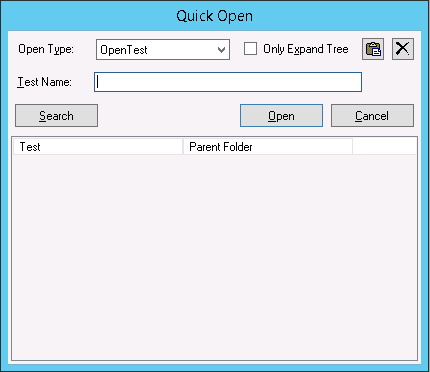
The following fields and controls are available on the Quick Open dialog box.
| Field or Control | Description |
|---|---|
|
Open Type |
Select the type of test asset to open. Options are:
|
|
Only Expand Tree |
Select this check box to only expand the tree folder the asset is associated with, not load the test asset. |
|
Test Name |
Enter the test name. |
|
Case Name |
This field is available only when Open Type is set to Open Case. Enter the test case name. |
|
Log Folder |
This field is available only when Open Type is set to Open Log. Enter the name of the log folder. |
|
Log Name |
This field is available only when Open Type is set to Open Log. Enter the name of the log. |
|
Search |
Click to search for tests that contain the value entered in Test Name. Partial matches are supported for Test Name when using the Search button. Matching tests appear in the grid. To open one or more tests in the grid, select the check box adjacent to the test name, then click Open. |
|
Open |
Click to open the test asset. An exact match is required if you do not use Search before you click Open. |