Using the Test Folder Permissions Manager
Note:
The Test Folder Permissions Manager only authorizes actions on the test folder and tests. The test cases cannot be given specific permission but it inherits the same permission as the parent test.
You can edit test cases as long as your role has read and run privileges for the parent test.
The PTF administrator assigns privileges to these roles from the Test Folder Permissions Manager.
Access the Test Folder Permissions Manager from the Tools menu in the PTF client. The link under Tools menu is only visible to PTF administrators.
If some test folders are invisible to a specific PTF role, then all the tests under that test folder and the sub folders are also hidden to the users who are assigned the particular PTF role. This is also applicable for PTF command line.
Also see, Understanding the Messages and Warnings.
The example illustrates the fields and controls on the Test Folder Permissions Manager.
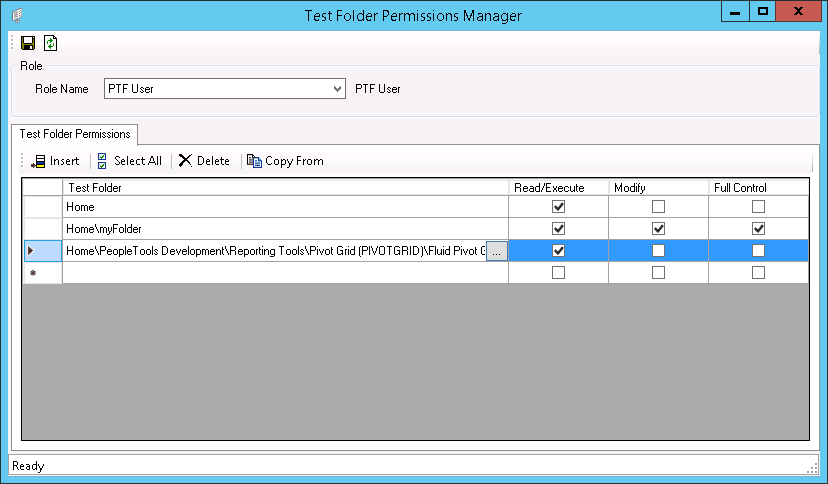
| Field or Control | Description |
|---|---|
|
|
Saves any modifications to test folder permissions for the current role. |
|
|
Refreshes test folder permissions for the current role. A warning message displays if changes are not saved. |


Role
| Field or Control | Description |
|---|---|
|
Role Name |
Switch to a role to display the test folders and permissions granted to it. |
Test Folder Permissions
| Field or Control | Description |
|---|---|
|
|
Insert permissions for a new test folder. |
|
|
Select all the permissions displayed on the grid. |
|
|
Delete test folder permissions for an existing PTF role. |
|
|
Copy existing test folder permissions from an existing role. The Copy from an existing Role dialog box prompts you to select a folder. A warning message The following Test Folders are duplicated. is displayed, if a folder already exists in your Test Folder Permissions Manager. |
|
|
Click to display the test folder selection dialog box. |


See Understanding the Messages and Warnings for related messages and warning.