Performing Audits and Deleting Trees
Use the Tree Maintenance page (PSTREEMAINT) to audit a closed tree, copy a tree, delete a tree, or view a tree.
Navigation:
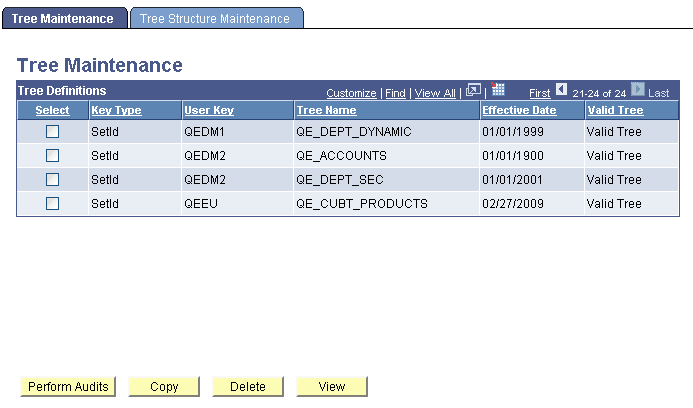
This example illustrates the fields and controls on the Tree Maintenance page. Definitions for the fields and controls appear following the example.
| Field or Control | Description |
|---|---|
|
Key Type |
Displays the key type associated with this tree.
|
|
User Key |
Displays the key value. This field is blank if the key type is None. |
|
Valid Tree |
Displays the status of the tree. |
|
Perform Audits |
To audit a tree, select its check box and click this button. The Last Audit field for the tree changes to Valid Tree if the tree passes the audit. If the tree fails the audit, the Last Audit field changes to Draft Tree. Note: You can get a detail listing of audit errors by running the Repair Tree batch program. |
|
Copy |
To access the Tree Definition and Properties page and copy a tree, select a tree check box and click this button. |
|
Delete |
To delete a tree, select its check box and click this button. |
|
View |
To access the Tree Viewer page and view a tree, select a tree check box and click this button. |
Note:
Trees secured by PeopleSoft Object Security for anything but full access are not listed and cannot be updated or deleted from the Tree Maintenance page.
Related Topics