Searching for Nodes or Detail Values
Use the Find Value page (PSTREEMGRFIND) to find a specific node or value.
Navigation:
-
Select .
-
Search for an existing tree or create a new one.
-
Select a tree on the Tree Manager page and click the Find link.
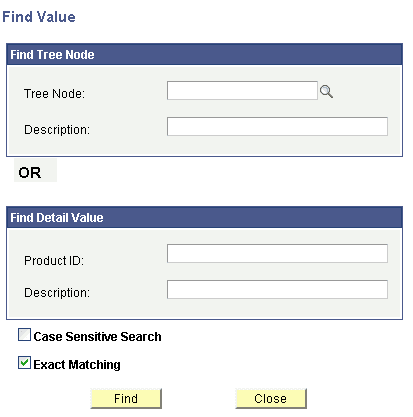
This example illustrates the fields and controls on the Find Value page. Definitions for the fields and controls appear following the example.
Note:
The actual labels on these fields change depending on the default labels defined for the column used for the node or detail values. For example, in the Department Security tree, the label for the node values reads Department ID.
| Field or Control | Description |
|---|---|
|
Tree Node |
Enter the tree node name and click the Find button. A newly created node will not be listed in the Node List until a Save is performed. However, if you enter the exact name of the newly created node and click the Find button, the node will be found. Search results of the newly created nodes do not depend on selecting or clearing the Exact Matching option. |
|
Description |
Enter the tree node description and click the Find button. When searching by description, the system does not locate newly created nodes until a Save is performed. |
|
Detail Value (EmplID) and Description (Last Name) |
Note: In this example, the Detail Value field appears as EmplID and the Description field appears as Last Name. Enter a detail value or description and click the Find button. When searching by value, if a detail value is defined as a range of values, then the system looks for the detail values that the entered value falls under. If the detail value is defined as a specific value, then the system looks for detail values that begin with or match the value entered. If a user types in the exact name of the newly created detail value and clicks the Find button, the detail value is found. Search results of the newly added details do not depend on selecting or clearing the Exact Matching option. If the tree features the Duplicate Leaves option, only the first occurrence of the newly added detail value will be found. Note: When searching for detail values that involve a range of values or duplicate values, the system may not find a detail value that has been recently added or changed until a Save has been performed. The results of this operation depends on database sorting options and database type. |
|
Case Sensitive Search |
Select to use the case-sensitive search option for descriptions. This option is not used for node or detail names, because they are key fields, which PeopleSoft Tree Manager automatically changes to upper case. |
|
Exact Matching |
Select to search for an exact match. Clear this option to perform partial searches. If you clear this option, the system automatically adds a wildcard character at the end of the user defined search condition. If you want to use a wildcard search by applying a wildcard character at the beginning of the word, you need to use the database-specific wildcard character. You receive a warning message if you cleared this option and your search criteria was too broad – more than 200 rows returned. |
If PeopleSoft Tree Manager finds a node or detail value that matches your search string, it displays the node or detail value and builds navigation paths to show the navigation path to the entry found.
Note:
If the value for which you are searching is contained inside a detail range, PeopleSoft Tree Manager displays the appropriate range. Click the Edit Data image to display the list of values contained in that range. Keep in mind that detail values are stored as strings, so if your values are identified by numbers, the range may include more values than expected.
PeopleSoft Tree Manager finds the first occurrence of the node or detail value that matches your search string and highlights it. If duplicate values exist, click Next to search for the next occurrence of the value.
When the next occurrence has been found, the Previous link become available.
If you enter values or descriptions in more than one field on the Find Value page, the system uses the higher located field as a search condition and ignores the lower fields.