Switching Node Levels
Use the Node Properties page (PSTREENODELEVELS) to change node levels, change node properties, and rename nodes.
Navigation:
-
Select
-
Search for an existing tree or create a new one.
-
Select a node on the Tree Manager page and click the Update Node Properties icon.
This example illustrates the fields and controls on the Node Properties page.
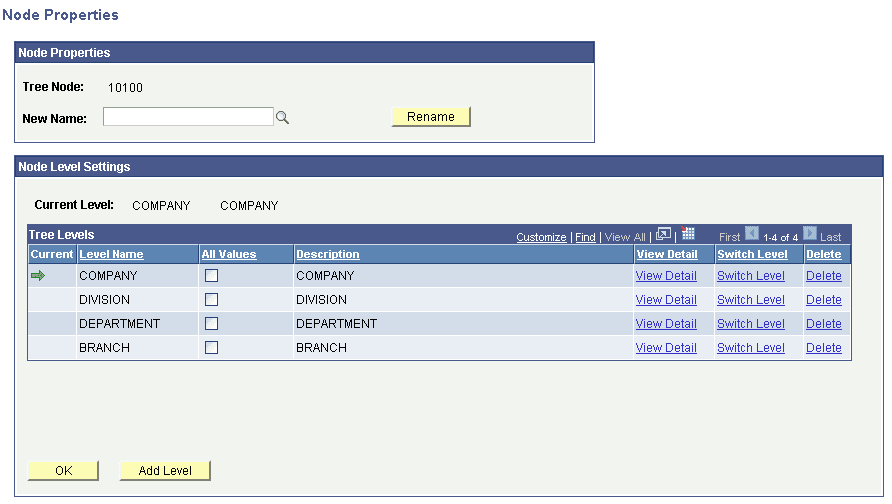
In the Node Properties page, click the Switch Level link associated with the level to which you want to change the node. Then the node level information is updated and changed. The node level is indicated by the green arrow.
Levels Behavior When Switching Node Levels
The following are general rules used when switching node levels:
-
Tree with strictly enforced levels: The parent node must always be at a higher level than its children.
-
Tree with loosely enforced levels: The parent node must be at the same or higher level than its children.
The following table shows the basic behavior of levels when the switch node level function is used.
| Action | Tree with Strictly Enforced Levels | Tree with Loosely Enforced Levels |
|---|---|---|
|
Switching node to a higher level. |
Only available for skipped nodes. Can only ascend the number of levels that have been skipped. PeopleSoft Tree Manager automatically adjusts the levels of the child nodes. For example, if the parent node is switched two levels, the children are automatically adjusted two levels. |
Only available for skipped nodes. Can only ascend the number of levels that have been skipped. Levels of the child nodes are not automatically adjusted. |
|
Switching node to a lower level. |
To ensure that the parent node is always at a higher level than its children, PeopleSoft Tree Manager automatically adjusts the level of the node and its children. PeopleSoft Tree Manager will automatically create additional levels, if necessary. |
The levels of the pasted node and its children are not adjusted. Note: If the switch results in a child node level becoming higher than its parent, PeopleSoft Tree Manager automatically adjust the level to be equal to the level of parent. PeopleSoft recommends that when switching levels, you should switch to just one level at a time. |