Configuring Usage Monitoring Without Rebooting Servers
PeopleSoft administrators can enable or disable MO and ADS object usage monitoring without rebooting the Application Server and Process Scheduler Server.
The Managed Object commit size can also be updated without rebooting the Application Server and Process Scheduler Server.
For details, see Enabling Usage Monitor topic.
Using Server Domain Configuration Options
When Usage Monitoring is enabled across multiple domains, the PeopleSoft system can experience excessive load.
To reduce system load, you can configure Usage Monitoring values at the domain level by using the Application Server (psappsrv.cfg) and Process Scheduler Server (psprcs.cfg) domain configuration files.
This also minimizes excessive Usage Monitor data collection.
This is an example of a psappsrv.cfg file:
…
[PSTOOLS]
;-------------------------------------------------------------------------
; Usage Monitor Specific Option:
; When the value 0 is set for 'Usage Monitoring' - this domain would
; not monitor the usage even though 'Usage Monitoring' is enabled System Wide.
UMOption=1
…
Usage Monitoring is enabled or disabled based on the UMOption parameter.
When the domain starts, the system checks this value and enables Usage Monitoring if it is set to 1; otherwise, it disables Usage Monitoring if it is set to 0.
This helps administrators control Usage Monitoring at the domain level and avoid running it across all domains.
Note:
The UMOption parameter is checked when the server starts. If the value is changed, the update takes effect only after the server is restarted. Even if the System Personalization option is set to On, Usage Monitoring is disabled for the domain when UMOption is set to 0.Consider the following points when configuring UMOption:
- Setting UMOption is a prerequisite step for controlling Usage Monitoring at the domain level. Setting UMOption alone does not enable Usage Monitoring. You must also enable Usage Monitoring in Usage Monitoring Options page.
For details, see, Enabling Usage Monitor
- At least one server domain must have UMOption set to 1 for Usage Monitor to collect data.
- The UMOption setting applies to all server processes in the domain. When UMOption is set to 1, all eligible server processes in the domain can collect usage data. When UMOption is set to 0, no server processes in the domain collect usage data.
- The UMOption parameter is checked when the server domain starts. If you change the value, the change takes effect only after the server domain is restarted. Even if Usage Monitoring is enabled on the Usage Monitoring Options page, usage monitoring is disabled for the domain when UMOption is set to 0.
For details on enabling or disabling MO and ADS object usage monitoring without rebooting the Application Server and Process Scheduler Server, see Enabling Usage Monitor
Using System Personalization Options
To enable or disable either the MO usage data collection or ADS usage data collection on a system-level, we can use the Define Personalizations page.
You can consider this as an alternative to the Usage Monitoring Options page.
Note:
It is recommended to use the Usage Monitoring Options page where you can enable or disable MO and ADS object usage monitoring without rebooting the Application Server and Process Scheduler Server. See, Enabling Usage Monitor.Navigate to to access the Define Personalizations page.
This example illustrates the fields and controls on the Define Personalizations page.
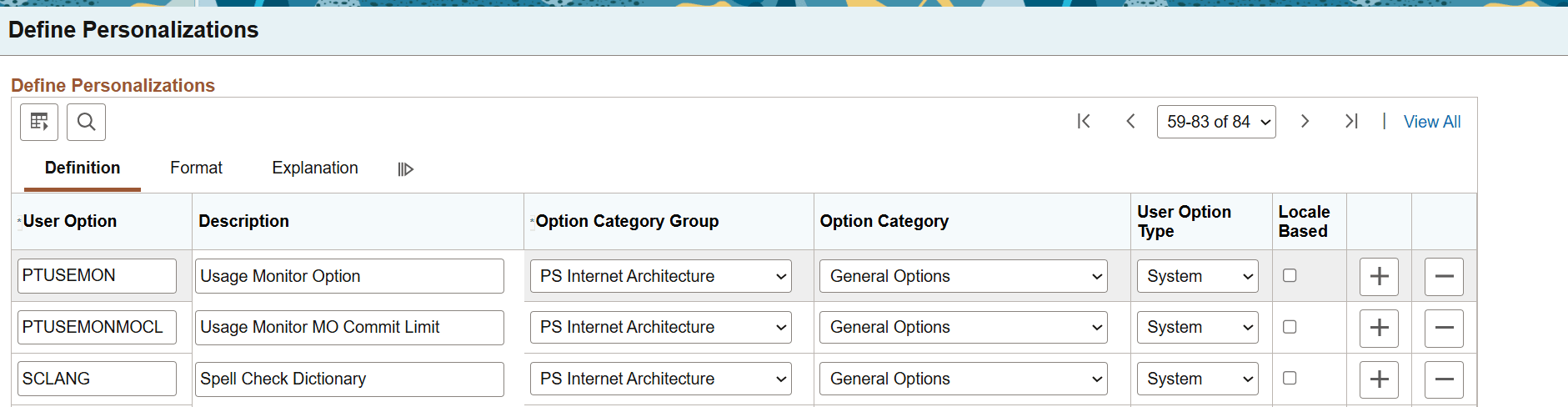
The Usage Monitor options are:
- USEMON- Use this option to enable or disable MO and ADS monitoring.
- USEMONMOCL- Use this option to set MO commit size without rebooting the servers.
On the Format page, in the Set Option Default Value column, click Set Option Default Value.
This opens the Set Option Default Values page.
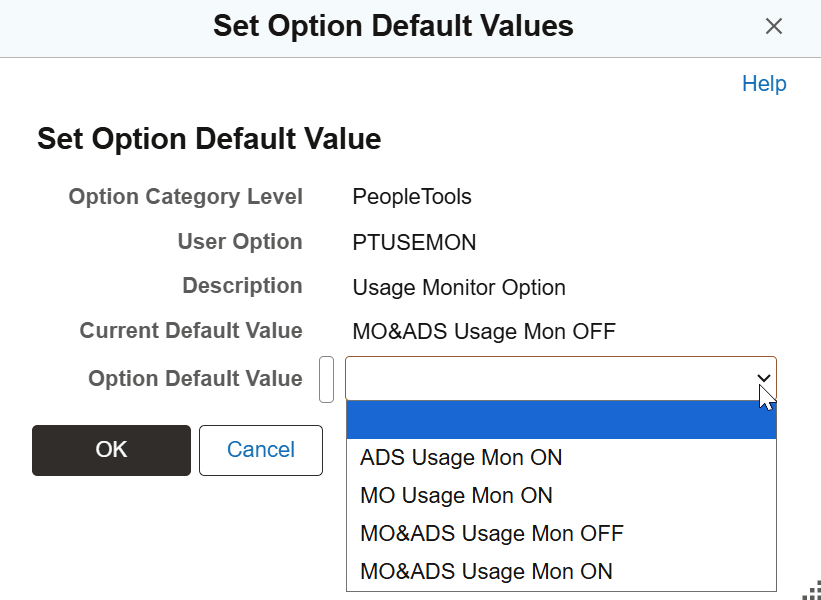
For USEMON, these are the options.The change takes effect without requiring a restart of the server processes:
- ADS Usage Mon ON- Only ADS objects will be monitored.
- MO Usage Mon ON- Only MO objects will be monitored.
- MO&ADS Usage Mon OFF- This disables MO and ADS usage monitoring.
- MO&ADS Usage Mon ON- This enables MO and ADS usage monitoring.
Similarly, for the USEMONMOCL option, the value that you set takes effect during the next Usage Monitor database write operation. No restart of the Application Server or Process Scheduler server is required.
For example, on the Usage Monitoring Options page, the Managed Object commit size is 2500. You set it to 5000 on the Set Option Default Values page. The server continues to run. During the next Usage Monitor commit cycle, it uses 5000 instead of 2500. No server reboot is required.
The following table describes how each combination of values affects a server domain.
Table 1-1 Usage Monitoring Status Based on UMOption and USEMON Settings
| Server Domain Configuration (UMOption) | System Personalization Option (USEMON) | Usage Monitoring |
|---|---|---|
|
1 |
Usage Monitoring is enabled |
ON |
|
0 |
Usage Monitoring is enabled |
OFF |
|
1 |
Usage Monitoring is disabled |
OFF |
|
0 |
Usage Monitoring is disabled |
OFF |