Setting Attributes for Step Icons
This section discusses how to set step attributes.
This example illustrates the fields and controls on the Step Attributes dialog box.
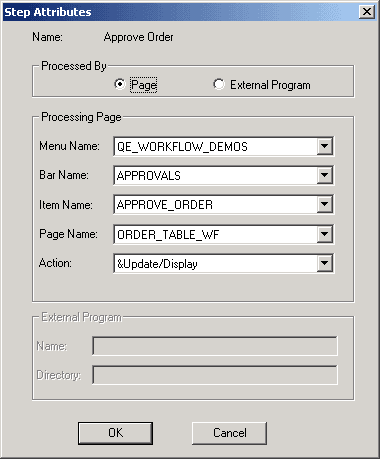
Use the Step Attributes dialog box to select the page or program that the system starts when a user selects this step and the action mode that is used to open the page.
To set step attributes:
-
On the Step Definition dialog box, click the Attributes button.
-
Specify whether the user completes this step on a PeopleSoft page or from an external program.
When you select Page or External Program, the appropriate section of the dialog box becomes available. If this is a workflow activity guide and you marked the activity guide option in the activity properties, then you must select Page.
-
Provide directions for starting the page or external program.
If a user performs the step by completing a PeopleSoft page, select the page from the list boxes in the Processing Page group box.
In the Action drop-down list box, select the type of activity that the user must perform on the database: Add, Update/Display, Update Display/All, or Correction. When a user selects this step, the system displays the specified page in the specified action mode.
Note:
You must assign a page to a menu before you create a step that navigates to it.
If users perform the step using an external program, select the program name and its working directory from the External Program group box. The program name must be the name of the executable file, followed by command line parameters, if appropriate. When a user selects this step, the system starts the specified program.
Note:
If this step is the first step in its activity (Step 1 Path 1) and the activity has an associated worklist, the system can pass additional parameters to the external program from the worklist record.
-
Click OK in the Step Attributes dialog box.
-
Click OK to close the Step Definition dialog box.