Global Search UX and Supported Use Cases
Search categories displayed in the Global Search bar are filtered based on the following criteria:
- Only fully indexed or partially indexed categories are displayed in the Object Filter. Categories that are not indexed do not appear in the Object Filter of the Global Search bar.
- A search category is displayed only if it has:
- At least one valid application configuration, and
- At least one configured drilldown view
- Only categories associated with the currently logged-in application are displayed.
- A category is visible to a user only if the user has access to at least one of its drilldown views.
Refer to Creating Search Categories and Generating Index for more information regarding defining search categories.
- Unified Global Search Bar: Placed at the top of the application screen, it offers an intuitive, user-friendly interface that is seamlessly integrated with OpenSearch and accessible throughout the application.
- Object Filter: User clicks the 'Object' filter and uses the drop-down list to choose one or multiple search categories. The filter enables global search across multiple data objects in Siebel application, helping user refine search results for efficient data discovery and retrieval.
Results Page
When performing a search in Siebel application using Redwood theme, the search results are presented in a full page with 5 columns:
- Column 1-4: Top 4 searchable fields (as defined in Search Category → Searchable Fields in Siebel application).
- The first field marked as Searchable becomes the drillable field. Choose a required field to serve as the drillable field.
- Column 5: Search category (as defined in Search Category in both Siebel application and YAML file)
When performing a search in Siebel application using Aurora theme, the search results are presented in a vertical panel located on the left-hand of the screen. Each result consists of the following information:
- Top line: Search category (as defined in Search Category in both Siebel application and YAML file).
- Top searchable fields (as defined in Search Category → Searchable Fields in Siebel application).
- The first field marked as Searchable becomes the drillable field. Choose a required field to serve as the drillable field.
Keyword Search
Keyword search refers to searching for exact words or phrases within indexed documents. It matches user queries against specific terms in the data, returning results that contain those keywords without interpreting the context or meaning behind them. This type of search is precise and relies on exact matches rather than natural language understanding.
Query Examples:
- Query “Abbey General Hospital” → 1 matching record returned.
- Query “NHS Trust” → "Derbyshire Royal Infirmary NHS Trust", "Nottingham City Hospital NHS Trust", "Kings Mill Ctre Healthcare NHS Trust".
Semantic Search
Semantic search is a search technique that understands the intent and contextual meaning behind a query, enabling it to find relevant results even if they don’t contain the exact keywords used.
Query Examples:
- Details on auto supply
- Exception Handling SR's
- All open service requests
- Accounts assigned to CELLIS
- Symptoms of System crash
- Opportunities created by MNASH
- Closed SR's
- Contacts from "Metro Motors Michigan" organization
Field-Based Search
Field-based search narrows results by applying filters to specific data fields or attributes, such as account location, service request status, deal size, or date ranges. Only records that meet the specified filter criteria are returned in the results. Field-based search is supported for any field indexed as searchable.
Here are a few query examples of field-based search:
- Opportunities having "Primary Revenue Amount > 2000"
- Service Requests "Severity is High"
- SRs "Status is Closed and Priority is Low"
Query Guidelines
-
Enclose field names, operators, and field values in double quotes (“”). This will ensure the Search Engine looks for the right data for your specific queries.
Note: If you fail to follow the field-based query format, the system falls back to a standard search. If matching records are found, results are returned. -
Field names are case-sensitive and must be spelled correctly. Field values are not case-sensitive.
-
Use the supported operators in your query:
| Category | Supported Operators |
|---|---|
| And | &, &&, AND, and |
| Between | BETWEEN, between |
| Equal | =, ==, EQUALS, equals, Equal, equal, IS, is |
| Not Equal | !=, NOT EQUALS, not equals, NOT EQUAL, not equal, NOTEQUALS, notequals, NOTEQUAL, notequal, ISNOT, isnot, IS NOT, is not, NOT, not |
| Or | |, ||, OR, or, ;(semicolon), ,(comma) |
Supported Query Types
- Non-Range Query:
- oppty with "Primary Revenue Amount = 10000"
- SRs with "Severity is 2, Priority is High"
- Numeric Range Query:
- Opportunities with "Primary Revenue Amount > 1000"
- Oppty with "Primary Revenue Amount between 1000 & 2000"
Note: Searching on currency fields with currency code is not supported. Do not put comma in your numeric value. (e.g., use 1234 instead of 1,234).Note: Only mathematical operators are supported for range queries. - Date Range Query:
- Supported date format: YYYY-MM-DD
- Oppty with "Primary Revenue Close Date >= 2022-01-01 & < 2023-01-01".
Note: Only mathematical operators are supported for range queries. -
Compound Query:
- Show me SRs with "Status is Closed and Priority is High"
Field Data Type Mappings
Introduces mappings between Siebel and OpenSearch field data types, ensuring fields are indexed with appropriate types such as numeric and date. This enables more accurate typed queries, filtering, sorting, and range searches across supported fields.
| Siebel Data Type | OpenSearch Data Type | Features Supported |
|---|---|---|
| DTYPE_TEXT | String:text |
|
| DTYPE_ID | String:keyword |
|
| DTYPE_BOOL | boolean |
Example: "Call Back=true" "Call Back=false" |
| DTYPE_NUMBER | Numeric:double |
|
| DTYPE_INTEGER | Numeric:integer |
|
| DTYPE_CURRENCY | Numeric:scaled_float |
|
| DTYPE_PHONE | String:keyword |
|
|
DTYPE_UTCDATETIME DTYPE_DATETIME DTYPE_DATE DTYPE_TIME |
Date:date |
|
| Default | String:text |
|
Hierarchical Search
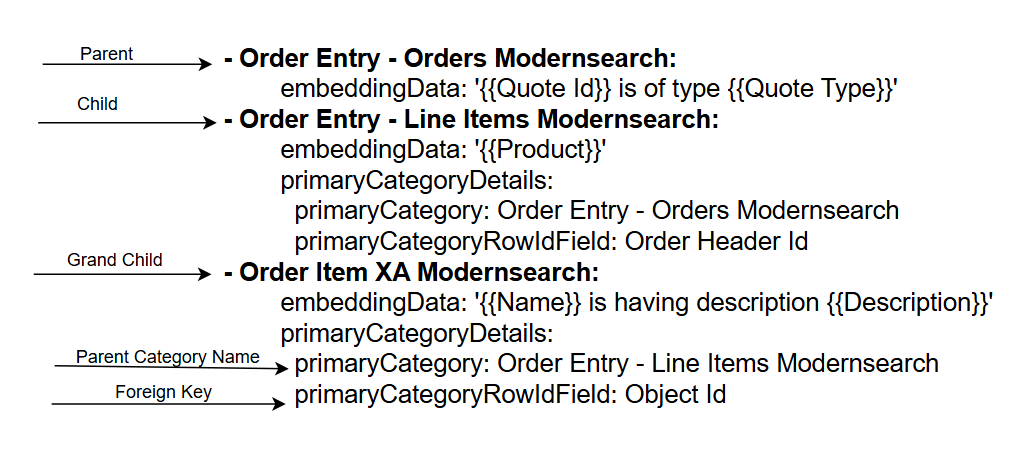
Hierarchical search retrieves records using parent-child relationships to filter results, enhancing search relevance and precision. Here are sample hierarchical entities with parent-child-grandchild relationships:
- Orders - Line Items - Attributes
- Quotes - Line items - Attributes
Enabling hierarchical search consists of these three steps:
-
Configure Hierarchical Search Categories in Siebel Application
-
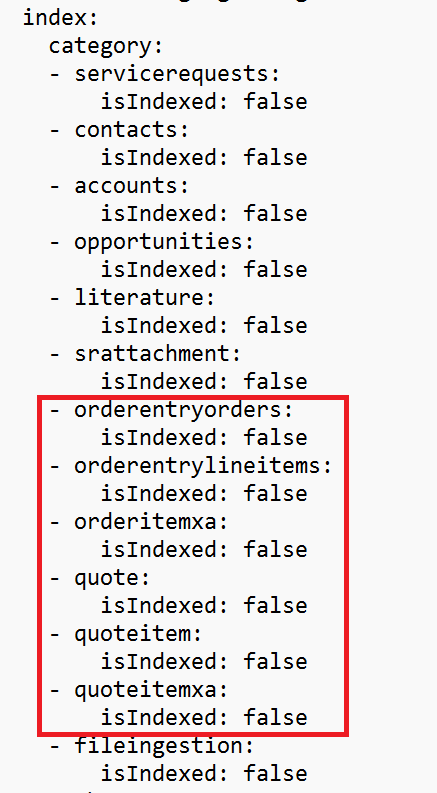
Configure Hierarchical Search in modernsearchconfig.yaml File
-
Index Hierarchical Search Categories
Step 1 - Configure Hierarchical Search Categories in Siebel Application
-
In Site Map, navigate to . Create a category entry for Order Entry – Orders Modernsearch.
-
Configure the required searchable fields.
-
Associate the category with your Siebel application by specifying the view name Order Entry – Line Items XA View (Sales).
-
-
Create a category entry for Order Entry – Line Items Modernsearch.
-
Add the required searchable fields and ensure that the mandatory foreign key field Order Header Id is included, as it is required to establish the parent–child relationship.
-
After configuring the searchable fields, associate the category with your Siebel application using the view name Order Entry – Line Items XA View (Sales).
-
-
Create a category entry for Order Item XA Modernsearch.
-
Add the required searchable fields. Ensure that the foreign key field Object Id is included, as this is a mandatory prerequisite for hierarchy linkage.
-
Associate this category with your Siebel application by specifying the view name Order Entry – Line Items XA View (Sales).
-
Step 2 - Configure Hierarchical Search in modersearchconfig.yaml File
Here is a sample modernsearchconfig.yaml regarding configuring hierarchical search for :
Step 3 - Index Hierarchical Search Categories
After completing the category configuration, the administrator must initiate indexing starting with the top-level category (e.g., Order Entry – Orders Modernsearch), followed by the child and subsequent nested categories in hierarchical order.
Incremental indexing requires the entire hierarchy to be indexed as a prerequisite. If the parent category is not indexed, incremental indexing for child categories will not function properly.
-
After the index is complete for the entire hierarchy, you can start searching data across parent, child, and grandchild category levels. Search results are filtered based on the configured visibility criteria, ensuring that you only see records you are authorized to access.
-
You can drill down into the search results to view detailed information. The drill-down view filters and displays only those records that match your original search criteria.
-
When you search within a child or grandchild level of a nested hierarchy, results are returned based on your query.
-
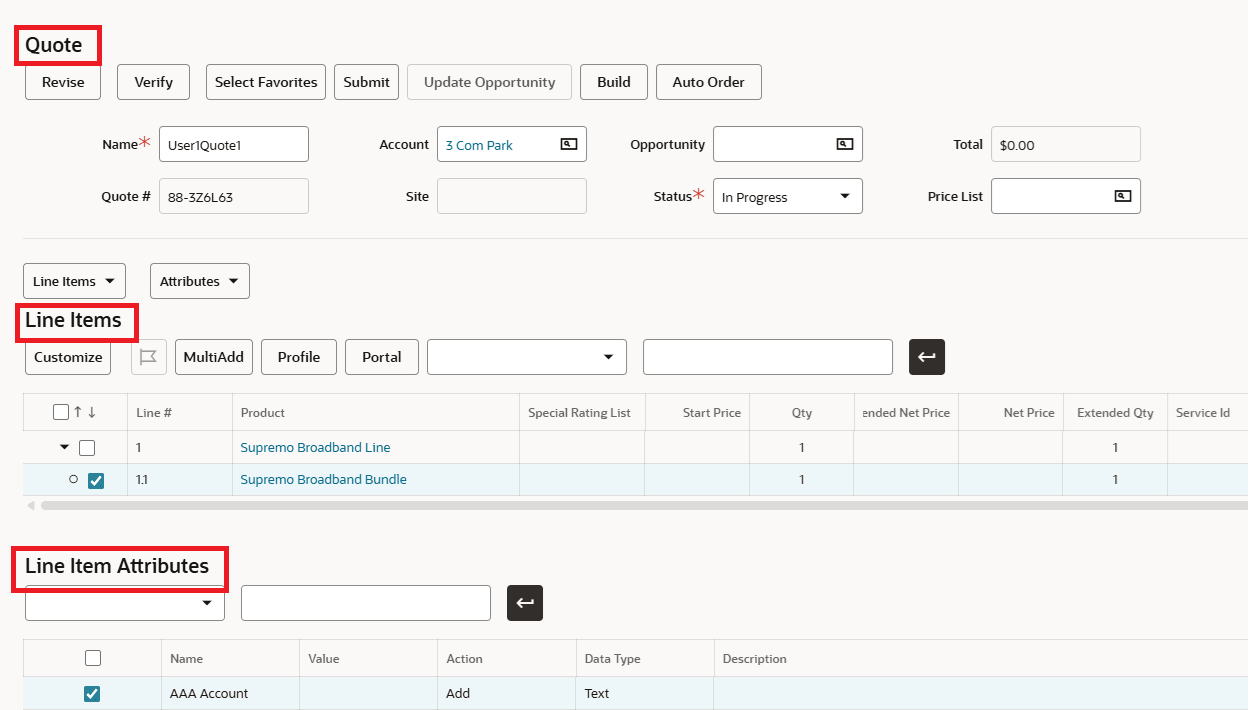
You can drill down into a result to display the full hierarchy in an expanded format within the hierarchy applet.
-
The following example demonstrates searching for Quote entities.
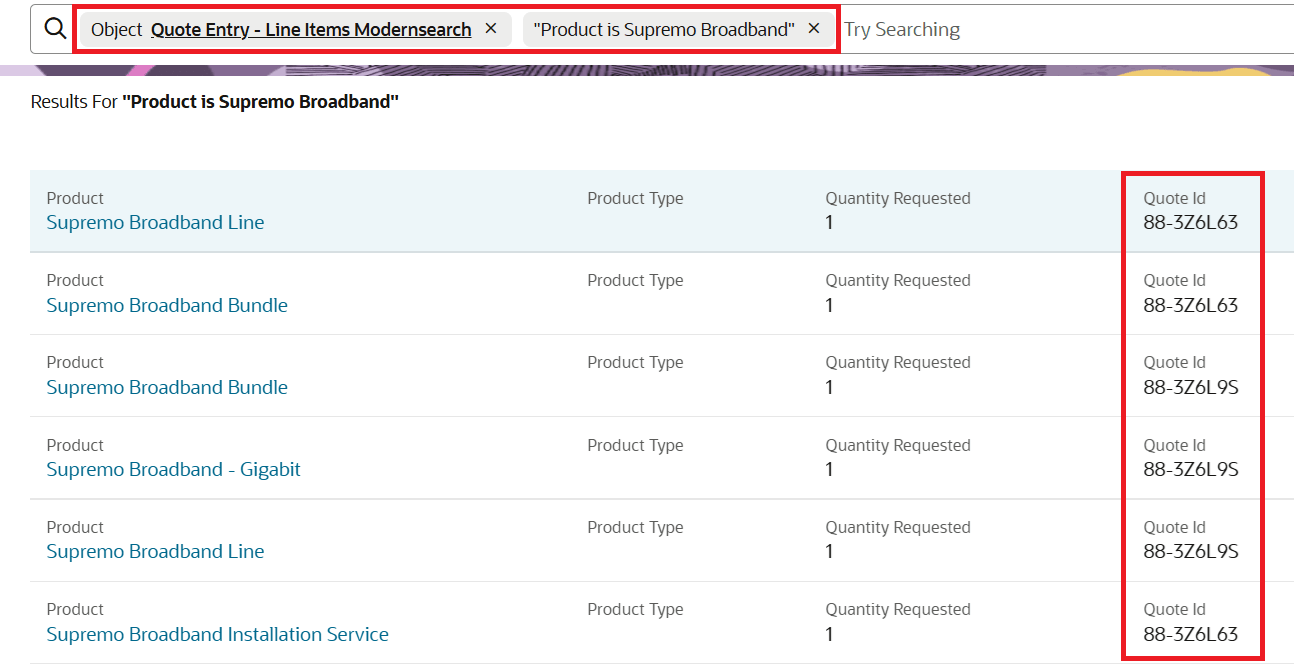
- Using Global Search Bar, user picks 'Quote Entry - Line Items Modernsearch” search category from the Object Filter and enters “Product is Supremo Broadband” as the query.
The matching records are returned as expected. The search engine is doing a second-level (child entity) search. The Quote Id shows the parent-child relationship:
Upon drilldown, the complete hierarchy is displayed: Quotes - Line Items - Line Item Attributes:
Quotes, Orders are now included as the seeded search entities. The search categories are preconfigured in both Siebel Application and in modernsearchconfig.yaml.
Ranking the Search Results
Siebel Intelligent Search performs a complex hybrid search that combines keyword-based and semantic search techniques. The results retrieved from the OpenSearch engine include a relevance score, which quantifies how closely each result matches the search query. Siebel displays these results in descending order of relevance - meaning that results with the highest match quality (and therefore the highest relevance scores) appear at the top.
The Siebel Search Adapter uses a normalization processor to scale each relevance score to a value between 0 and 1, and then ranks or sorts the results accordingly. It’s possible for multiple results to have the same normalized relevance score.
The number of search results displayed is determined by two parameters in the modernsearch configuration YAML file: maxResults and percentOfTopScore.
First, the result with the highest relevance score is identified. A threshold score is then calculated by applying the percentOfTopScore value to this top score. For example, if the highest relevance score is 0.9 and percentOfTopScore is set to 40, the threshold becomes 40% of 0.9, which is 0.36.
All retrieved results with a relevance score greater than or equal to 0.36 are considered. The total number of such results is then compared with the value of maxResults, and the smaller of the two is used to determine the final number of results shown to the end user.
In the above example, if 15 results meet the threshold of 0.36, and maxResults is set to 20, then 15 results will be displayed to the user.
Fuzzy Search
Fuzzy search is a search technique that finds matches even when the search terms have typos, misspellings, or slight variations. It helps retrieve relevant results when exact matches aren’t available by allowing some errors or differences in the query.
Examples:
- Query “Hincklyt & Bosworth PCG” → Auto Suggest will still prompt for the correct entry: "Hinckley & Bosworth PCG"
- Query “Abbeyz Cardiology” → Auto Suggest will still prompt for the correct entries: "Abbey General Cardiology", "Abbey General Cardio Research", "Abbey General Cardiac Care"
Fuzziness in search can be enabled by setting the fuzzyEnabled parameter to TRUE. This parameter is located in the search section under the downstream section of the modernsearchconfig.yaml file. By default, fuzziness for the search operation is set to FALSE. Enabling fuzziness may result in additional results being retrieved during a search.
For Auto Suggest (or Auto Complete), a separate fuzzyEnabled parameter exists under the suggester section (also within the downstream section), and it is set to TRUE by default. Therefore, if the default values are not changed, users will experience fuzziness during typing (i.e., in Auto Suggest), but not in the actual search results. Additionally, the fuzziness parameter in both the suggester and search sections is set to AUTO by default, which is considered the optimal setting for fuzzy matching.
File Attachment Search
From 26.6 onwards, attachment text can be divided into smaller chunks during indexing. This is an indexing-time behavior that controls how extracted attachment text is represented in the search index. It does not change the end-user Search UI. Users continue to search attachment content through the existing search experience.
Text chunking applies only to attachment categories. To search inside attachment content, users must select an attachment category or select only attachment categories. If a search includes both attachment and non-attachment categories, attachment results are based on indexed attachment metadata, such as file name, file extension, and other attachment attributes.
This indexing behavior does not change auto-suggestion behavior. Suggestions for attachment categories continue to come from indexed metadata fields, not from attachment body text.
File Attachment Search locates specific files attached to Siebel business objects by searching through file names, content, and metadata.
Example:
- Enable OpenSearch File Attachment Search in Siebel Application:
- Enable 'OpenSearch File Indexing' system preference: set it to 'Y' in you want to include file attachment search.
- Set 'OpenSearch Index File Path' system preference: To Location to store decompressed files temporarily during indexing. Ensure the file path is accessible and has write permissions.
- Modify "Literature ModernSearch" search category if needed, generate index.
- Choose "Object" filter In Global Search Bar, select "Literature ModernSearch" category.
- Search for "FAQ". A list of documents is returned.
Supported File Formats for Siebel Intelligent Search:
| File Type | File Extensions |
|---|---|
| HTML | .htm, .html, .xhtml |
| PPT | .ppt, .pptx, .pptm |
| Word | .doc, .docx, .docm |
| XLS | .xls, .xlsx, .xlsm |
| RTF | .rtf |
Auto Suggest
Auto Suggest provides real-time, predictive search query suggestions to users as they type, helping them complete their queries faster and more accurately by anticipating their intent. The default character limit for Auto Suggest is 200.
Auto Suggest Within a Single Category:
- If the selected category is of type Attachment, the suggestions will be generated from indexed fields such as ActivityFileExt, ActivityFileName, etc but not from attachment content.
- If the selected category is a non-attachment type, suggestions will be generated from indexed fields including embeddingData.
Auto Suggest Across All/Multiple Categories:
- If any selected category is of type Attachment, suggestions will not be generated for it.
- Suggestions will still be generated for non-attachment categories.
Search History
Search history refers to a saved list of a user’s past search queries, enabling easy access and quick reuse of previous searches.
Search history is specific to user login. Each user can only see his/her own search history.
Clear Search History:
Choose 'Clear Search History' at the bottom of the drop-down menu to remove saved search queries. Note that search history cannot be cleared by re-logging into the application, restarting the Siebel Server, or clearing the browser cache. Clearing the search history using one login does not affect search histories saved under other logins.
Search Query Optimization
For optimal search accuracy and performance, follow these recommendations when constructing your search queries:
Tip 1: Enclose the category name in square brackets [ ].
Examples:
John in [Contacts ModernSearch]
John in [Contacts]
John in [Contacts ModernSearch, Accounts ModernSearch]
John in [Contacts, Accounts]
Tip 2: Enclose any specific information that needs to be searched in double quotes " ".
Examples:
"John" in [Contacts ModernSearch]
[SR] in “Open” status
[Oppty] about "medical information"
[SR] with "Contact" information