Configuring Application Interface To Use OAuth For Siebel REST Inbound Authentication
Next, the Application Interface needs to be configured with the SSO parameter for the IDCS integration to use OAuth for REST Inbound.
- Select the correct Application Interface profile and click on the Edit (pencil) icon.
- Go to the first tab which will show the REST Inbound parameters enabled in the Application Interface (AI).
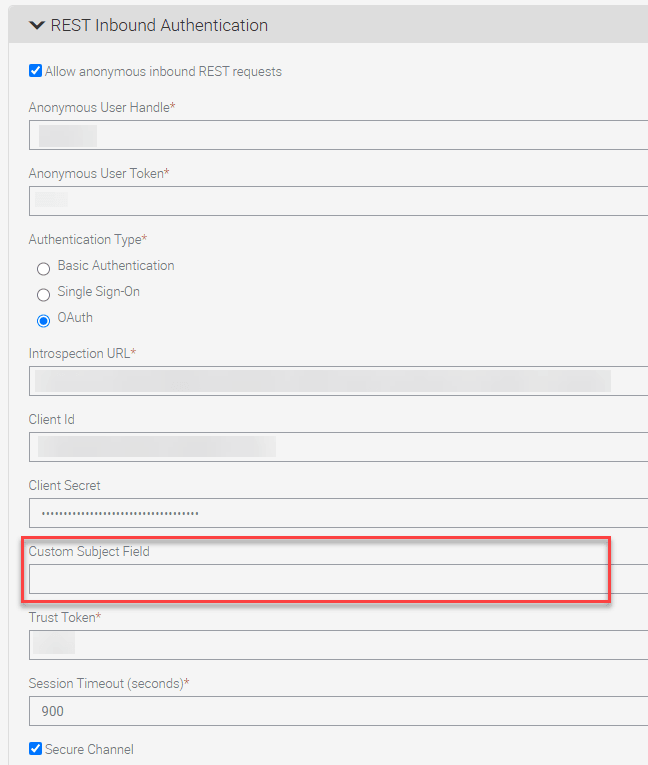
- Configure the REST API oAuth authentication using the following parameters:
- Introspection URL: Required field. This is the OAuth introspection URL.
- Client ID: Required field. This is the client ID for the IDCS Confidential Application created with Introspect enabled.
- Client Secret: Required field. This is the client secret for the IDCS Confidential Application created with Introspect enabled.
-
Custom Subject Field: Optional field that allows you to specify a field created by an OAuth server to hold the Subject attribute to use in validation. Typically, this is the username or sub field, but some OAuth servers create their own. If you leave this field blank the sub or username or user_id field will be used. If this field has a value, subject information will be taken from this custom field from the OAuth token. Specifying which field to use allows flexibility in the OAuth server choice.
- Trust Token: Required field. The Trust Token value must be the same as the security adapter TrustToken parameter value.
- Session Timeout (seconds): Required field. This is the REST Object Manager session timeout.
- Secure Channel: Set this parameter to true and import the
Introspection URL’s CA certificate into the Application Interface
truststore. Deselect this check box when the Introspection URL’s CA
certificate is not available in the Application Interface truststore,
however Oracle does not recommend this option.Note: Import the Introspection URL CA certificate into the Application Interface truststore. As part of the Siebel AI/SAI profile configuration updates in 26.7, certificate validation is always enabled by default. The Secure (ValidateCertificate) property is no longer used in AI/SAI profiles, and this option is no longer configurable.If you maintain custom or copied seeded AI/SAI profile JSON files, remove "ValidateCertificate": true, entry before creating profiles from the seeded profile JSON file. This cleanup is required because profile creation can fail when stored seeded profile data still contains this deprecated property. Oracle-delivered out-of-the-box seeded profiles in the updated build have already been corrected. This does not affect creating new profiles from SMC or using existing AI/SAI profiles that were already created.
- After checking the Secure Channel checkbox, you should import the RootCA certificate
of your IDCS federation into the AI trust store in order for the communication to be
secure. This is a mandatory step that must be followed.
- Copy the rootCA certificate of your Federation and keep it in a directory on your AI server, for example, C:/Certs/rootCA.crt.
- Go to $SIEBEL_ROOT/ai/jre/bin and execute the below keytool command to
import the rootCA certificate into the truststore of the AI.
keytool -import -alias rootCAFederation -file C:/Certs/rootCA.crt -keystore $SIEBEL_ROOT/ai/applicationcontainer_external/siebelcerts/siebeltruststore.jks -
When prompted for keystore password, provide the password and you will be asked to trust the certificate. Type Yes.
- The certificate will be added to the truststore.
- Restart the Siebel AI Tomcat server for changes to take effect.