Get Started on the Home Page
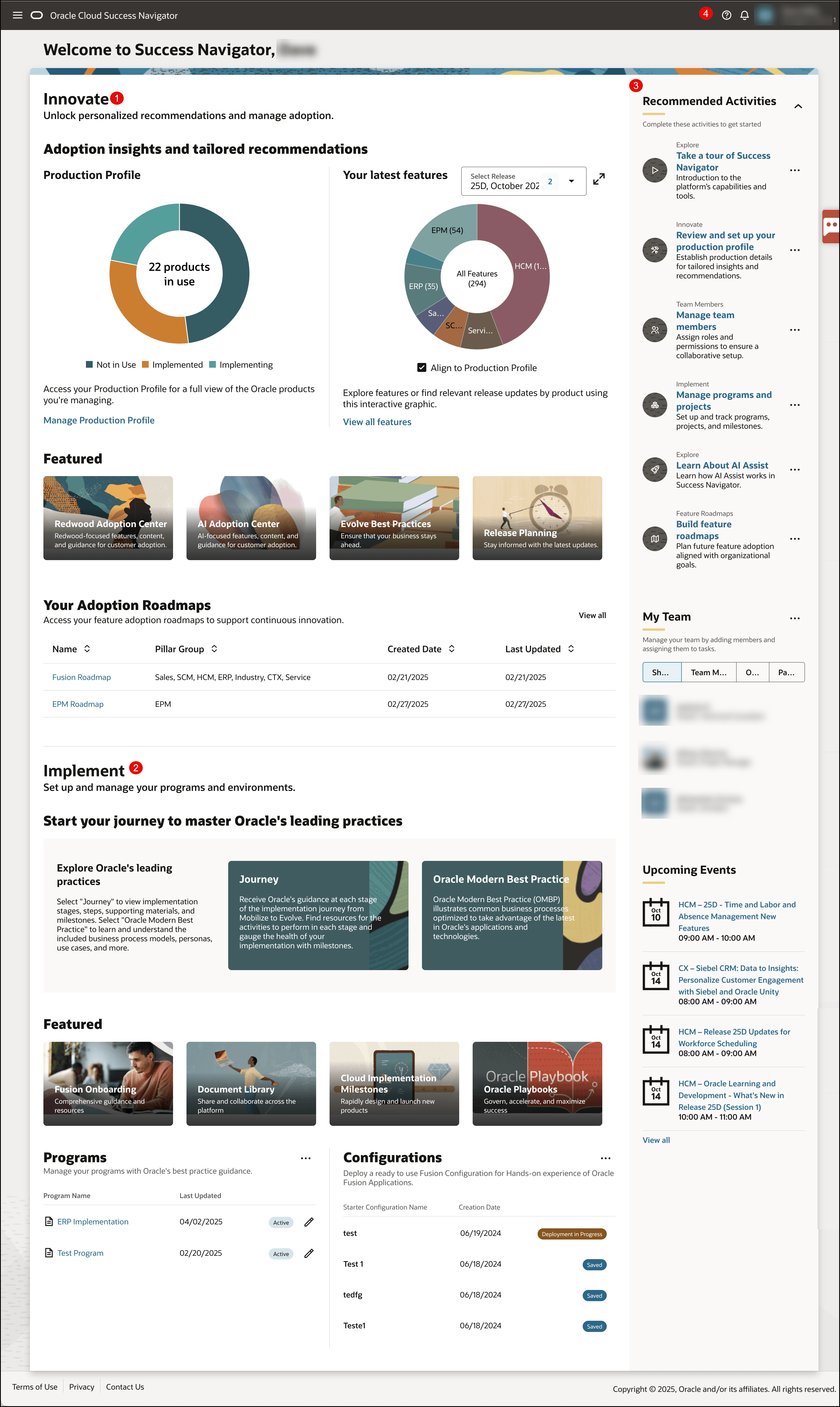
The home page is your starting point for Success Navigator.
It's organized into four sections:
- Recommended Activities
- Innovate
- Implement
- Application Header
Innovate
The Innovate section includes tools and information to help you operate, maintain, and continuously innovate your Oracle Cloud Applications.
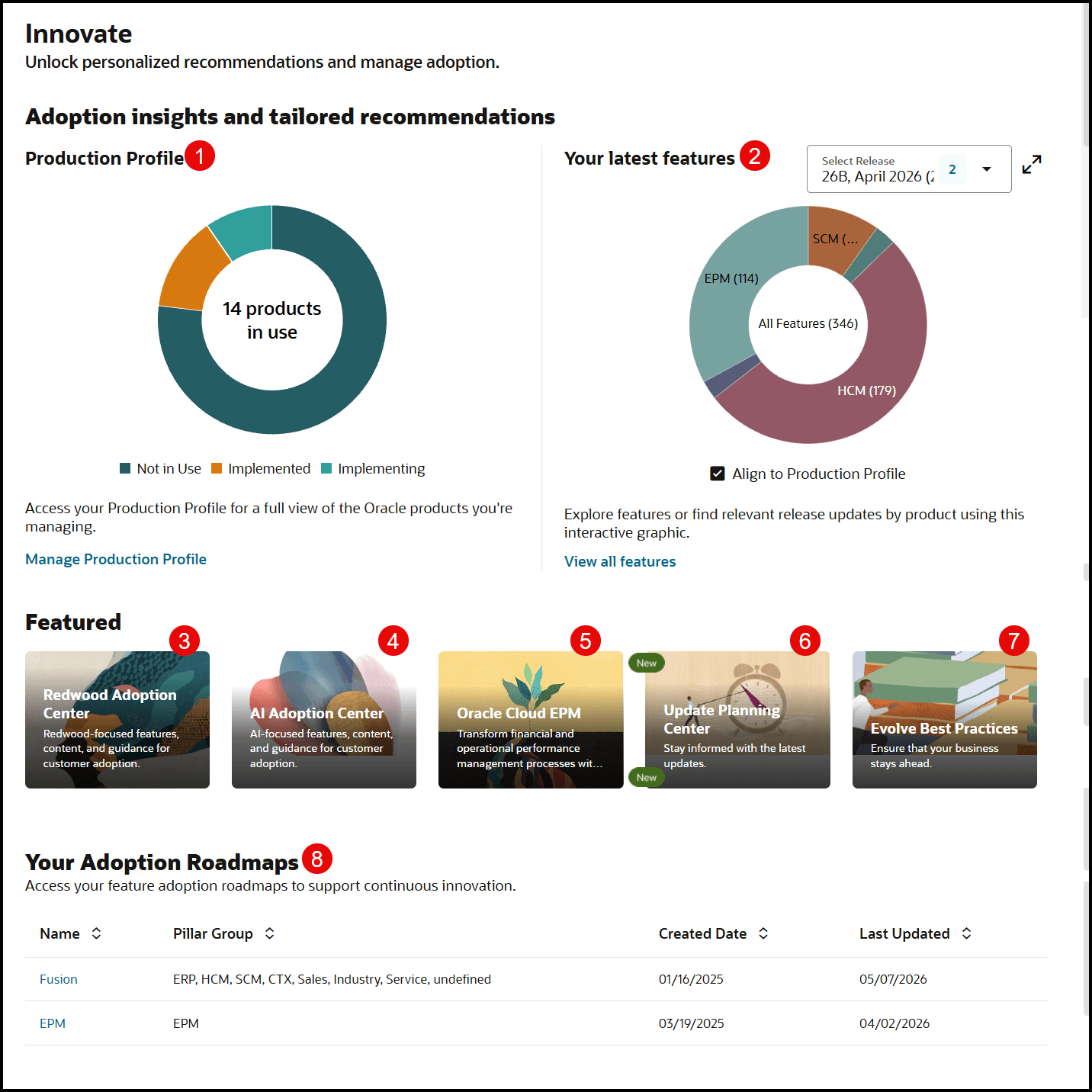
- Production Profile—Your Production Profile defines the details of the Cloud Applications that you're tracking in Success Navigator. It aligns to the pillars and products displayed by default in the Your Latest Features sunburst visualization.
- Your Latest Features—Use the interactive sunburst visualization to explore and filter features for the selected release. Choose a release from the dropdown menu to instantly see the distribution of latest features across products—including CTX, ERP, EPM, and more. The chart visually represents the number of features in each category, helping you quickly find relevant updates in your Production Profile. The “Align to Production Profile” option ensures that the features displayed match your organization’s usage. The sunburst aligns to the Production Profile by default, but can be toggled off to view all pillar features.
- Redwood Adoption Center—Here, you can find a curated collection of training, learning, best practices, features, and recommendations for adopting Oracle's innovative Redwood design system.
- AI Adoption Center—Find a curated collection of training, learning, best practices, features, and recommendations to adopt AI features.
- Oracle Cloud EPM — Access guidance, resources, and recommendations to help improve financial and operational performance management with Oracle Cloud EPM.
- Update Planning Center— Stay informed about the latest updates and manage feature adoption activities through release planning, readiness tracking, and roadmap management.
- Evolve Best Practices—Best Practices offers guidance, tips, and resources to help organizations operate effectively and efficiently in the Cloud while continuously innovating.
- Roadmaps—As you explore new features in Success Navigator, you can quickly add them to roadmaps. Organize the features to show which you're adopting now, next, and later.
Implement
The Implement section includes tools and information to help you deploy your Oracle Cloud Applications, manage your programs and projects in Success Navigator, and manage Starter Configurations.
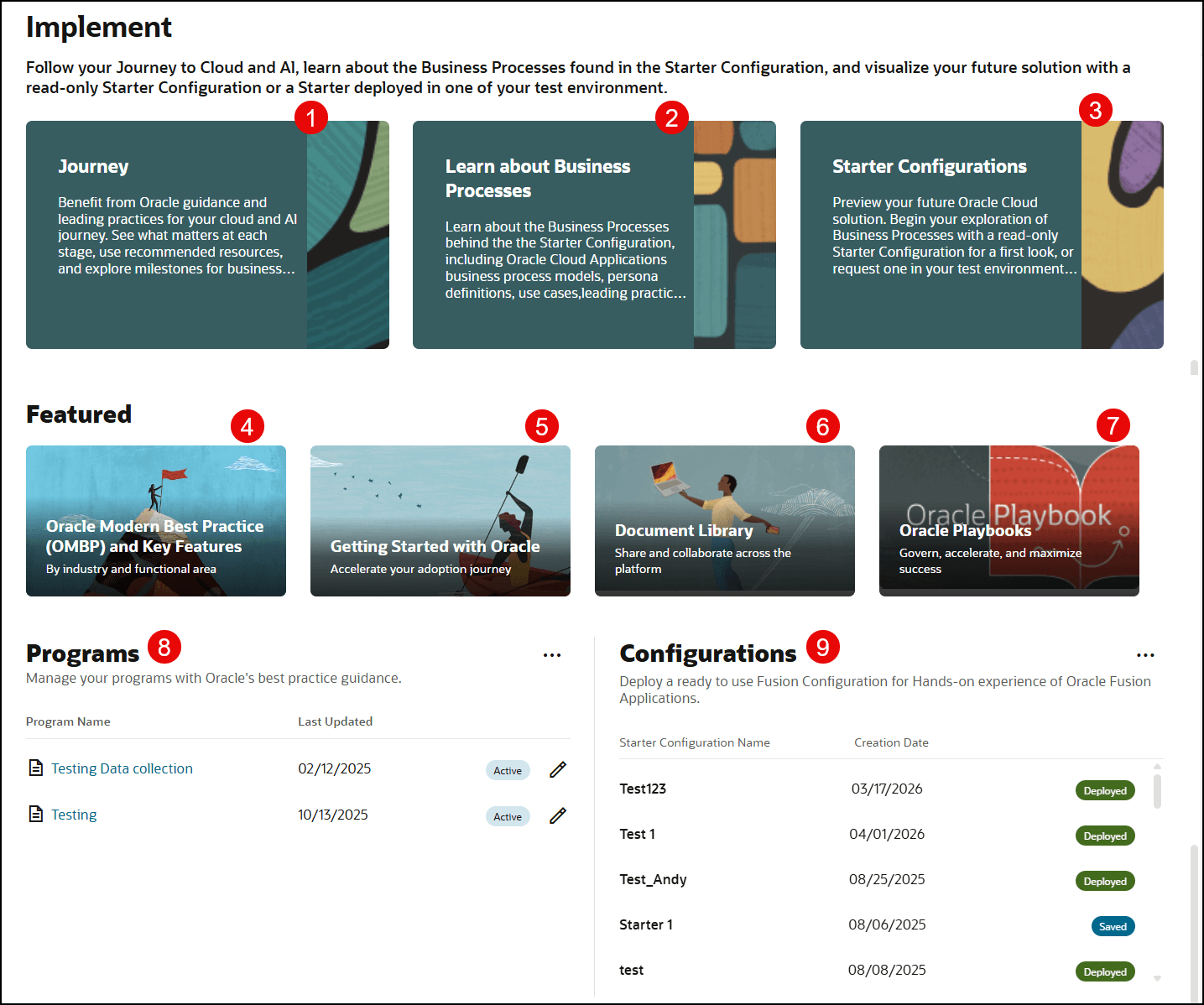
- Journey—Journeys offer a centralized source of information, learning resources, activities, and resources to guide you during the implementation project.
- Learn about Business Processes—Get detailed business processes optimized to take advantage of the latest in Oracle’s applications and technologies. Access business process models, videos, step-by-step guides, persona definitions, use cases, Oracle leading practices, and KPIs.
- Starter Configurations—Explore business processes using a read-only Starter Configuration or request a Starter Configuration for your test environment. Use Starter Configurations to preview Oracle Cloud solutions and support implementation planning and design discussions.
- Oracle Modern Best Practice (OMBP) and Key Features— Explore Oracle Modern Best Practice business processes and associated Key Features by industry and functional area to understand how Oracle capabilities support business outcomes.
- Getting Started with Oracle— Access onboarding guidance, activation and provisioning resources, process flows, and setup information to help accelerate your Oracle Cloud adoption journey.
- Document Library—Share documents with team members and assign them to specific projects and stages in a Journey.
- Oracle Playbooks—Discover resources, training, and videos about strategies Oracle has used to grow revenue over the last 20 years.
- Programs—View and manage the programs and projects that allow you to organize your implementations and define milestones for them.
- Configurations—Starter Configurations to support and accelerate your implementations, helping drive design discussions with configurations aligned to Business Processes.
Recommended Activities
The Recommended Activities section contains actions you should take depending on your Access Level. For example, all users with an Admin Access Level see the same list of actions. any user completes actions, other users with the same Access Level see the action as completed.
- My Team—View Team Members by their Relationship Type (Member, Oracle, or Partner). Admins can manage Team Members from the menu.
- Upcoming Events—View access, and register for upcoming Oracle events available to members of the Oracle community.
Application Header
Application header includes the following options:
- Application Menu
The application menu enables quick navigation in Success Navigator. It's organized by your intentions for using the application: the Implement section includes access to the tools and guidance needed while implementing Oracle applications, while the Innovate section collects the functionality you'll use while living in the cloud.
- Access the Account Portfolio
The Account Portfolio only appears for users with in multiple organizations. You can return to Account Portfolio and switch between selected accounts anywhere in the application.
- Help Menu
Use the help menu to access to contextual in-app help, documentation, support, and FAQs. You can also find links to join the Cloud Success Navigator community, submit requests and feedback to the Idea Lab, and provide feedback about the platform through a survey. See Get Help for more information.
- Notification Bell
See recent activity in programs and projects.
- User Menu
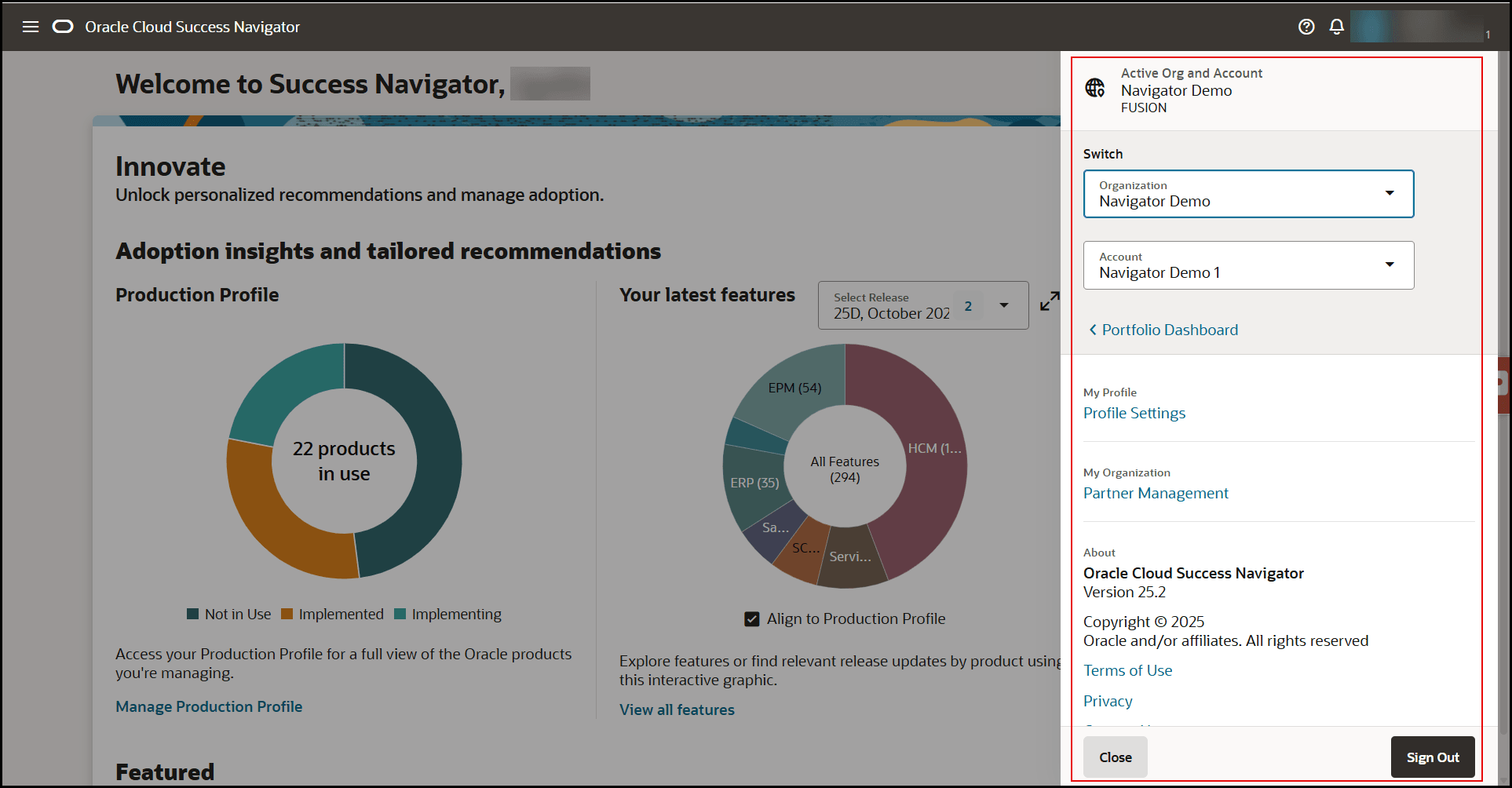
Use to access application settings, about and sign out.
- To return to the Account Portfolio, select Portfolio Dashboard.
- To switch accounts, select the Organization and Account in
the Switch section.
Note:
These options are available only if you are a member of more than one organization. - Select Profile Settings from My Profile to update your personal information.
- Select Partner Management from My Organization to manage your partners.