28 Lineage (Preview)
Lineage in Oracle AI Data Platform shows how data artifacts are related through notebook and workflow runs. The lineage graph helps you trace upstream sources, downstream consumers, and column-level derivations for supported artifacts.
Lineage is captured automatically when notebooks and workflow tasks run on a newly created compute. If a compute was created before lineage became available, restart the compute to begin capturing lineage from executions that run on it.
Note:
For each process, the service displays only the latest captured lineage. Historical lineage is not currently available.You can view the lineage of AI Data Platform artifacts from the Master Catalog. Right-click on an artifact and select Lineage. Tables and volumes are displayed in the lineage diagram while tables and knowledge bases are currently supported as anchor nodes.
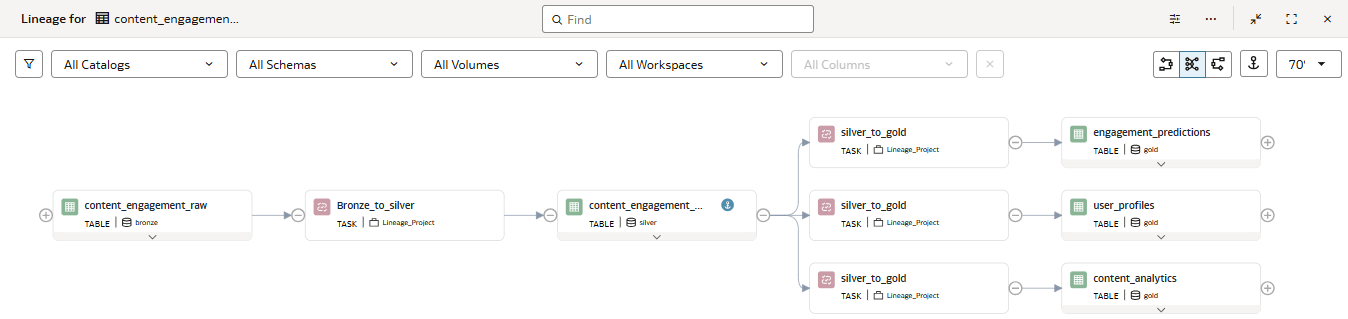
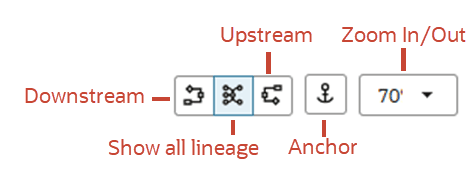
The Lineage view displays a lineage graph with upstream and downstream artifacts for the selected data artifact. You can switch between the full graph, upstream-only view, and downstream-only view.
You can view column-level lineage to trace how columns in one data artifact are derived from, transformed by, or propagated to columns in other artifacts.
You can hide the filters at the top of your canvas by clicking the Filter icon in the top-left.

You expand data artifacts in your Lineage flow by clicking the down arrow at the bottom of the artifact card. When the artifact is expanding, you can see upstream and downstream inheritance of specific data columns. This function works for artifacts that contain data columns, like tables and volumes.
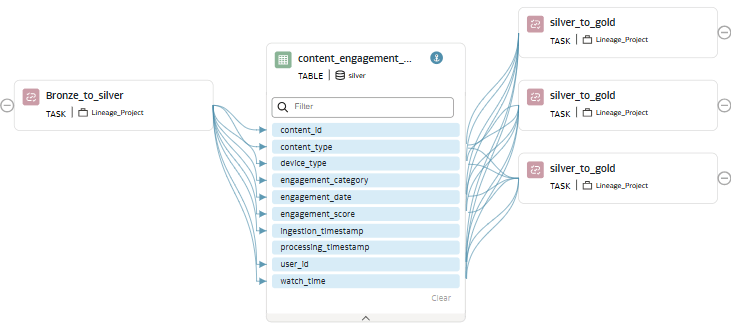
For expanded artifact cards, you expand a table or volume to view its columns and the column-level lineage relationships connected to them. You expand data artifacts in your Lineage flow by clicking the down arrow at the bottom of the artifact card. When the artifact is expanding, you can see upstream and downstream data flow for specific columns. This function works only for artifacts that contain data columns, like tables and volumes.
You can expand multiple tables and volumes in your lineage graph to see the data flow from each. When you expand the data artifact, blue arrows show how columns in source artifacts contribute to columns in target artifacts through notebook or workflow executions. You highlight the path of an individual column by double-clicking it.
Blue arrows show column-level lineage relationships between source and target columns. These relationships indicate how data is derived, transformed, or propagated across tables, volumes, notebooks, tasks, and workflows. Double-click a column to highlight its lineage path across the graph.
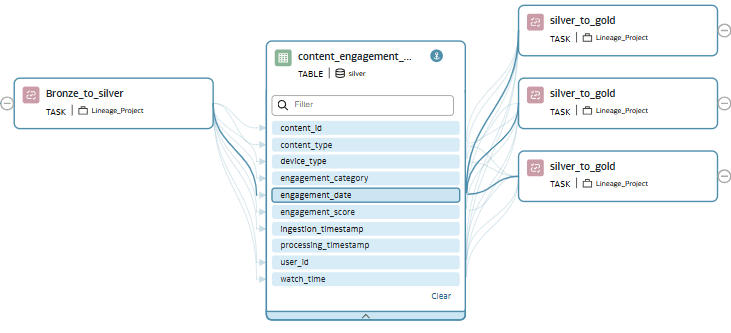
You can select multiple data columns by Shift- or Ctrl-clicking them to highlight multiple paths.
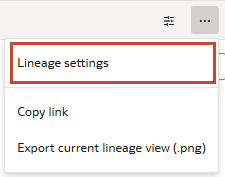
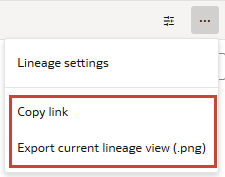
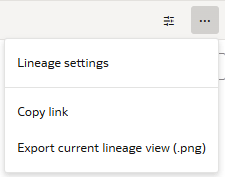
From the Actions menu in the top-right of the Lineage window, you can control your Lineage settings, which affects the depth of upstream and downstream artifacts displayed, or you can share your lineage diagram, either by copying a link or by exporting a PNG image.
Lineage Details
Double-clicking on an artifact in the lineage diagram shows details for that artifact. For tasks, the details page provides both details for the task and the job it belongs to. For tables and volumes, the details page provides information on the table or volume and their columns.
You can right-click data artifacts to either View Details or Set as Anchor. Setting the data artifact as anchor changes the currently displayed diagram to center on that node instead.
At the top of the Details window, you can see the artifact type, the schema it belongs to, and the number of upstream and downstream artifacts. In the Description pane, clicking the Asset link takes you to the artifact in your workspace.
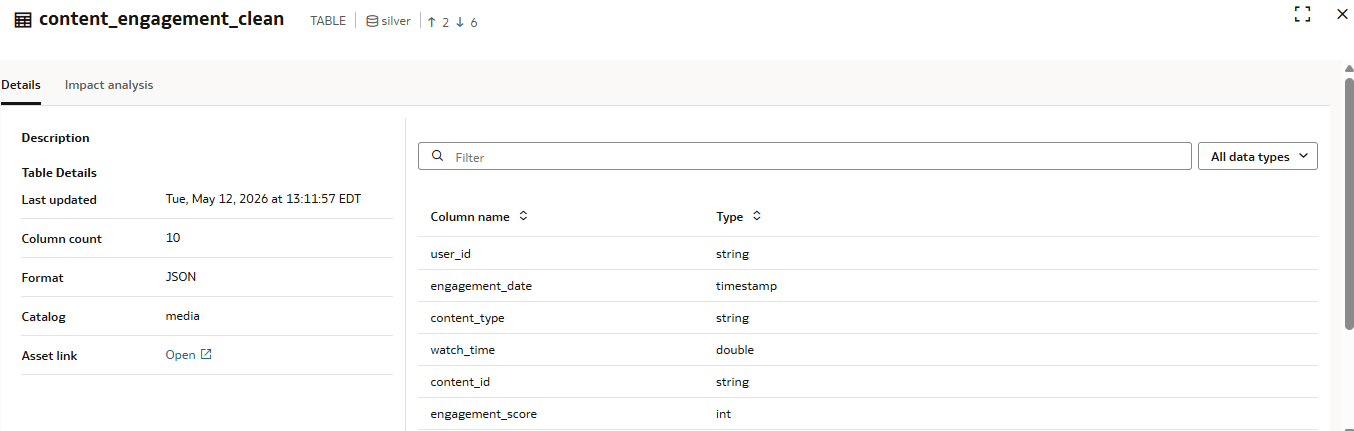
For Data artifacts, the Details window shows when the artifact was last updated, information on data columns, format, and the catalog to which the data artifact belongs. You can search for specific data columns by name and filter by data type using the drop-down menu.
For Process artifacts, which include tasks and notebooks, the Details window displays information related to the artifact, including the most recent task and job status, duration, task type, job or notebook name and ID, and the attached cluster. In the right pane, you can search for source and target artifacts based on artifact name or using the drop-down menu to filter for transformation type.
Changes the names or description of an artifact are automatically reflected in the lineage diagram.
Knowledge Base Lineage
Knowledge bases function similarly to data artifacts but only show upstream connections, as they have no downstream items. These upstream connections are the data sources selected for the knowledge base, either volumes or folders in a volume.
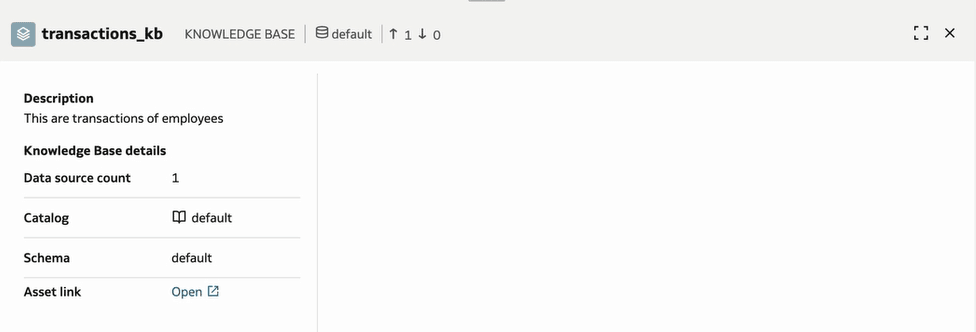
Double-clicking on a knowledge base artifact shows the details for that knowledge base, including the number of data sources, and the catalog and schema where the knowledge base was created in the workspace.
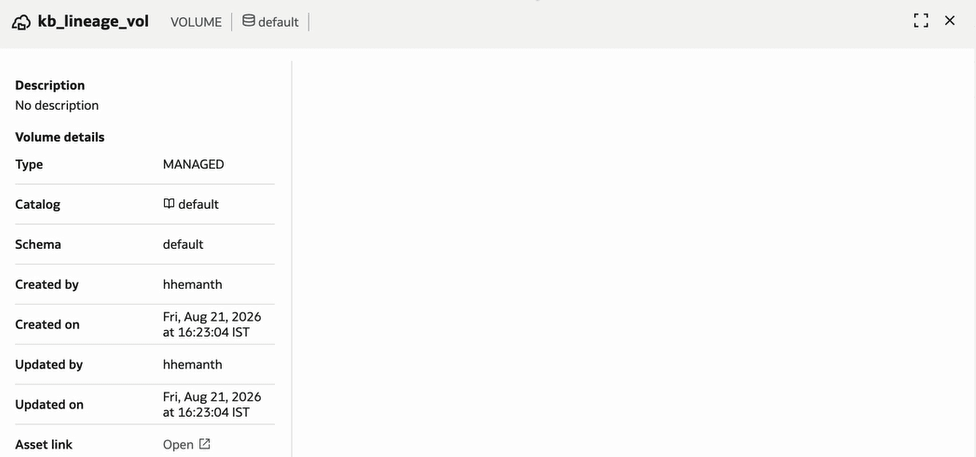
You can click on the upstream volume and folders to see details on which catalog and schema the volume belongs to, number of contained folders, and if the volume is managed or external.
You can export the lineage for knowledge bases the same way you export other data artifacts. See Export Impact Analysis (Preview).
For more information on the creation and management of knowledge bases, see Knowledge Bases.
Transformation Types
AI Data Platform supports the following transformation types when tracking lineage:
| Type | Meaning | Example Scenario | Example Field Mapping |
|---|---|---|---|
| AGGREGATION | The output field is computed by aggregating multiple input records. | Creating summary tables or metrics. | total_sales = SUM(amount) |
| IDENTITY | The output field is exactly the same as the input field (no change). | Copying a dataset from one table to another. | customer_id → customer_id |
| TRANSFORMATION | The output is derived from input fields using functions, casts, concatenation, etc. | Standardizing or cleaning data. | full_name = CONCAT(first_name, ' ', last_name) |
Impact Analysis
Data artifacts selected as the anchor node have an additional tab in their Details window for Impact Analysis. From the Impact Analysis tab, you can search for specific artifact names or filter by artifact type. You can select Upstream or Downstream to only show artifacts that are upstream or downstream of the currently selected artifact.
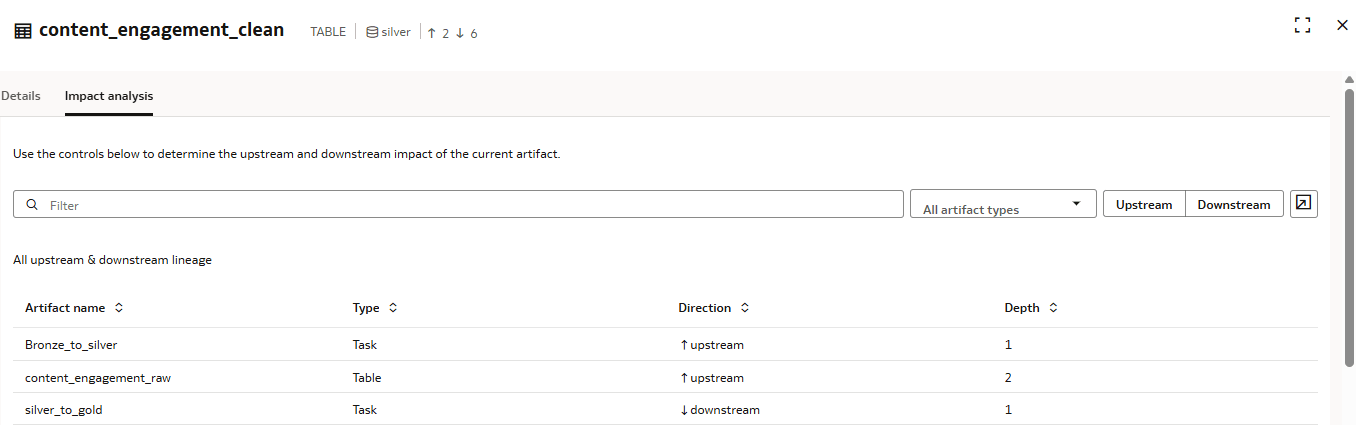
Use upstream impact analysis to understand dependencies. Use downstream impact analysis to identify consumers that may be affected by changes to the selected artifact.
Click Export import analysis to export the artifacts related to the selected data artifact. You can export upstream artifacts, downstream artifacts, or all related artifacts.
Enable, Disable, or Re-enable Lineage Capture for a Compute
Lineage capture is managed independently for each compute.
Enable lineage capture
Lineage capture requires no configuration for a newly created compute. If the compute was created before lineage became available, restart it to enable lineage capture.
Disable lineage capture
spark.aidp.lineage.enabled = false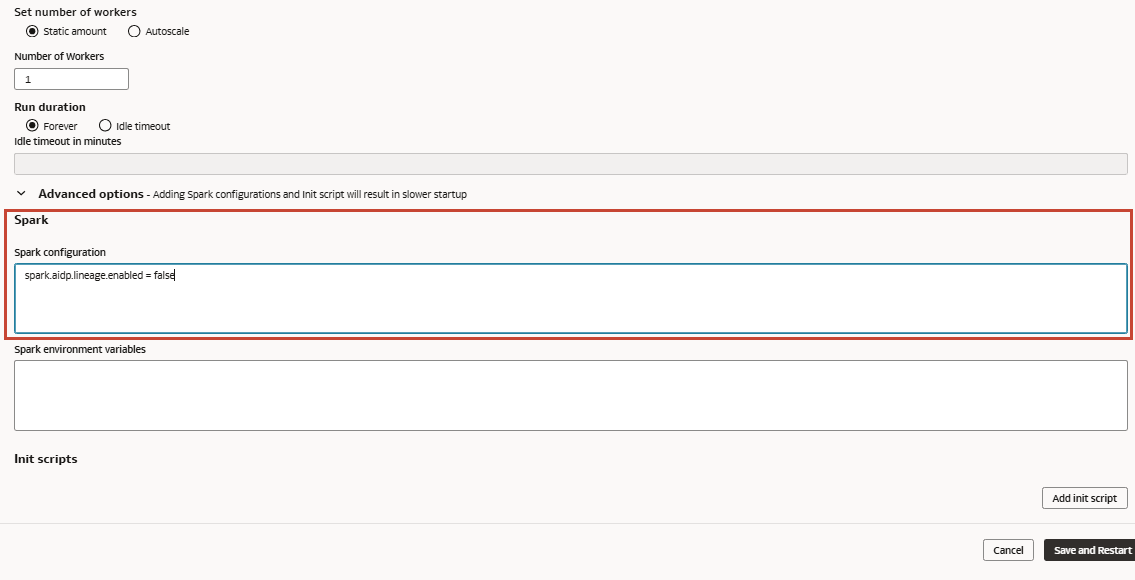
Re-enable lineage capture
spark.aidp.lineage.enabled = trueLimitations
Column lineage is not available for transformation entities that have more than 1000 columns. You can only view entity lineage for these entities.
Entity and Column Lineage (Preview)
In some lineage scenarios where multiple upstream datasets participate in producing a target dataset, only some of those upstream datasets contribute actual column values to the target.
- Entity lineage answers: Which datasets participated in creating the target?
- Column lineage answers: Which source columns supplied the target column values?
- Entity lineage should show all upstream datasets that the target depends on.
- Column lineage may show column-level flow only from the value-providing input.
- A reference input can affect the target row set without contributing values to target columns.
Example: Entity and Column Lineage
- source_table_1 contains the primary dataset.
- source_table_2 contains a reference set of rows.
- The target table is created by keeping only the rows that exist in both source tables.
Table 28-1 source_table_1
| product_id | sales_date | quantity | total_amount |
|---|---|---|---|
| 101 | 2025-06-01 | 10 | 150.0 |
| 102 | 2025-06-02 | 20 | 300.0 |
| 103 | 2025-06-03 | 15 | 225.0 |
| 104 | 2025-06-04 | 12 | 180.0 |
Table 28-2 source_table_2
| product_id | sales_date | quantity | total_amount |
|---|---|---|---|
| 102 | 2025-06-02 | 20 | 300.0 |
| 103 | 2025-06-03 | 15 | 225.0 |
| 105 | 2025-06-05 | 18 | 270.0 |
Table 28-3 target_table
| product_id | sales_date | quantity | total_amount |
|---|---|---|---|
| 102 | 2025-06-02 | 20 | 300.0 |
| 103 | 2025-06-03 | 15 | 225.0 |
In this example, both source tables participate in creating the target because both are required to determine the final row set.
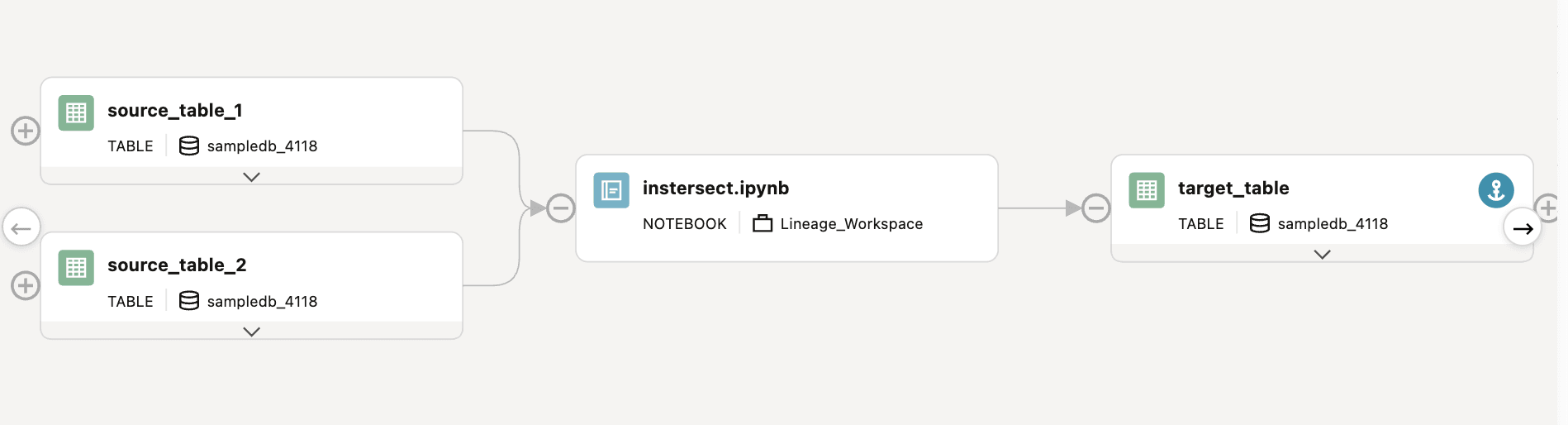
However, from a column lineage perspective, the target column values may be attributed only to the value-providing input, such as source_table_1. The second input, source_table_2, is used to determine which rows qualify for the target, but its values are not necessarily copied into the target columns.
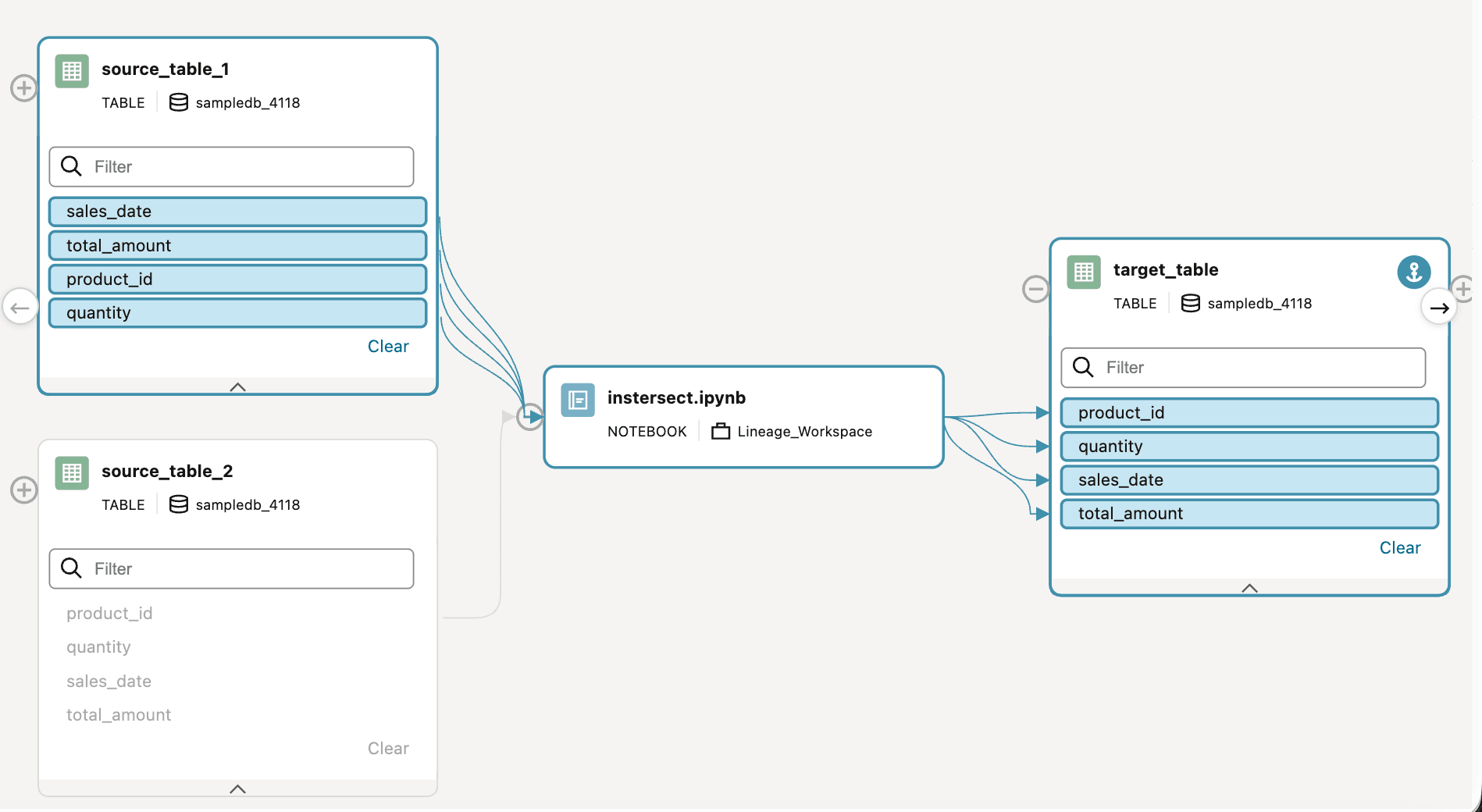
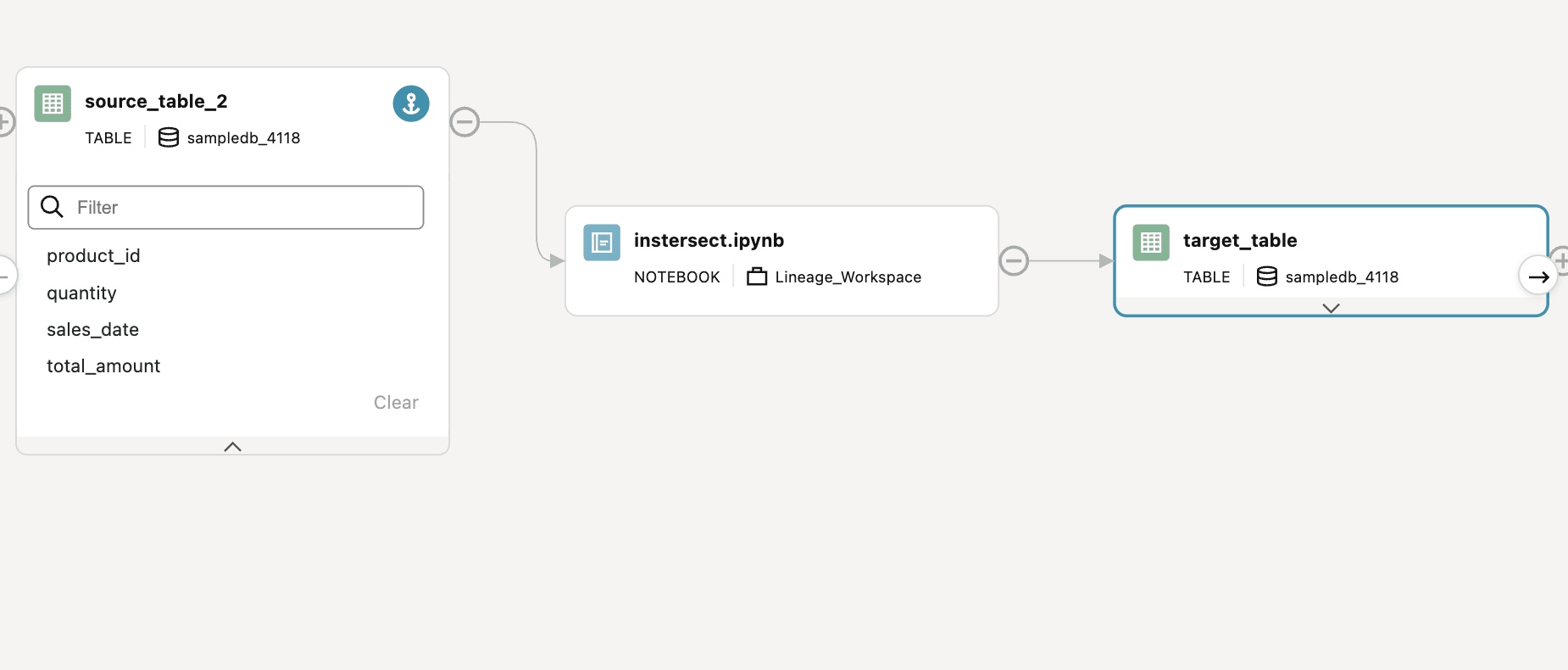
For these reasons, when the lineage view is anchored on source_table_2, no column-level lineage links are displayed, as shown below.
Why Entity Lineage Shows Both Inputs
- The target cannot be fully explained without Source Dataset A.
- The target also cannot be fully explained without Source Dataset B, because Source Dataset B determines which records from Source Dataset A are retained.
- Therefore, both Source Dataset A and Source Dataset B should appear as upstream entities for Target Dataset C.
Why Column Lineage Shows Only the Value-Providing Input
Column lineage captures value provenance. It describes where the values in each target column came from.
For example, if the target table is written using rows from Source Dataset A after filtering rows from Source Dataset B, then the target column values still originate from Source Dataset A.
Example column mappings:
| Target Column | Source Column |
|---|---|
target.product_id |
source_a.product_id |
target.sales_date |
source_a.sales_date |
target.quantity |
source_a.quantity |
target.total_amount |
source_a.total_amount |
Source Dataset B influences whether a row is present, but its column values are not copied into the target. As a result, Source Dataset B may appear in entity lineage while not appearing in column lineage.
View Data Lineage (Preview)
You can see the inheritance of data in your workspace as it moves between different Oracle AI Data Platform artifacts.
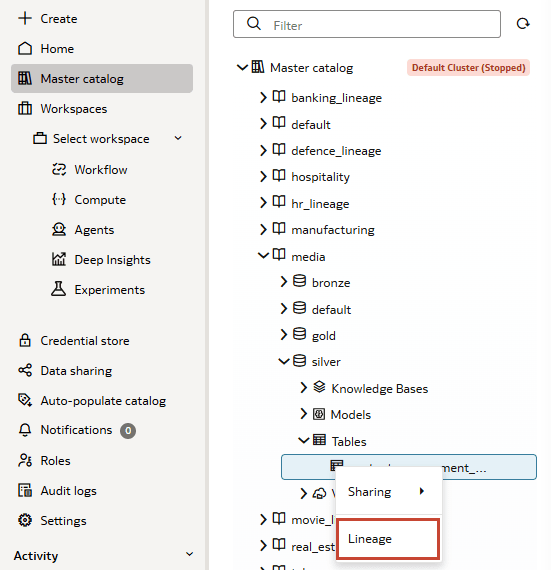
- Right-click the artifact then click Lineage. You can also select the artifact and click Actions in the top-right, then click Lineage.
View Lineage for Specific Data Columns (Preview)
You can trace the lineage of a specific data column through your lineage diagram.
- Navigate to the artifact in your Master Catalog you want to view the lineage for.
- Right-click the artifact then click Lineage. You can also select the artifact and click Actions in the top-right, then click Lineage.
- Click the arrow at the bottom of a table or volume artifact to expand it.
- Double-click the data column you want to highlight the lineage for.
View Details for a Lineage Artifact (Preview)
You can see additional details for an artifact in your lineage diagrams.
- Navigate to the artifact in your Master Catalog you want to view the lineage for.
- Right-click the artifact then click Lineage. You can also select the artifact and click Actions in the top-right, then click Lineage.
- Double-click an artifact on the lineage diagram to view additional details. You can also right-click and click View Details.
- Click the Impact Analysis tab to view the upstream and downstream impact of the artifact. This tab is only available for the anchor node.
Export Impact Analysis (Preview)
You can export the impact analysis for data artifacts while viewing the details of a lineage artifact.
Note:
You can only export impact analysis for data artifacts.- Navigate to the artifact in your Master Catalog you want to view the lineage for.
- Right-click the artifact then click Lineage. You can also select the artifact and click Actions in the top-right, then click Lineage.
- Double-click a data artifact in the lineage diagram. Select the Impact Analysis tab.
- Click Export impact analysis.
- From the drop-down menu, select if upstream, downstream, or all artifacts should be included.
- Click Export.
Filter Lineage Flow Diagram (Preview)
You can filter your lineage diagram to help focus on more specific data points when examining lineage.
- Navigate to the artifact in your Master Catalog you want to view the lineage for.
- Right-click the artifact then click Lineage. You can also select the artifact and click Actions in the top-right, then click Lineage.
- From the drop-down menus, select specific catalogs, schemas, volumes, or workspaces to filter out results from.
Search for Artifacts in Lineage Flow Diagram (Preview)
You can search for strings to locate specific artifacts in the lineage diagram when viewing artifact lineage.
- Navigate to the artifact in your Master Catalog you want to view the lineage for.
- Right-click the artifact then click Lineage. You can also select the artifact and click Actions in the top-right, then click Lineage.
- In the Search field at the top of your lineage diagram, enter the string to search for.
- Click a result in the list to center the diagram on that artifact.