Build a Data Model from Google BigQuery Data Source
You build a data model for your Google BigQuery database so that you can deploy it to visualize data in a BigQuery project.
To build a data model, you need permissions in the BigQuery key. If the BigQuery key grants access to the dataset level, simply perform Import Metadata using the BigQuery ODBC driver by following the steps below. If the BigQuery key grants access to only specific tables or views, follow the steps below to create a physical schema.
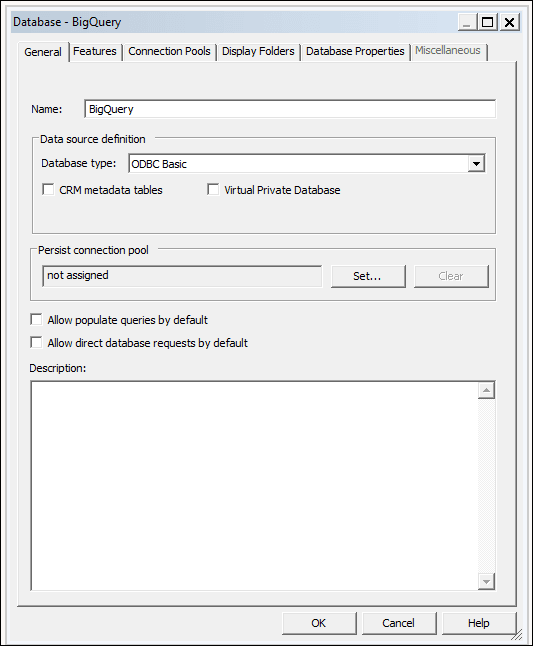
- In Model Administration tool, create a database in the repository and set the Database type to ODBC Basic.
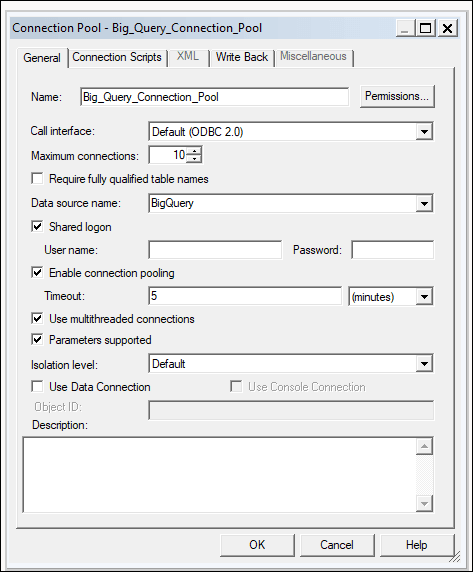
- In the Connection Pools dialog, create a connection pool in the database.
- In Call interface, select "Default (ODBC 2.0)".
-
In Data source name field, select the BigQuery ODBC driver that you created earlier.
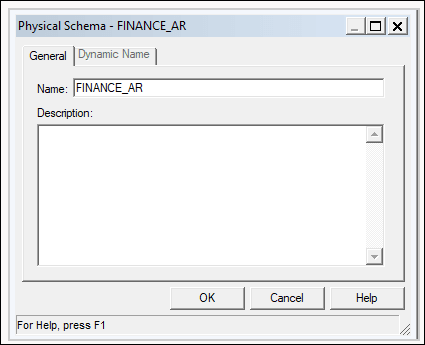
- Create a physical schema in the database using the same name as the BigQuery dataset.BigQuery SQL requires that the dataset name prepend the table name, dataset.table. The dataset name is equivalent to a physical schema object in the repository file.
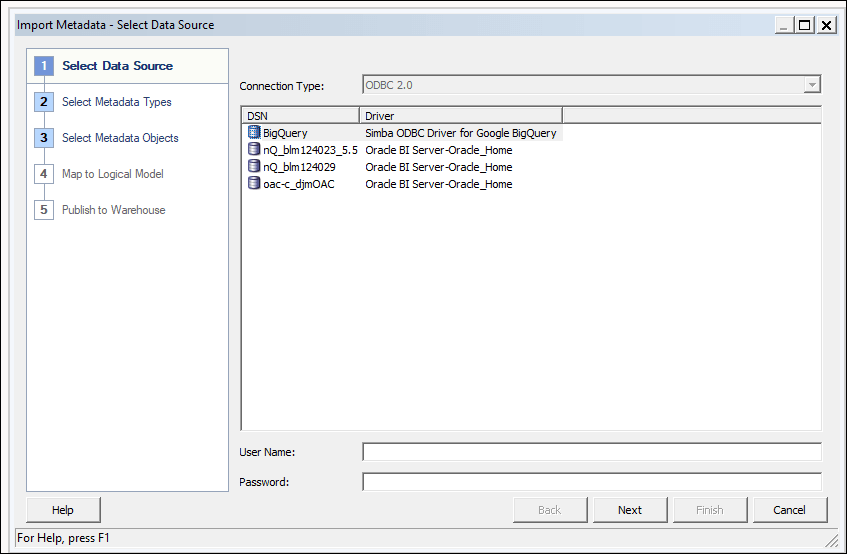
- On the Select Data Source dialog, select either ODBC 2.0 or ODBC 3.5 for the connection type, and select the BigQuery ODBC driver.
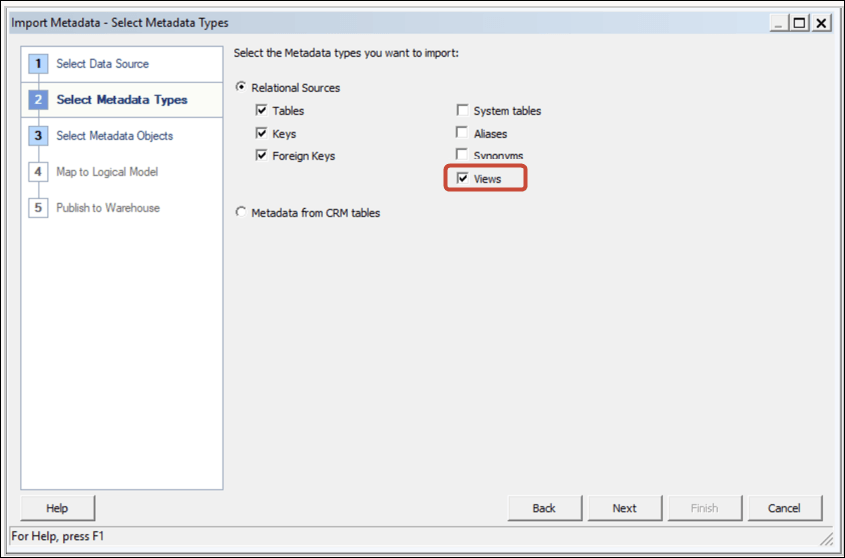
- On the Select Metadata Types dialog, select Views and any other types you want to use for which your BigQuery key has permissions.
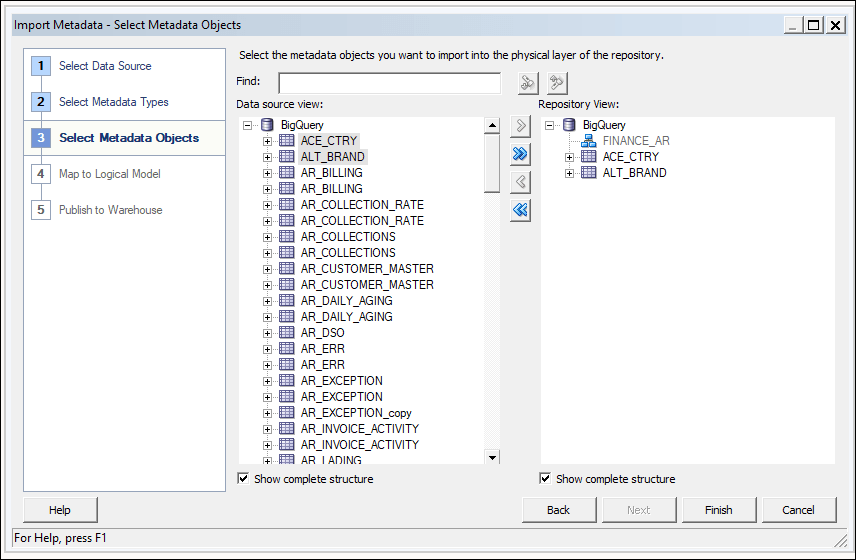
- On the Select Metadata Types dialog, select the individual tables and then click Import Selected. This imports the BigQuery database and the underlying structures. If you click Import All, you import only the database. If this happens, select Import All a second time to import the tables.
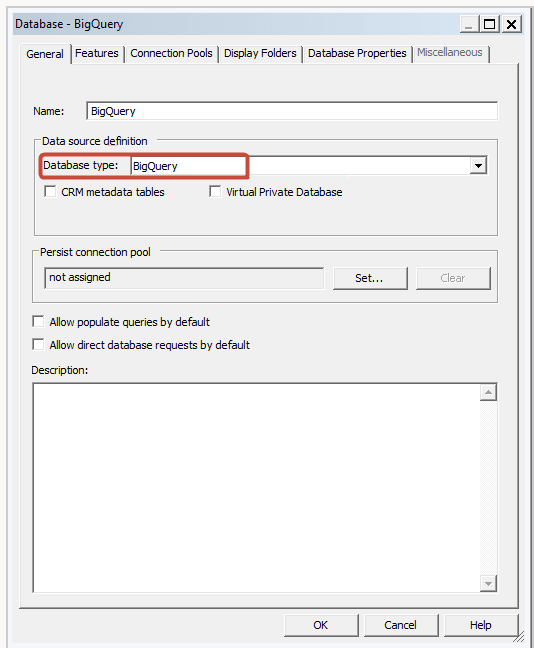
- Edit the physical database and change the database type to BigQuery.
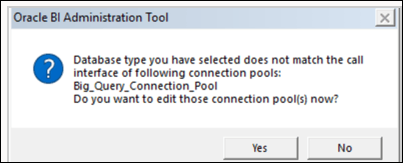
When changing the physical database, you see a message that states that the database type doesn't match the call interface set in the connection pool. Click Yes.
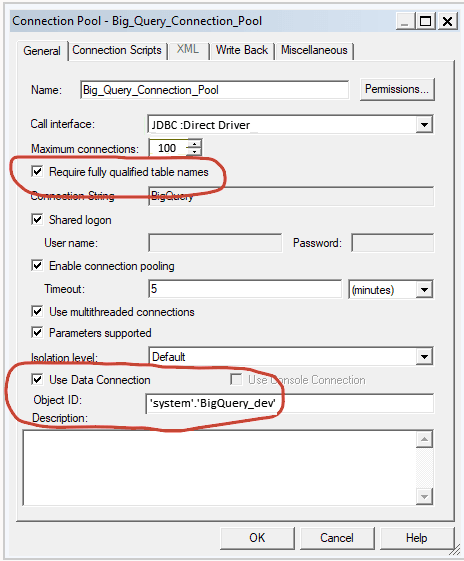
- In the Connection Pool dialog, configure these settings:
- In Call interface, change the call interface to JDBC (Direct Driver).
- Select Require fully qualified table names.
- Select Use Data Connection.
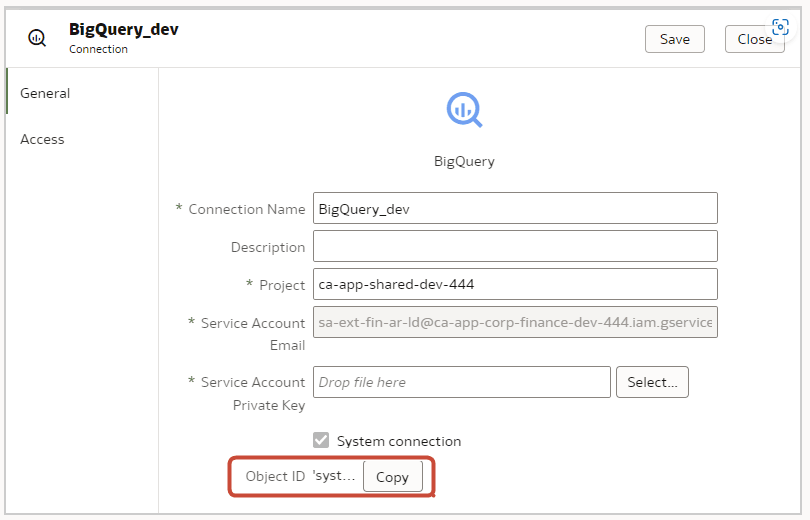
- In Oracle Analytics, inspect the BigQuery connection and copy the Object ID. BigQuery is case-sensitive. To ensure that the data connection syntax is correct, use the Copy button.
- In the Connection Pool dialog, paste the copied Object ID into the Object ID field.
- Set Maximum connections to 100.
Model the metadata in the repository and upload the repository file (RPD) to Oracle Analytics.