Connect to Oracle Analytic Views

You can create a connection to Analytic Views in Oracle AI Database to access data, model data, build a dataset, and visualize data.

Dataset authors can use this connection type to consume Oracle Analytic Views data, including multi-dimensional objects, without having to understand the complexities of Java database connectivity (JDBC).

  1. On your home page, click Create, then click Connection.
  2. Click Oracle Analytic Views and enter the connection details.
    • For Connection Type, select Basic to connect by specifying Host as an Internet Protocol (IP) address, Port, and Service Name for Oracle AI Database. For example, Host = <IP address>, Port = 9018, and Service Name = PDBORCL.
    • Alternatively, select Advanced to connect by specifying a Connection String. For example, (DESCRIPTION =(ADDRESS_LIST =(ADDRESS = (PROTOCOL = TCP) (HOST = <IP address)(PORT = 9018))) (CONNECT_DATA = (SERVICE_NAME = PDBORCL)))
  3. If you want data modelers to be able to use these connection details, select System connection. See Database Connection Options.
  4. Under Authentication, specify how you'd like to authenticate the connection:
    • Always use these credentials - Oracle Analytics always uses the login name and password you provide for the connection. Users aren’t prompted to log in.
    • Require users to enter their own credentials - Oracle Analytics prompts users to enter their own user name and password for the data source. Users can only access the data for which they have the permissions, privileges, and role assignments.
  5. Click Save.
    You can now create datasets using the connection and build workbooks.
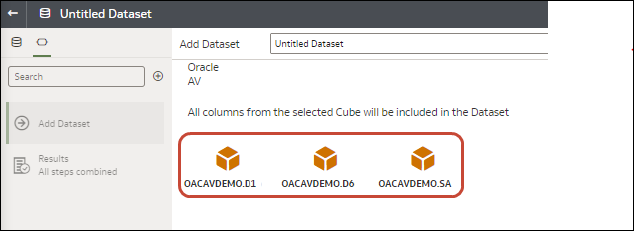
When you create a dataset using the connection, select one of the cubes listed in the database. Then build a workbook using that dataset and start visualizing your data.